You’ve heard of UGREEN before – we’ve reviewed their power banks, chargers, and docking stations. One thing we’d not investigated was their NAS, or Network Attached Storage devices. A NAS can be used for a massive variety of applications, not the least of which being storage and backup, but UGREEN seems to be looking to do a lot more with their DXP4800 GT. A well-equipped four-drive NAS solution, with gear under the hood that punch far above this little device’s weight. With a market heavily dominated by the likes of QNAP and Synology, can this newcomer make a dent? Time to find out.
UGREEN hasn’t just launched a single drive, but an entire array (enjoy that pun) of them to match consumer need. If you want a simple backup solution, able to withstand a drive failure, but don’t need to run much on it beyond the software to secure your data, then the UGREEN NASync DH2300 or 4-bay UGREEN NASync DH4300 Plus might be exactly what you need. It’s significantly cheaper than a cloud backup solution, can run a basic video server, and you retain full control over your files and data. Both are solid entry-level devices, but with a bit of work, your NAS can do so much more.
Jumping up a level, you’ll find the “prosumer” level NAS solutions from UGREEN. These range from the 2-bay UGREEN NASync DXP2800 up to the eight bay DXP8800 Plus for spinning disk solutions, but pop even higher up with the DXP480T Plus – an all flash NVMe system for when you need the most performance possible. Just before you make that leap to all flash or 8-bay extreme amounts of storage you find the subject of this review – the UGREEN NASync DXP4800 GT.
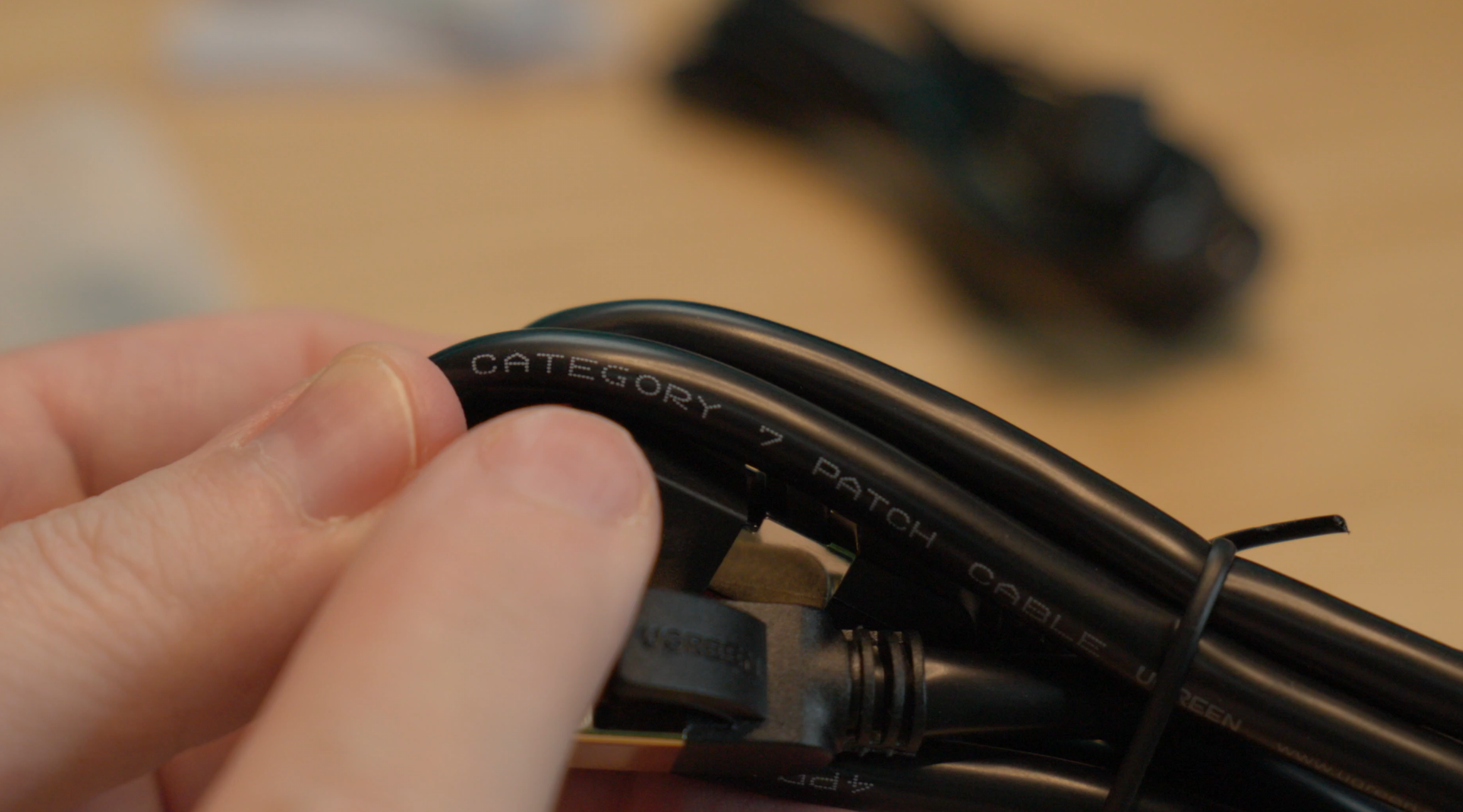
Unboxing the DXP4800 GT NAS won’t take you long, as you might expect. Inside the box you’ll find the drive system itself, and an accessories box. The NAS is empty – all of them are as you’ll need to supply your own media, and inside the accessories box you’ll find an HDMI cable for direct local connectivity, a pair of 10Gbps Ethernet cables, drive mount screws, and the power cables. Underneath all of this is a power brick with a dogbone-style connector to allow you to swap out the power cable for a longer one, and a barrel connector on the other end to power the NAS. You’ll also find a screwdriver, two keys for the drive bays, the warranty card and quick start guide, and finally a pair of silicone cooling pads for your NVMe drives.
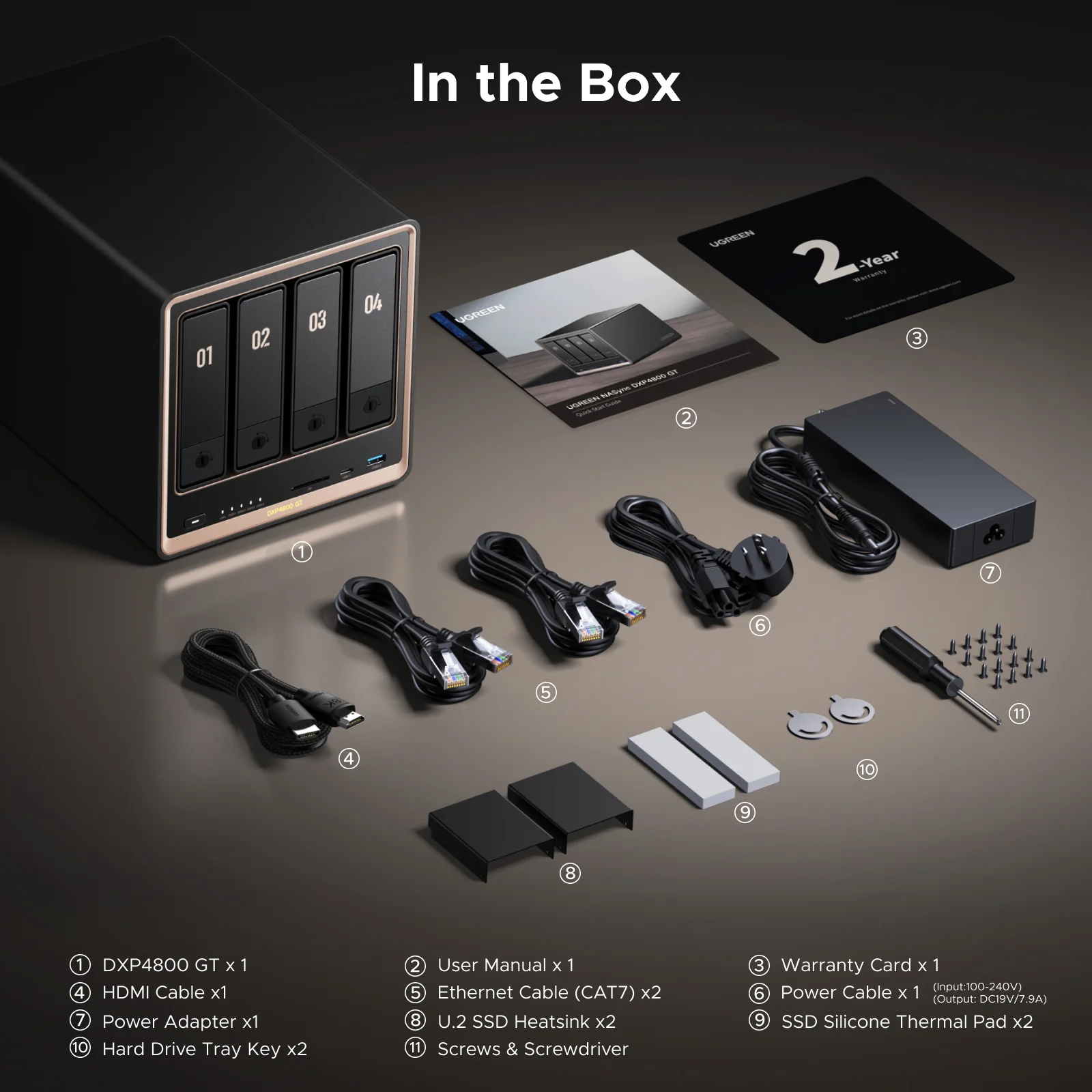
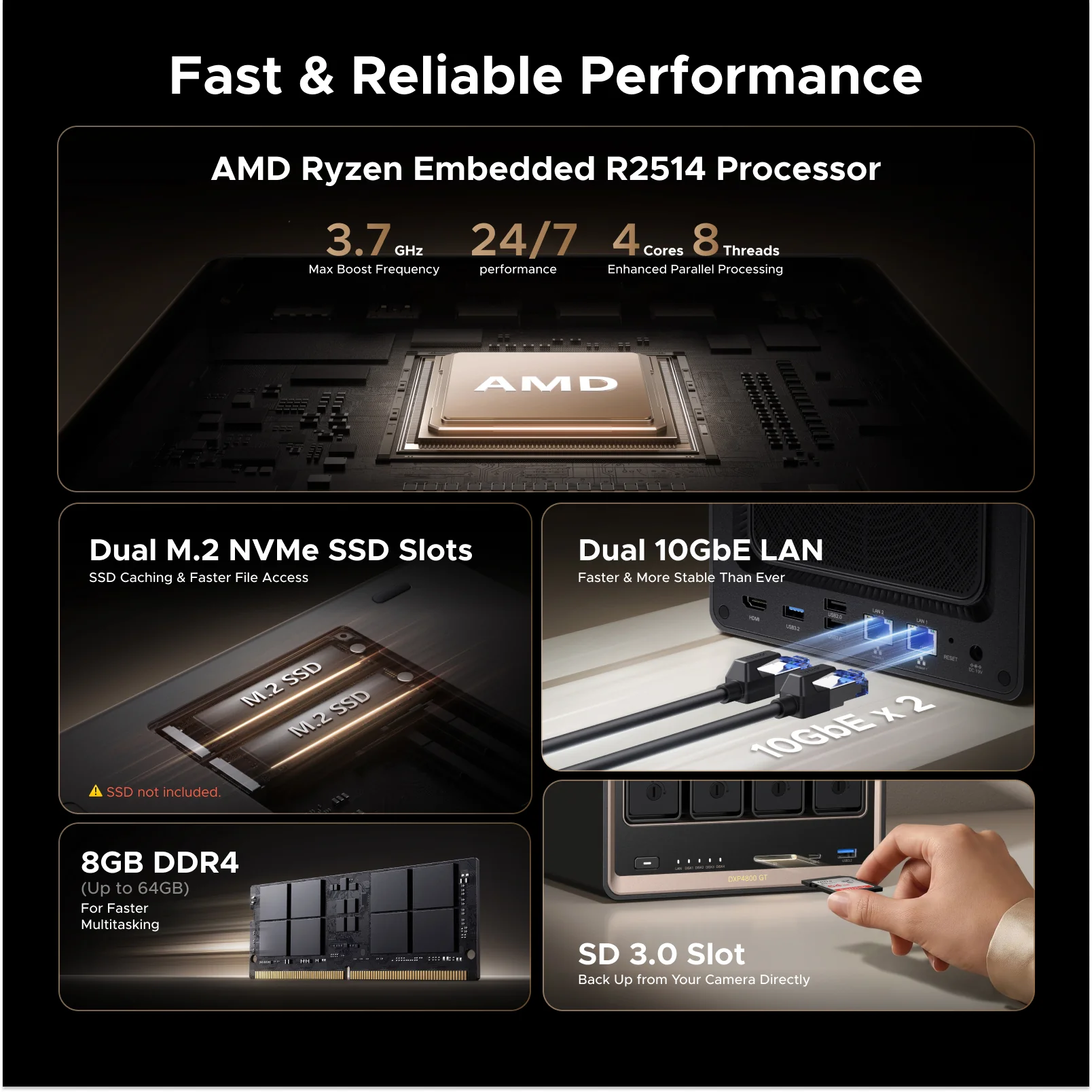
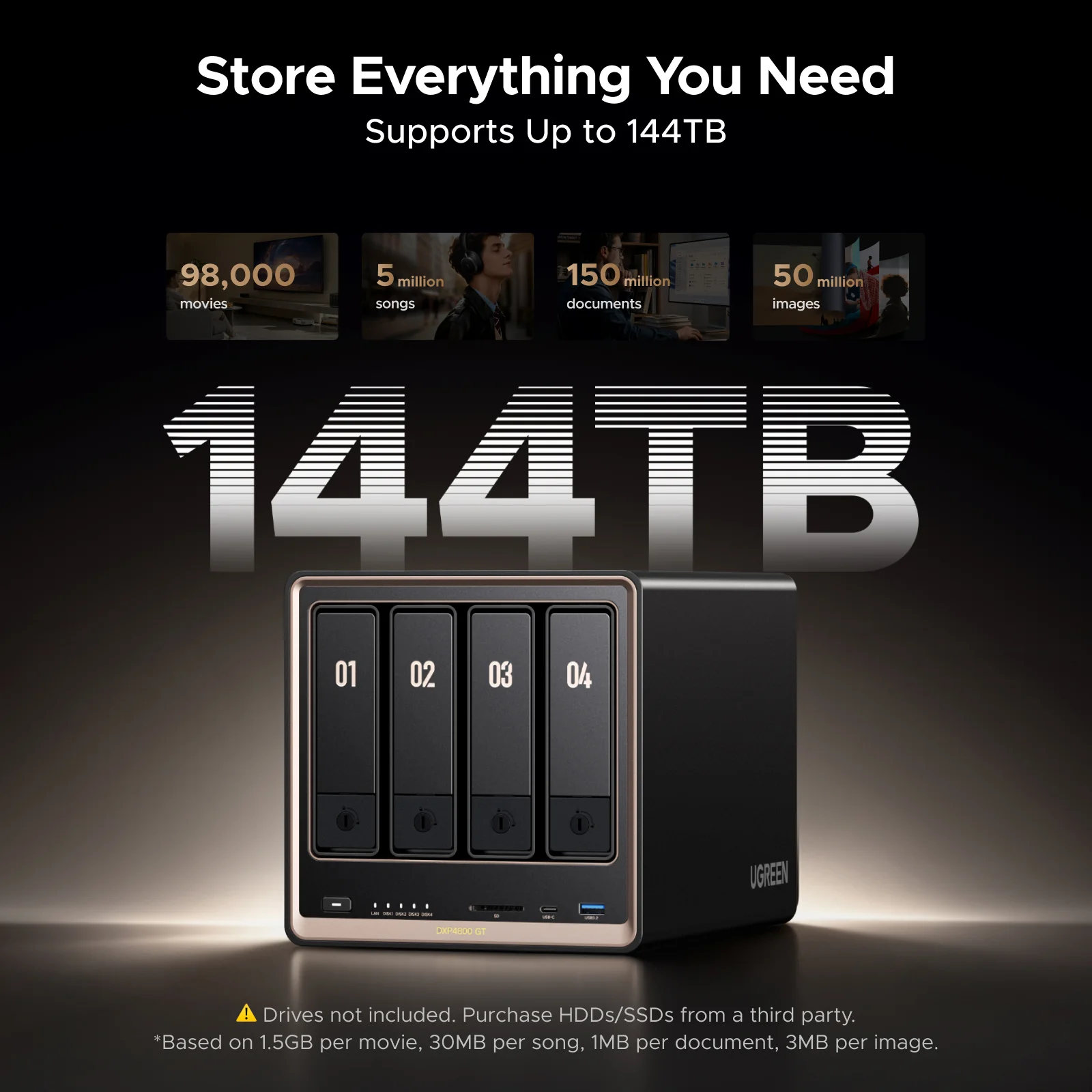
The NAS itself is a good looking mixture of blacks and greys, with a metal chassis and a handful of lights and ports up front. The bays are clearly marked in black on light grey (thank you – no black on black!) with small locks to keep them secure during operation. Below the four drives is a full-sized SD card 3.0 reader, a USB-C port, and finally a USB-A 3.2 port, both 10Gbps. Heading around back, you’ll find two RJ-45 ports – both delivering 10 GbE. That means, provided you have the push on the other end, you can transfer 1250MB/s, and with both connected, you do it with full redundancy. That’s more than 10 times the max speed of most NAS devices on the market. I don’t know the cost difference between the standard 1 GbE or 2.5 GbE ports you find on most devices and the 10 GbE on this one, I just know that it throws data around my network very, very quickly and I love it.
The HDMI port was a surprise, with the fact that it is also 4K at 60Hz being even more surprising. It’s useful for initial configuration or troubleshooting should you be unable to reach the device via your network.
The cost of drives of any kind is absolutely insane right now. The larger the drive, the more that price is going to be intolerable. It’s here that a NAS can be very helpful as they can have a multiplicative effect. Let’s take a moment and talk about RAID. RAID stands for Redundant Array of Independent Disks – an evolution over the original 1988 definition of "Inexpensive Disks”. That change was to recognize that these systems have evolved with the rise of virtualization, logical unit cohesion, fault tolerance, and far more. In this case, UGREEN has built this NAS around it completely, supporting 0, 1, 5, and 10. Let’s talk about what RAID does, and then we’ll talk about why you’d use them.
RAID 0 is better known as “striping”. It’s built around maximum performance, splitting the data writes and reads across all drives. In this case, it’d write across each drive, spreading the data evenly – Block 1 goes to drive A, Block 2 goes to drive B, and so on. This data splitting means all drives are working simultaneously, giving you significantly faster read and write performance. It also means you get full capacity out of all drives. If you feed this system four 2 TB drives, you get 8 TB of space. Unfortunately, it also means there is zero redundancy, and if a single drive is lost, all data is unrecoverable. Dangerous but fast.
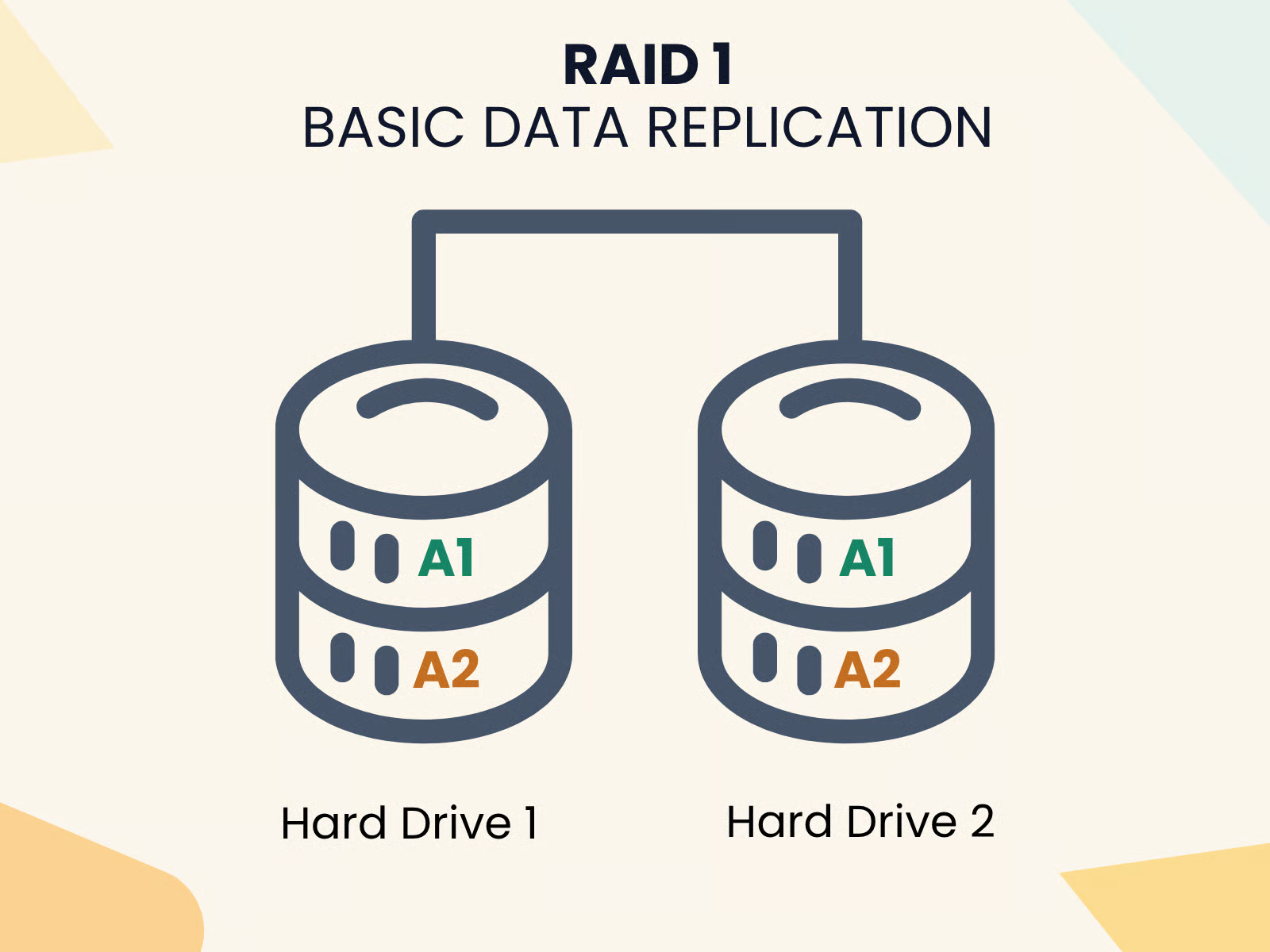
RAID 1 is better known as “Mirrored”. It means all data is divided up in pairs – a mirror of each other. Drive A mirrors its data with Drive B, and Drive C mirrors with Drive D. That means you end up with two separate RAID 1 arrays, and using our four 2 TB drive scenario, that means you’ll have one pair of drives as a single array as A and another pair of drives as a single array – B. It also means you get full capacity, but single drive failure redundancy, as long as they are not in the same array. Given that it’s mirroring, however, you get half capacity – 4 TB in this case.
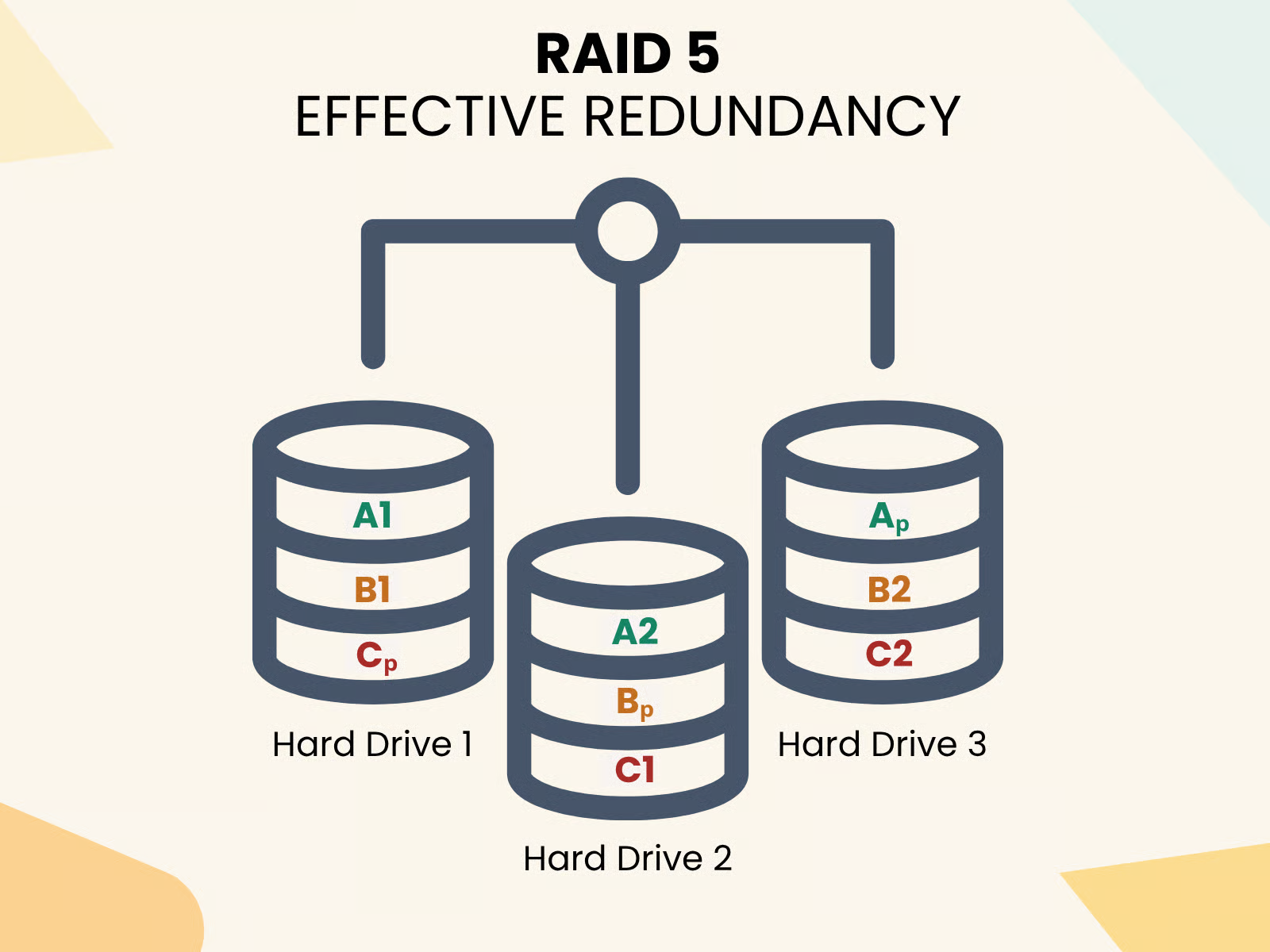
RAID 5 is “striped and mirrored” – the combination of 0 and 1, and the best balance of speed, capacity, and fault tolerance. It’s also the most commonly used as it allows for a single drive to fail while the entire array stays online. When the faulty drive is pulled and replaced, the data is reconstructed on the fly using parity. Sure, performance takes a hit while that happens, but the world continues to rotate for your users. For the same four 2 TB drives, you end up with 6 TB of space as a cost for that redundancy.
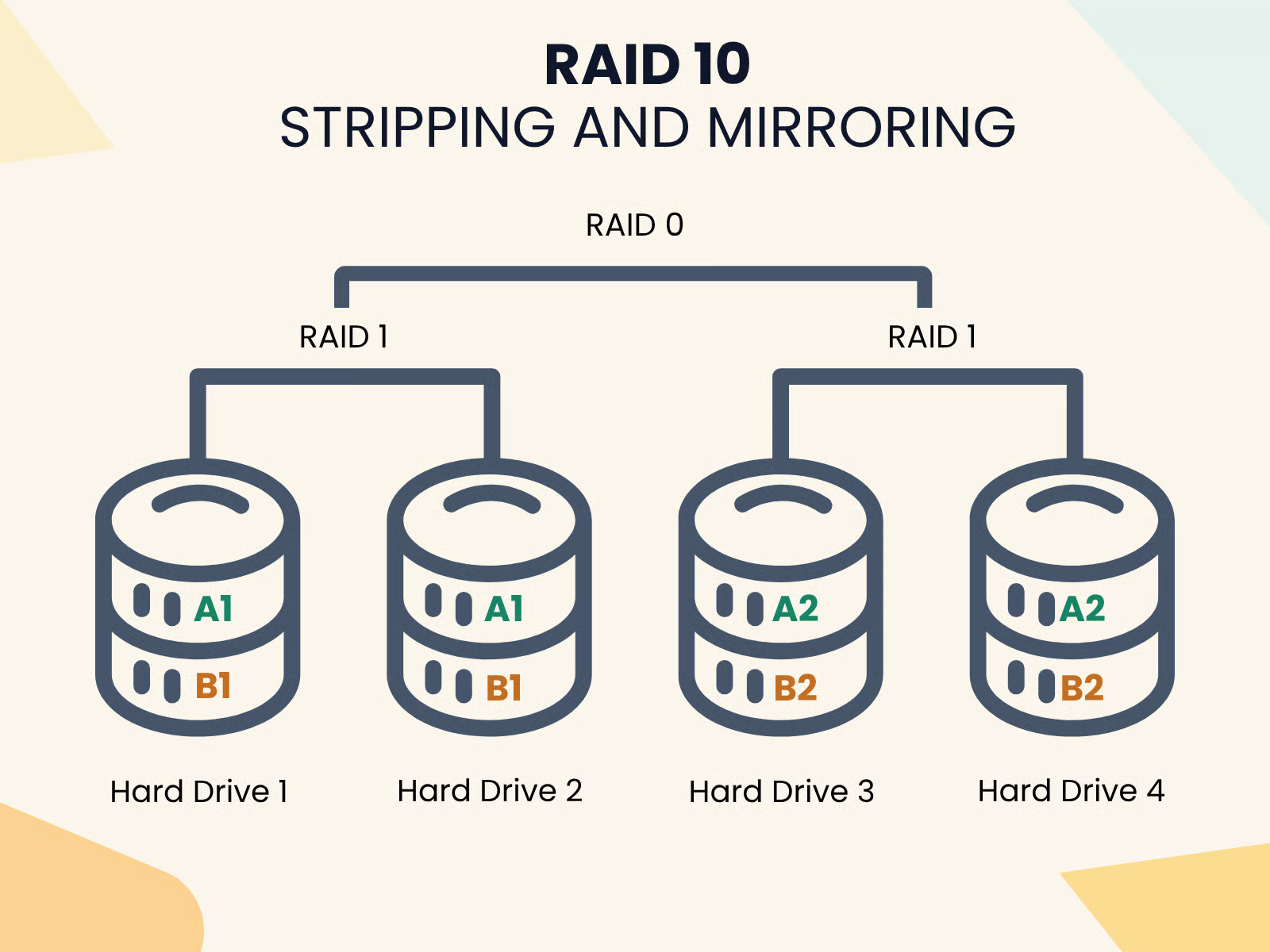
RAID 10 is “mirrored and striped” – it’s RAID 5, but inverted. It requires four drives, provides the best performance and redundancy. With four drives, RAID 10 creates two mirrored pairs, just like in RAID 1, and then stripes the data across those pairs, just like RAID 0. You get the redundancy of mirrored systems (within the pairs) with the speed of striping. The same rules apply – you can’t lose more than a single drive in a pair, but in specific use cases it might be the right choice. It also, however, has the same space limitation – you’re getting 4 TB of space here.
There are two more types of RAID to know about – Hybrid and RAID 6. Hybrid allows the mixing of drive sizes, meaning you can use two 2 TB drives and two 6 TB drives together. Without it, the array uses the lowest common denominator (2TB in this scenario) wasting all of the extra space in the bargain. In this example. you’d have 8 TB of space, not 16. With Hybrid, the system allows for mixing and matching, making use of all available space with some clever tech behind the scenes. Unfortunately, UGREEN’s UGOS does not support Hybrid mode, so you’ll need to know that if you intend to use dissimilar sizes. The other array type is RAID 6. When you start building larger arrays, above 10TB in size, the time to rebuild an array starts to extend dramatically – even into days. This thrashing on the other drives to rebuild it can lead to a second failure, which would cause a total collapse of all data. RAID 6 instead has two parity blocks, meaning it consumes two drives to ensure that two drives can be lost and rebuilt without losing the entire array. It delivers read speeds on par with RAID 5 due to striping across all disks, but thanks to the parity calculations needed to place data redundantly, write speeds are slightly slower than RAID 5. That said, that same double parity means a much lower risk of catastrophic failure during rebuild. That brings me to capacity. The catch? You need more than 4 drive bays to pull this off – at least 6. That’s where larger systems like the 8800 series come in, but that’s a conversation for another day. Let’s talk about capacity.
When we talk about total capacity, the UGREEN NAS solutions deliver that in a big way. The DXP4800 GT supports up to a whopping 144TB of total capacity. That’s support for four 36TB drives! Granted, a 36TB drive, at the time of writing, will cost you roughly $1300 for each one, so a total of $5200 to fill this up. Couple that with the warning I just gave you about rebuilding large arrays, and you start to wonder if you really need that much capacity, or if it’d make sense to jump up to a larger array like the 8800 model, with smaller drives, and more of them. The answer to that, by the way, is “yes”. When we talk about PLEX this will matter.
Underneath the NAS you’ll find a plate with two screws. Removing the plate, you’ll find a pair of M.2 NVMe (PCIe Gen3 x2) slots. These are entirely optional to use, but you can load them up with NVMe drives to provide high-speed cache. This cache speeds up access and write, allowing you to pull data in and out more quickly into high speed storage, which is then drained into the slower storage at its specific read and write speed. An NVMe at this spec can throw around roughly 2GB/s, whereas a hard drive at 7200 rpm will hit around 130 MB/s – a stark difference. If you’re finding that buffering or slowness is a problem, this is likely going to solve it rather quickly, if you’ll excuse the pun.
Now that you have an idea of what types of drives this supports, and when you’d use them, let’s talk about what powers it all. Realistically, you don’t need a top-flight processor to drive a NAS, but you do need power to handle specific workflows. Being a storage environment is remarkably low on the processing power scale, but when you want to do more, you need both power and RAM. The UGREEN DXP4800 GT is a 12th Gen 5-core Intel processor – specifically a 4.4 GHz, 5 core, 6 thread CPU. That matters because most manufacturers are choosing the cheaper Celeron N5105 processor for cost, but the tradeoff might bite you when you least expect it.
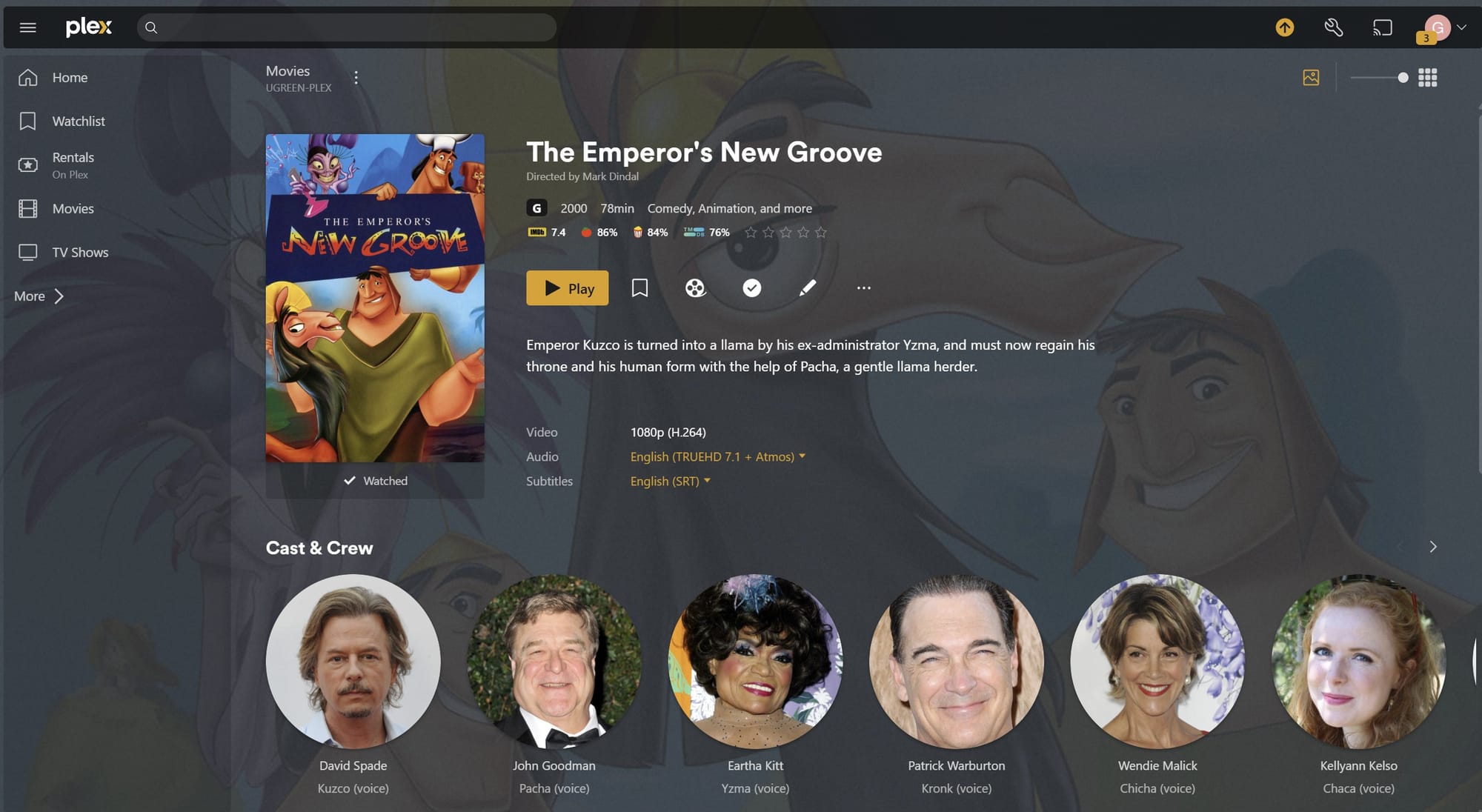
To test out the DXP4800 GT, I wanted to try to solve a problem lots of folks who run their own media servers hit – transcoding. Whether it’s not enough power to run Plex Media Server or Jellyfin, or the programs and processes that surround it, a Celeron-powered NAS can run into issues where you’ll go to play a file and be greeted by “server is not fast enough” messages rather than your favorite show or movie. In this case, your GPU, CPU, or both are not strong enough to perform what’s called “transcoding”.
Transcoding is the process where digital media is converted from one encoding format to another. Encoding formats can be h.264 (aka AVC or MPEG-4), DivX (Digital Video Express - a discontinued digital video format partially created by Circuit City (yes, that Circuit City) as a sort of destructible rental encoder format), .avi (Audio Video Interleave - a Microsoft-backed format that was meant to not require special drivers or tools), and many more. These formats are typically well tolerated by the devices that use them, but occasionally you run into an issue where a device or program refuses to play the media. At that point you either get a refusal to play, or your device might attempt to transcode. Transcoding converts from one type to the other by decoding back to the original file in an uncompressed intermediate state, and then re-encoding it into a new format, resolution, bitrate, or all three. Transcoding is critical for services like Jellyfin as you’re often dealing with a mixed bag of media. The device hosting and serving the media has to perform this encoding in real-time to allow the viewer to watch their media, or it has to be transcoded in advance. If things go well, it’s invisible to the user, but if it doesn’t, you typically either see the “server is not fast enough,” or it’ll play for a single second, and then stop. Either way, it’s frustrating, and you’re stuck – there’s no upgrading a GPU or CPU on a NAS. The 12th Gen processor shines here as it’s a staggering 219% more powerful than an equivalent Celeron.
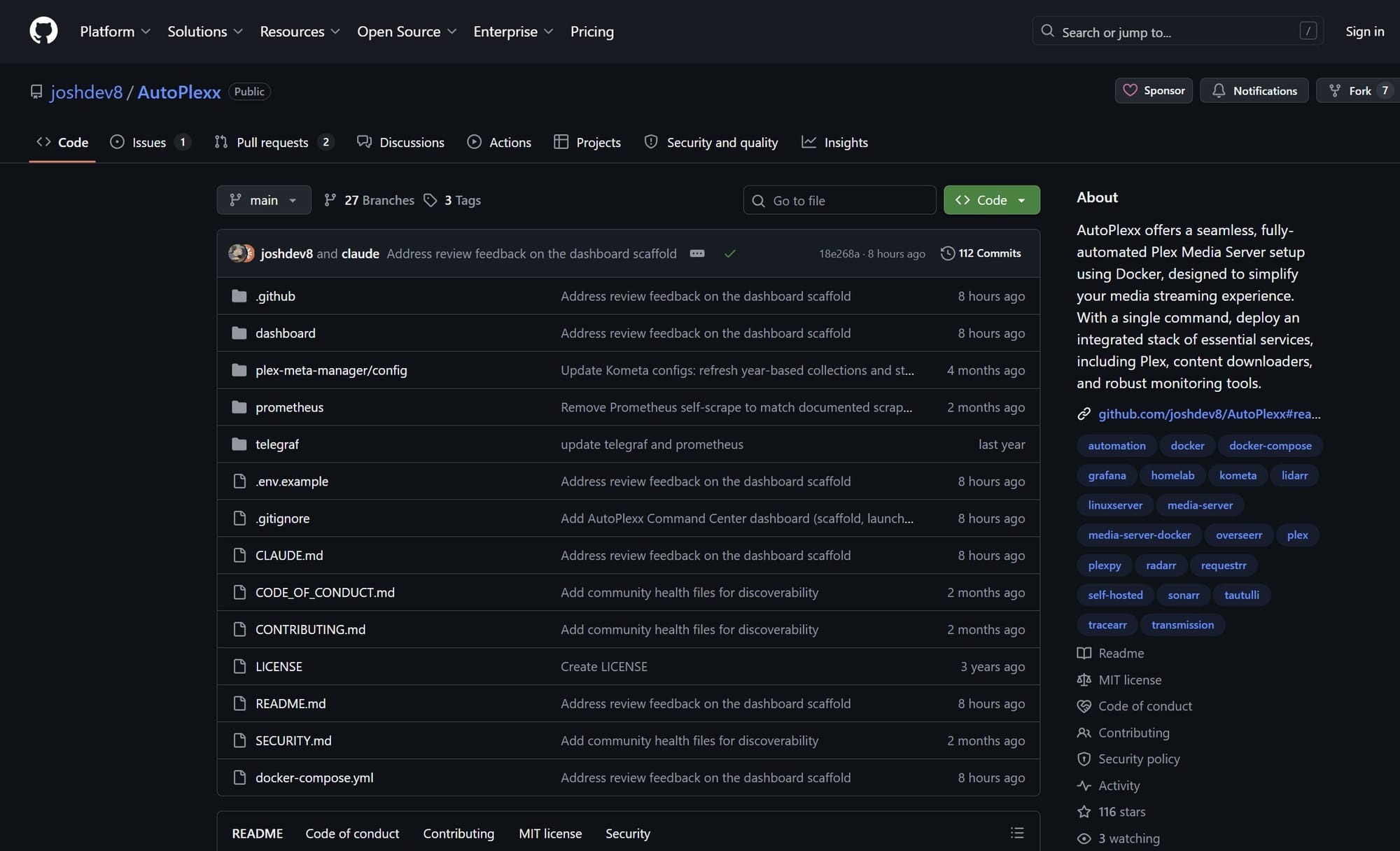
Running Plex is one thing, but running all of the things that surround it as well can tax a device. If you’re serving media with Plex, you’re probably pulling in shows with Sonarr, movies with Radarr, monitoring services with Tautulli, pulling in subtitles with Bazarr, taking requests with Seerr, with other items like Decluattarr, Checker, Cleanarrr, and more to run your entire video empire. Running all of those services simultaneously will push a device to the limit, but I wanted to get as many of them running as possible to simulate what that might look like.
Building out Autoplexx is meant to be a click-and-run event. It’s not quite as simple as all that, but setting up the DXP4800 GT couldn’t have been easier. Making things simple, I fired up Portainer (which installed in a single click) and then started working through getting Docker rolling. Once I had that built out, it was about an hour’s worth of concentrated effort to work through the particulars of AutoPlexx to get it all tied together. At the end, I had a through line whereby a user could request something on Seerr, have it approved via Discord ping, automatically push it to the correct service (Radarr or Sonarr), requested via an Indexer, pulled via SABnzbd, pulled into Plex, indexed and renamed, placed into the appropriate folder, and loaded with subtitles with Bazarr without a single bit of administration. That media was then available to users to watch. The next question was about performance.
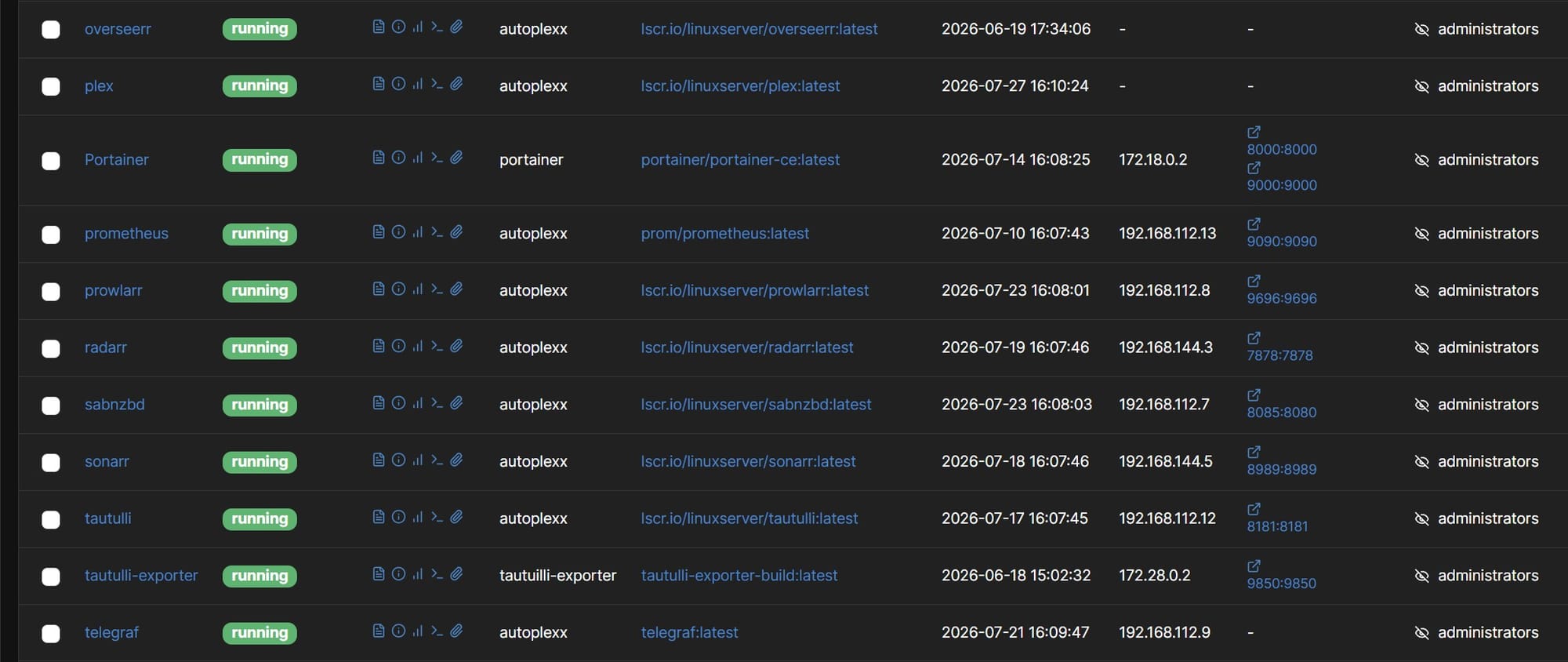
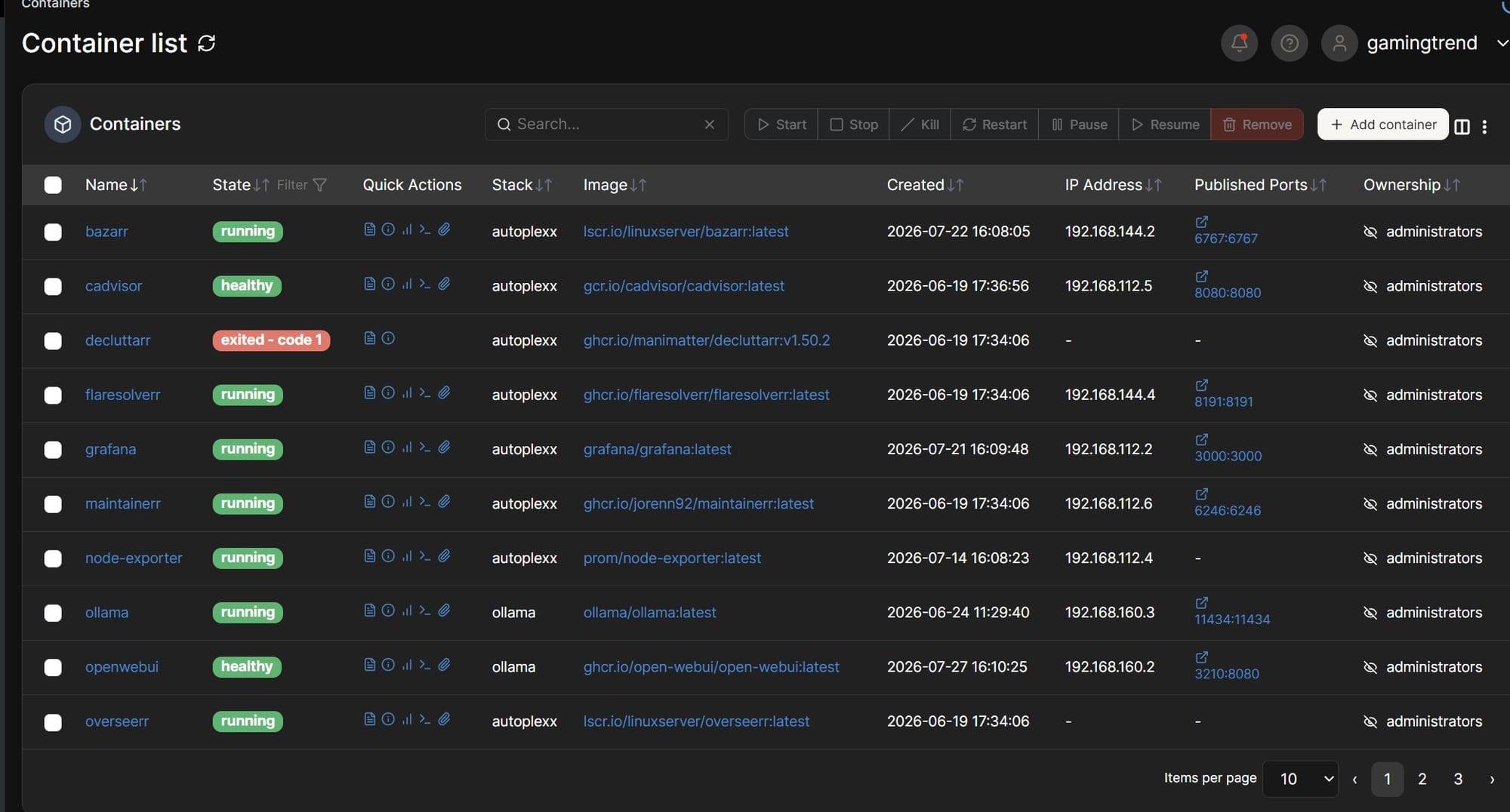
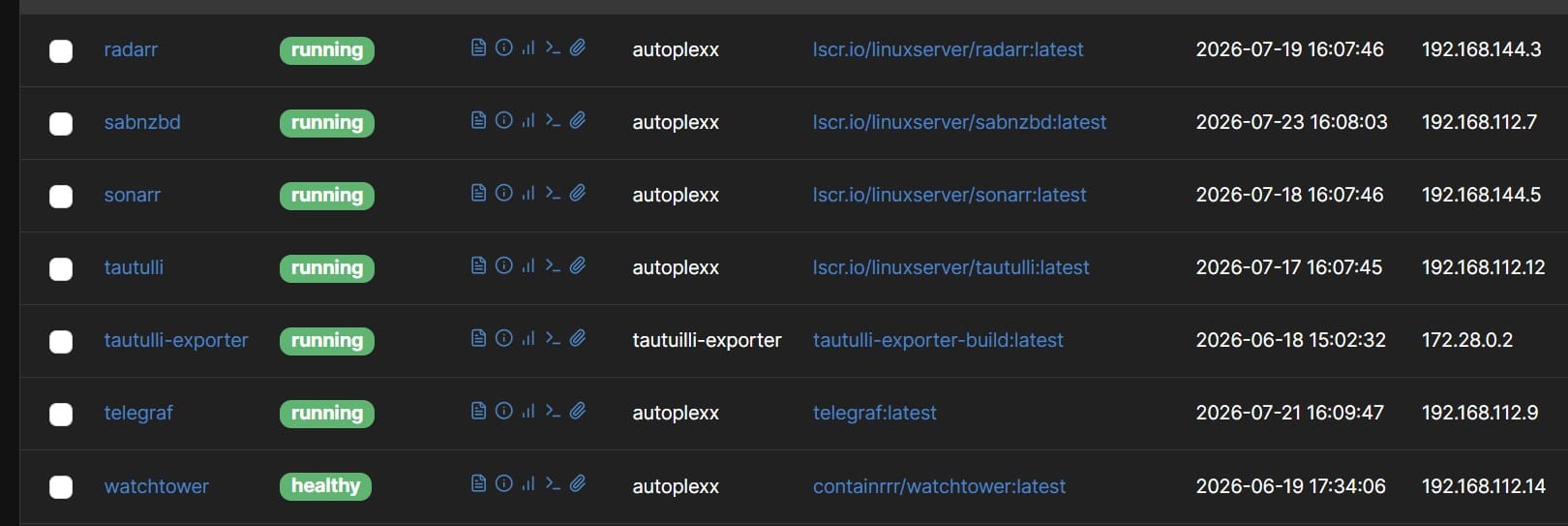
It'll take a bit of time, but yes -- you can have ALL of this and much more running on this NAS.
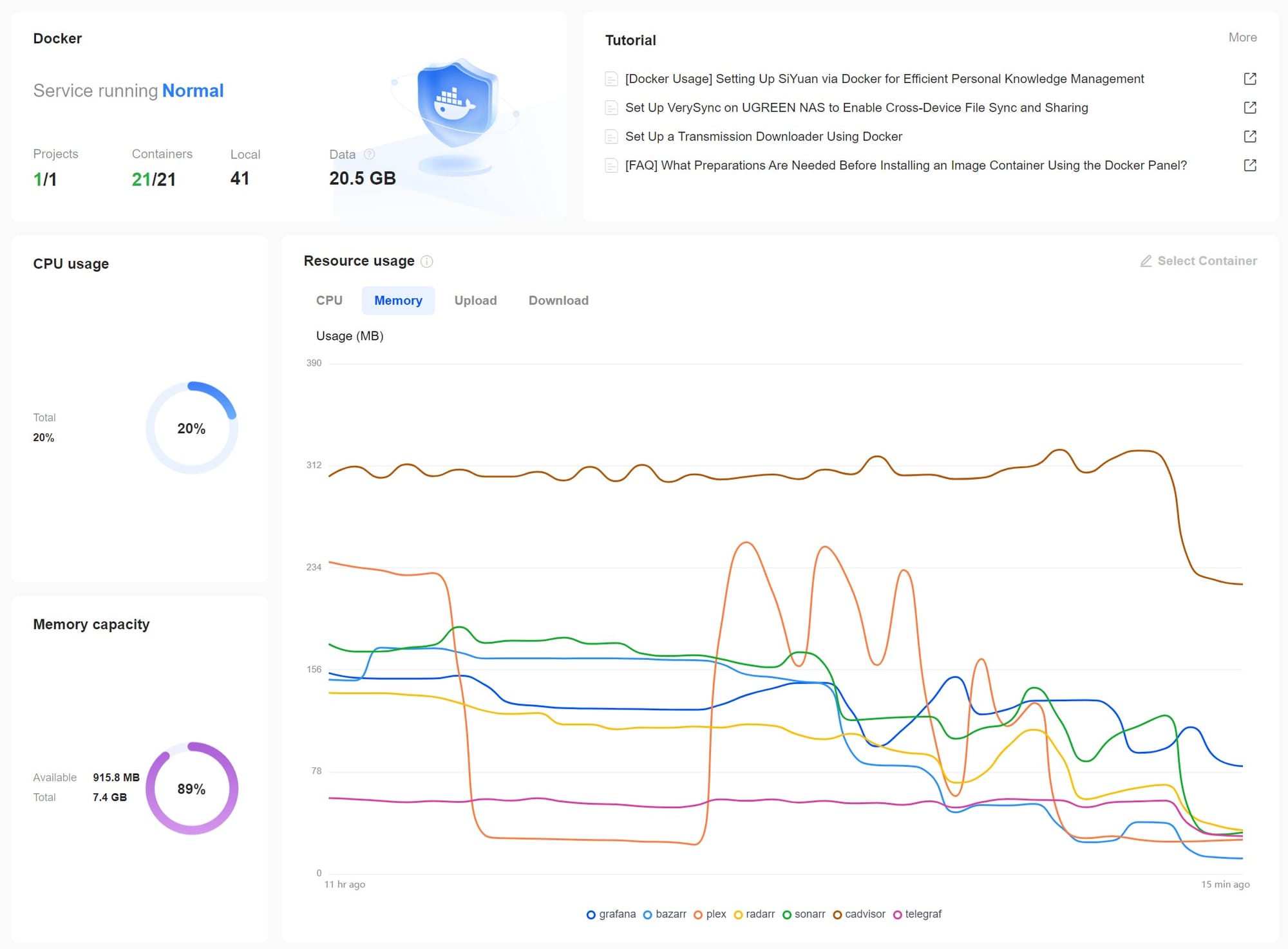
If you’re running a media server for multiple people, you probably want to know that their experience is good and that it’s not redlining the device. To that end, I installed Graphana and Tautulli to keep an eye on things. The results speak for themselves:
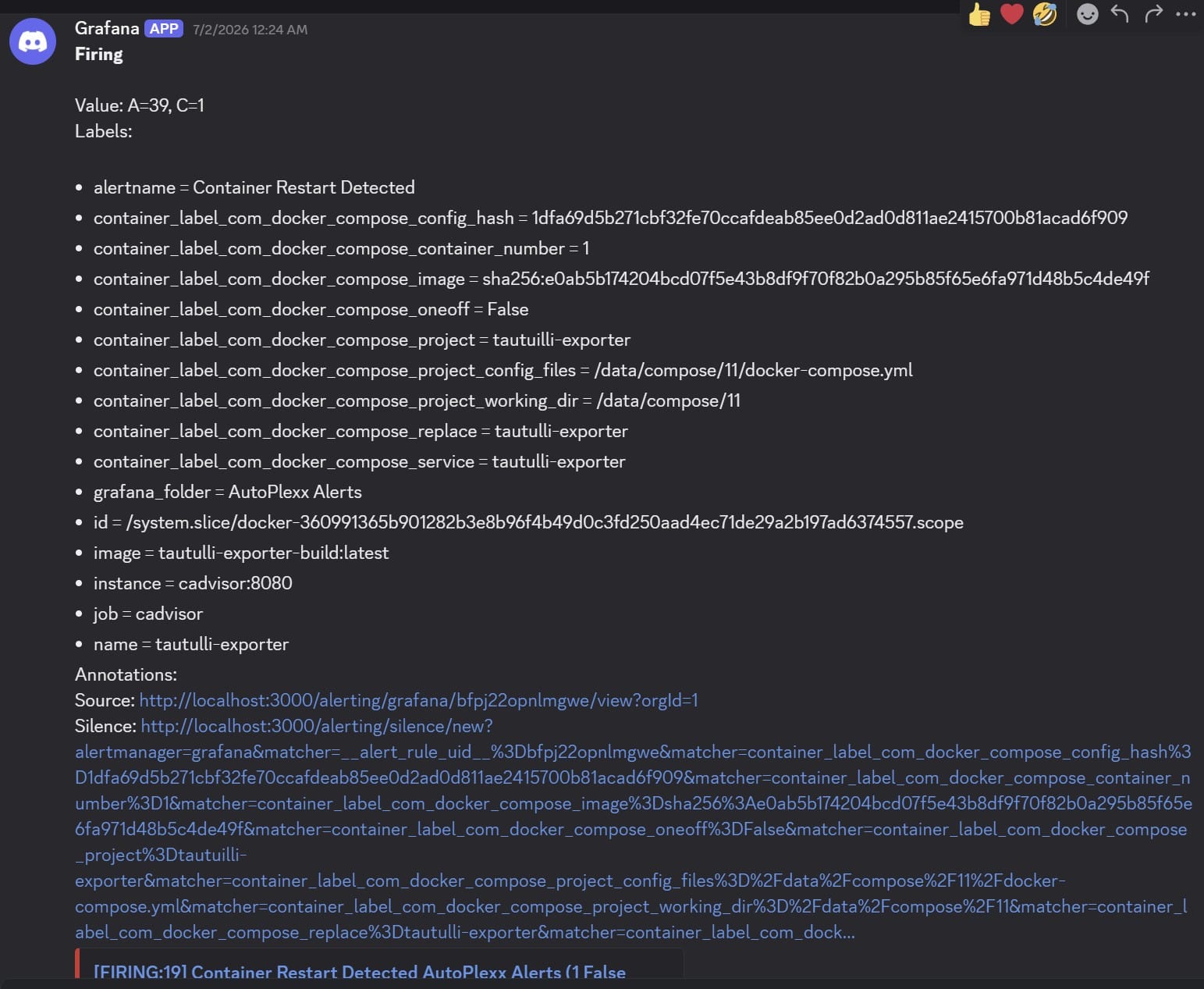
As you can see, despite just about everything I could throw at it running simultaneously, the DXP4800 GT had juice to spare. When I say “this product punches above its weight” – this is what I mean.
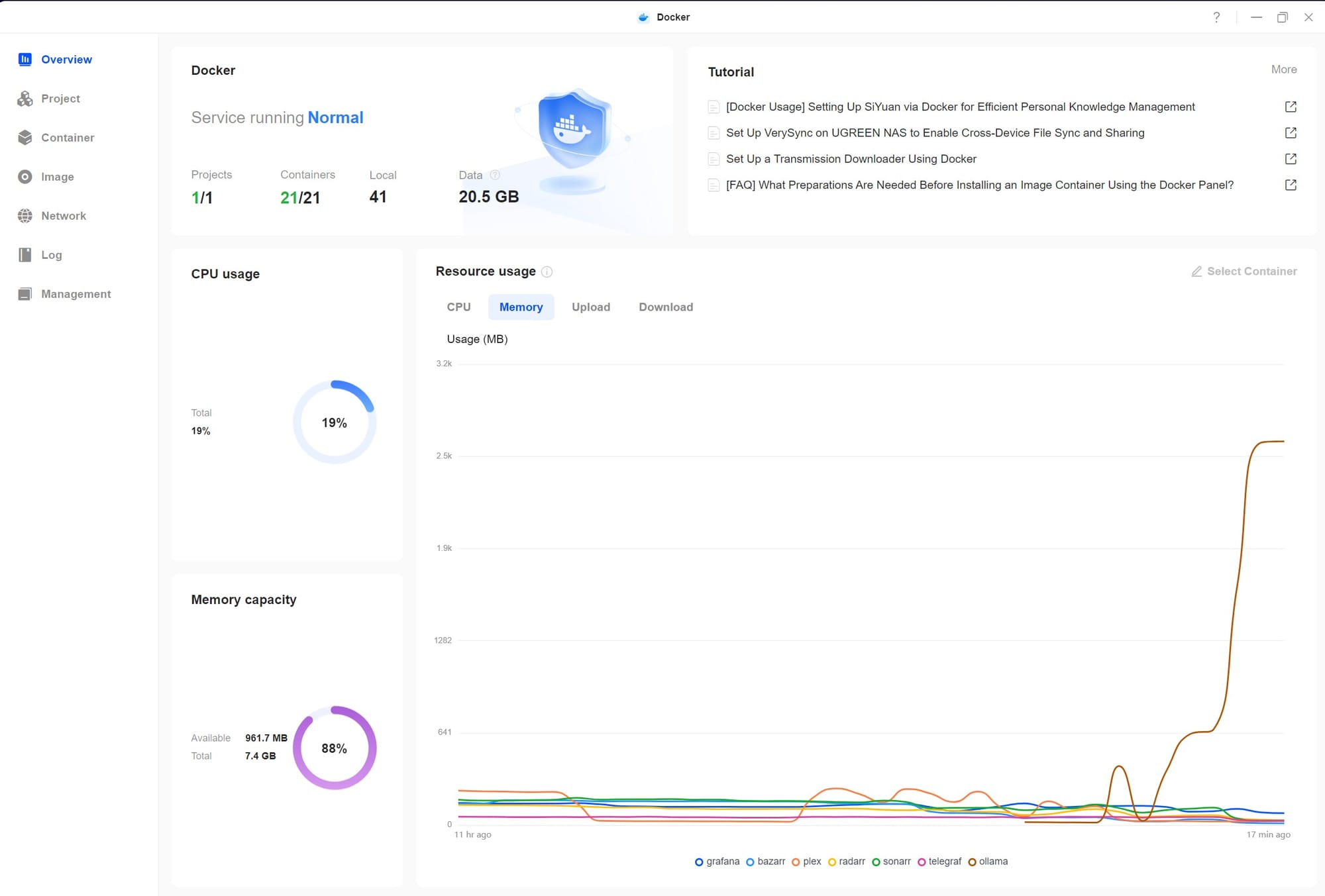
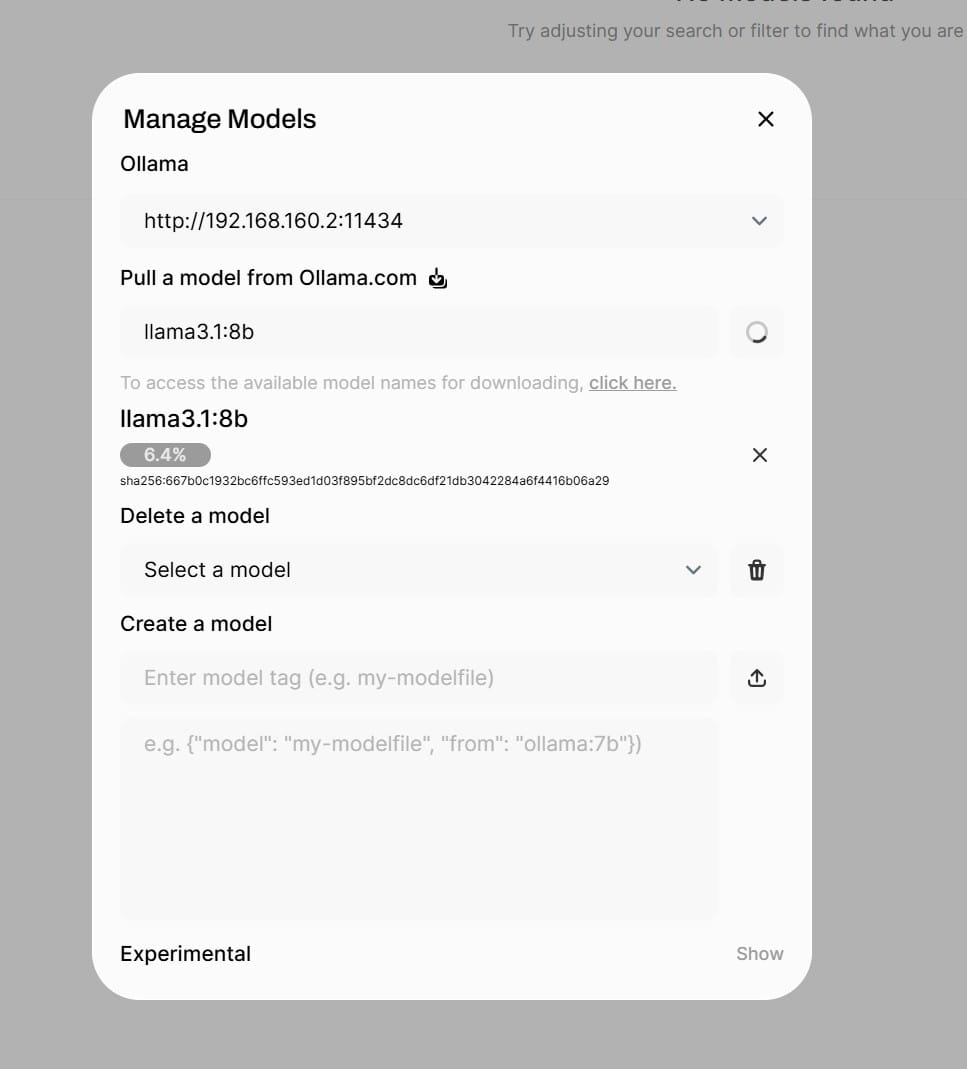
Seeing that the device could handle just about anything I could throw at it, I wanted to see what it’d take to tip it over. I loaded a local LLM, or Large Language Model. LLMs are what’s needed to train AI and have it deliver results back. You’d need a reason to run your own LLM, but once you see them, it makes perfect sense. People fling their personal and confidential data into AI without thinking about the fact that it’s now in somebody else’s hands, and you no longer have control over what they do with it. Sure, they might say they’ve deleted it, but you might find out differently when you see your data appear in a breach. With a local AI, you can be sure that the data stays local, processed and retained on site, and without any third party access. Additionally, it provides a completely offline AI that works in total isolation, making it useful in remote locations where reliability is important, but connectivity is spotty. The other two advantages of a local AI are cost and performance. Provided your hardware can keep up, you’ll find that local execution is faster than anything you find online. Real-time applications such as voice assistance, image processing or generation, or even AI-coding tools can be powerful (regardless of ethical implications), but they can also be very slow. On-site execution means you can run them not only quickly, but they also don’t cost you “credits’ each time you do so. Let’s punch a hole in the idea that AI “saves money”.
Generating a 6 second funny cat video will cost you about 600 “credits”. 1000 credits will set you back, on average, $9.99. That cat video is probably funny, but the cat might have extra limbs, or you want to refine the dancing or whatever. You run it back through the refiner and attempt to corral the behavior. 600 credits later, and now the motion is worse, the cat’s look transforms mid-animation, or some other oddity. You try to correct it back, another 600 credits spent, and suddenly the cat doesn’t move anymore, the camera simply pans from bottom to top, and then stops. The model has collapsed, is unrecoverable without a full reset, and you’ve spent $80 or more on a stupid cat video. Local models have the cost of setting up the LLM and whatever software you are planning to run (e.g. ComfyUI), but after that the only cost is time. Most companies are not running LLMs at a scale large enough to allow a whole team to work on it, meaning they continue to burn credits.
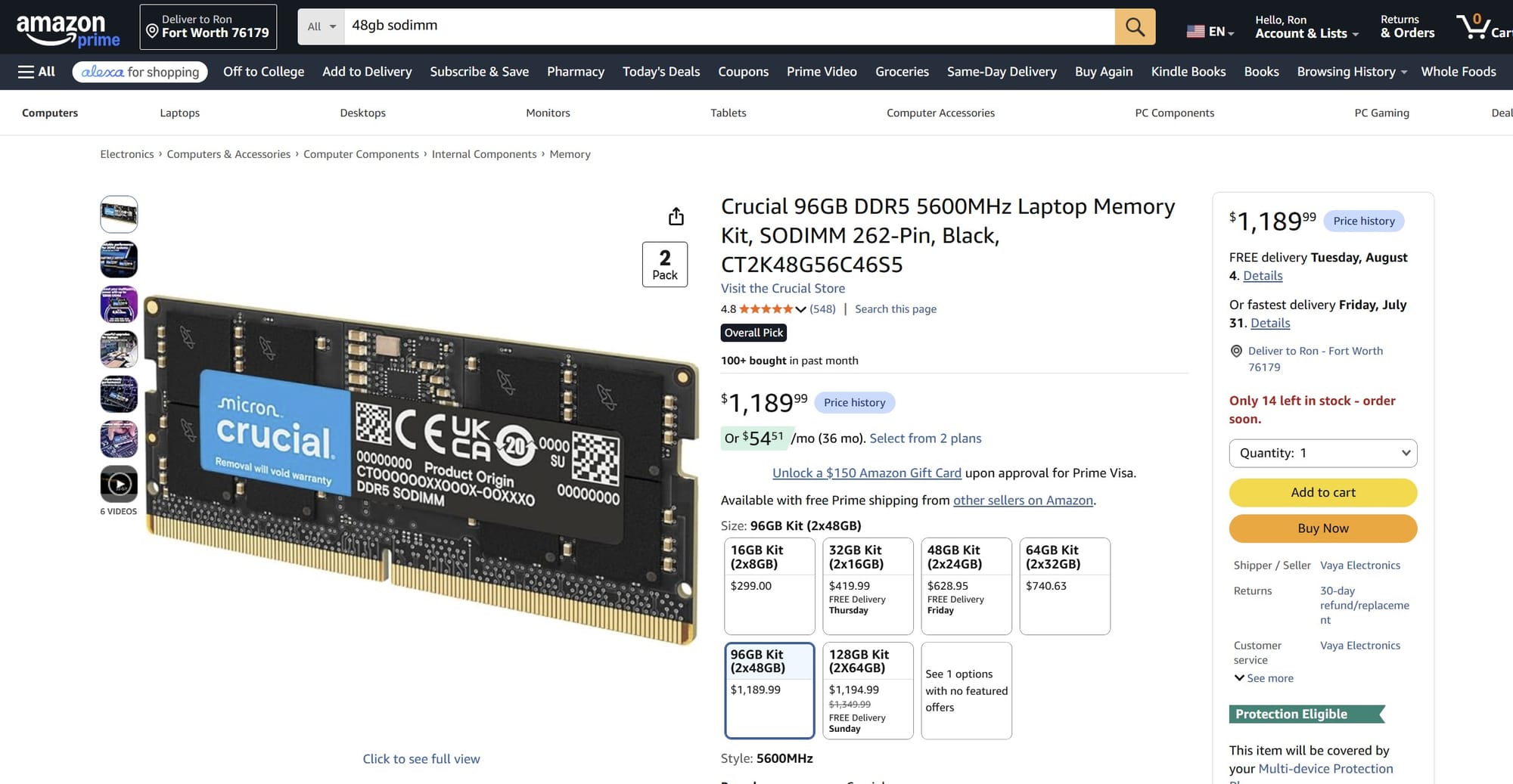
With Autoplexx installed and all of its various models running, we were sitting at around 44% total memory usage and 3% total CPU utilization. The device has 8GB of DDR4 SODIMM single-channel RAM, with an empty slot for a second module for expansion. Unlike other NAS units, the RAM isn’t soldered in, so you can pull that 8GB and replace it with a 16, or a pair of 16s to get up to 32GB, or a pair of 32s to get to the maximum - 64GB. The second I fired up Ollamma, a base AI, I saw the CPU spike to 19% and the memory to 88% utilization. I tried multiple AIs with smaller footprints, but all of them soaked up at least this amount, if not more. I spent several hours tinkering with a local AI, installing ComfyUI, generating images, asking questions, and performing various tasks. Ultimately, it did reveal that running all of the Plex-releated items as well as the AI didn’t leave enough memory headroom to run more than the simplest of tasks. ComfyUI was maxing out the remaining memory while generating images, slowing generation dramatically. If I were planning on running this AI long term, I would immediately expand the memory. The going rate for 32GB is roughly $170 to $200, and the system will support up to 3200 MHz – happy hunting.
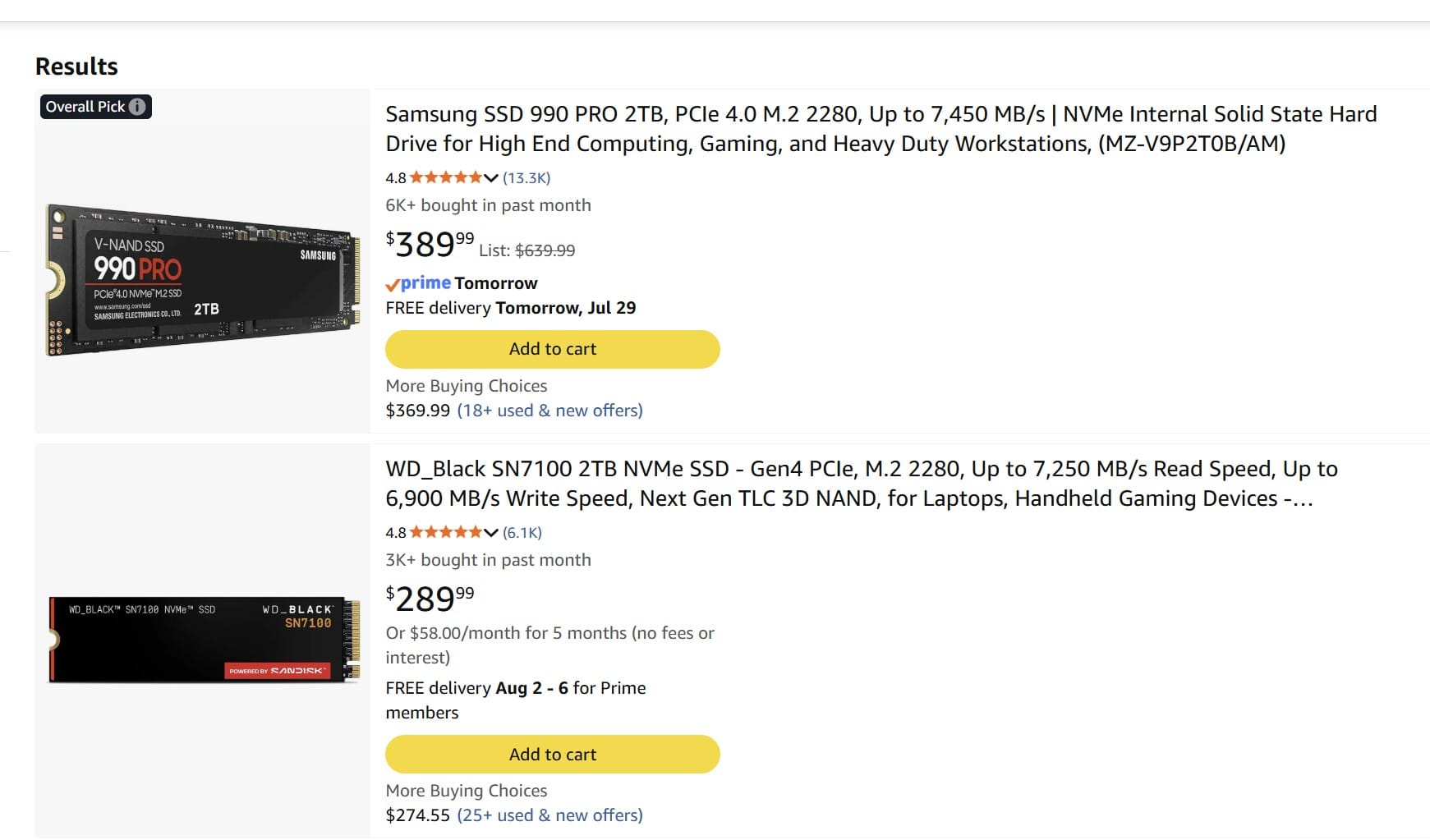
Ultimately, I came away impressed with what I saw with the UGREEN DXP4800 GT. Out of the box, it’s remarkably capable, able to run a wide array of incredibly complex and interdependent Docker containers, deep monitoring, and even a local AI without much difficulty. The UGOS is simple and easy to navigate, and enabled me to build a RAID 5 array with no problem whatsoever. Let’s address the last elephant in the room, shall we?
A certain vendor decided to try their hand at vendor lock in for their drives. UGREEN has vehemently refused this path. Not only do they not make hard drives, making that path impossible, they also recognize that it’s anti-consumer. Frankly, it’s the reason why I’m looking at switching out entirely. I can’t support a company that makes such anti-consumer choices, so I’m saying sayonara to Synology.
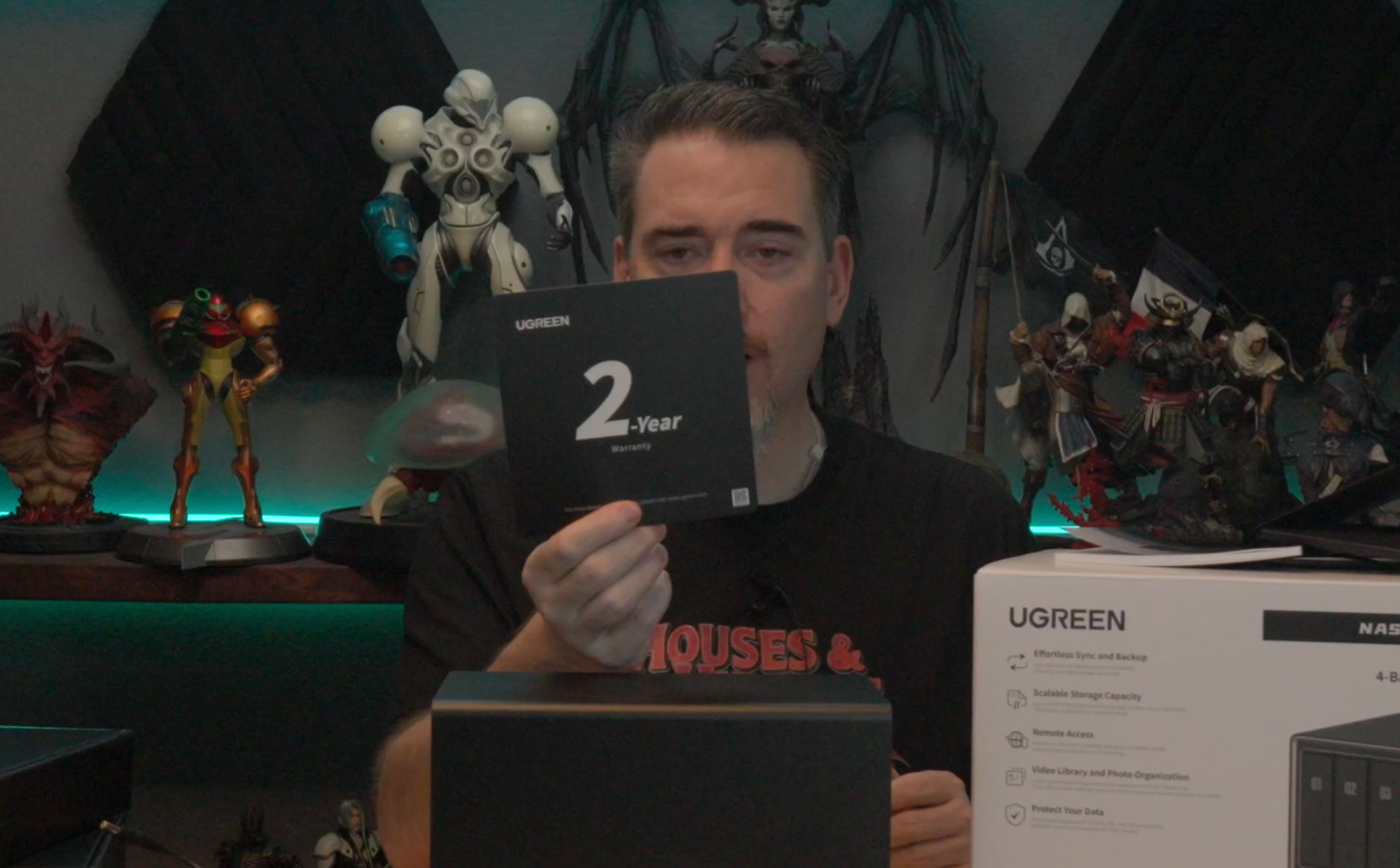
As is always the case in our hardware reviews, we take a look at price and warranty, and I’m happy to report great news for both. UGREEN has aggressively targeted this space, and despite the stacked deck of excellent hardware including 10 gig ports and non-soldered memory, the price on this 4-bay NAS is $659.99. During Prime Day, the price bounced down to $527.99. For comparison, a comparable one from just about any manufacturer comes in between $629 to $679 at current market prices. Better news than the price is the warranty. While most manufacturers are sporting a 1 year warranty on their gear, UGREEN shouts loudly that theirs is double that – the card is one of the first things you pull from the box.
Combined, the DXP4800 GT is an impressive outing from UGREEN. Frankly, it’s the sort of refinement I’d expect from somebody several generations into making NAS, but we get it on their first outing. The tech stack is mature, as is the operating system, and the price is very aggressive. Coupled with a 2 year warranty, it’s clear – UGREEN intends to snap up some market share, and this device should do exactly that.
UGREEN DXP4800 GT NAS
Excellent
A powerful 4-bay NAS, the UGREEN DXP4800 GT delivers hardware transcoding, 144TB of power, Docker and virtualization support, and even impressive AI performance. While I’d recommend expanding the RAM (which you can do - nothing is soldered!), the device is incredibly performant right out of the box. I highly recommend it.
Pros
- UGOS is simple to use
- Docker / Portainer support is rock solid
- Non-soldered RAM, 2 NVMe cache slots
- Aggressively priced
- 2-year warranty
Cons
- 8GB RAM is light
- No Hybrid RAID support
This review is based on a retail version provided by the manufacturer.