We are spoiled for choice in terms of portable computing these days. You’ve got tablets, handheld computers, and even smart phones, but nothing really beats the classic laptop. It gives you the power and versatility of a desktop in a smaller form factor. The Blade 16 2026 from Razer is actually more powerful than my desktop, in theory. This monster of a computer has a tiny RTX 5090 inside while also somehow being the thinnest laptop I’ve used in years. I’ve been testing it out for the past month or so, and while I’m mostly very happy with the device, it does have some critical problems that keep me from recommending it.
The biggest one is price. This might be the most expensive thing I’ve ever covered at a staggering $5,000,which is more money than I’ve ever had in my life. The Blade 16 may not be advertised as Razer’s desktop replacement, but with that amount of money on the table it might as well be. With the current state of… everything, it’s a pretty tough sell.
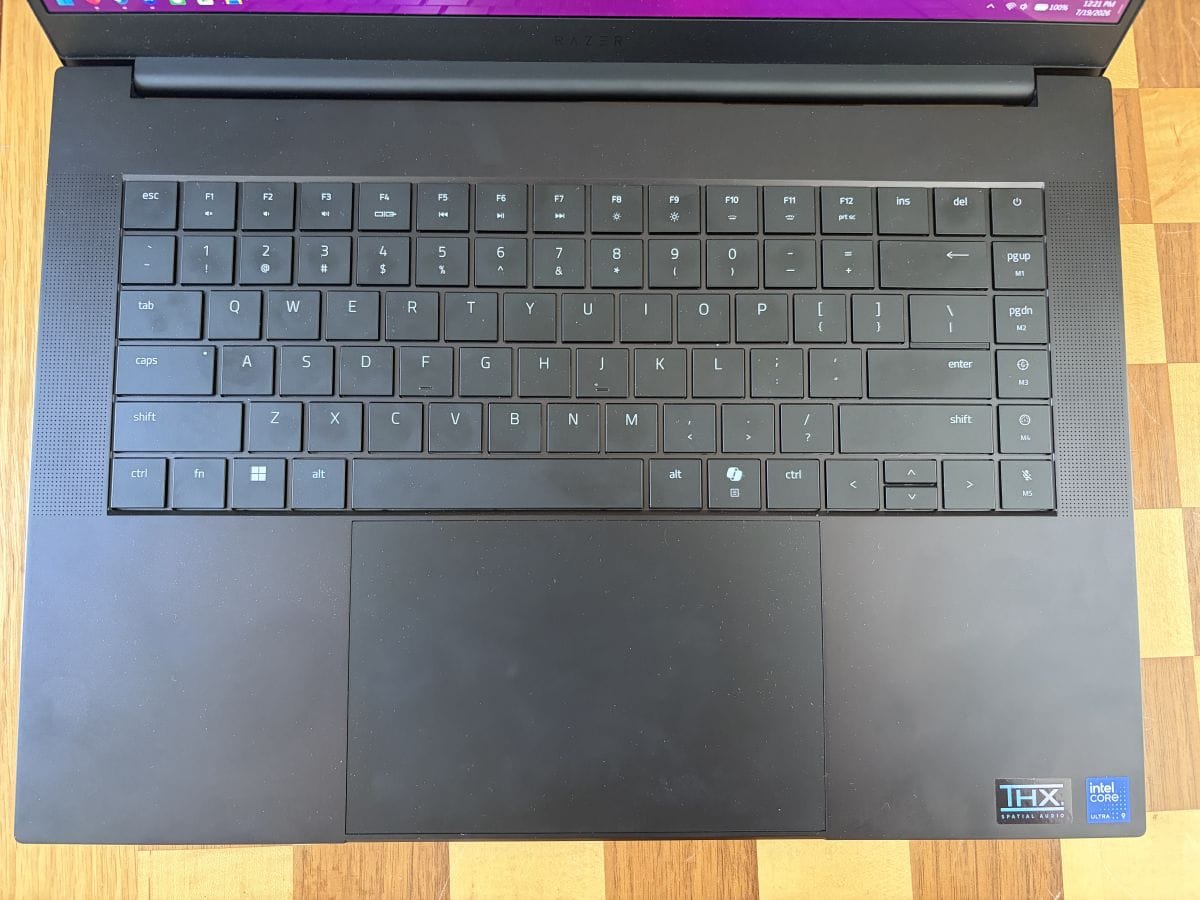
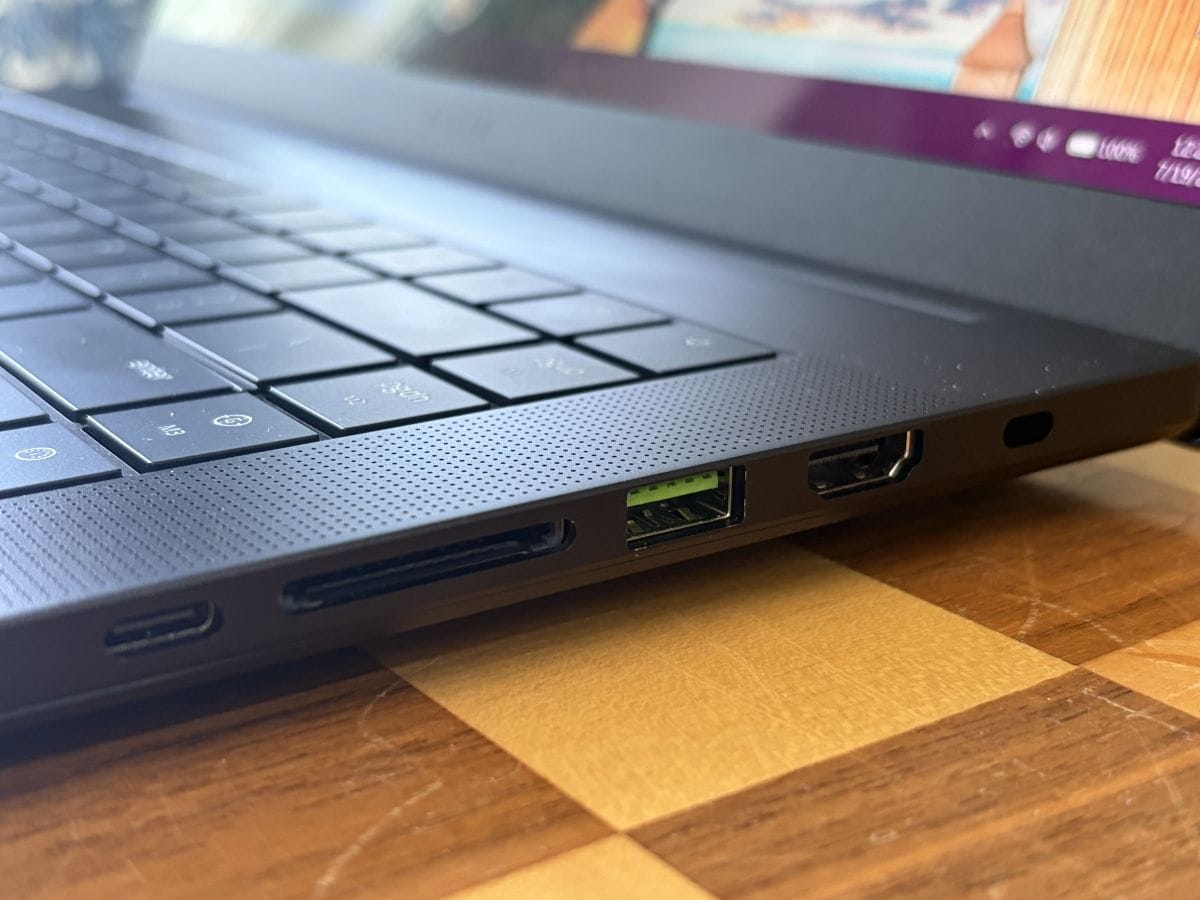
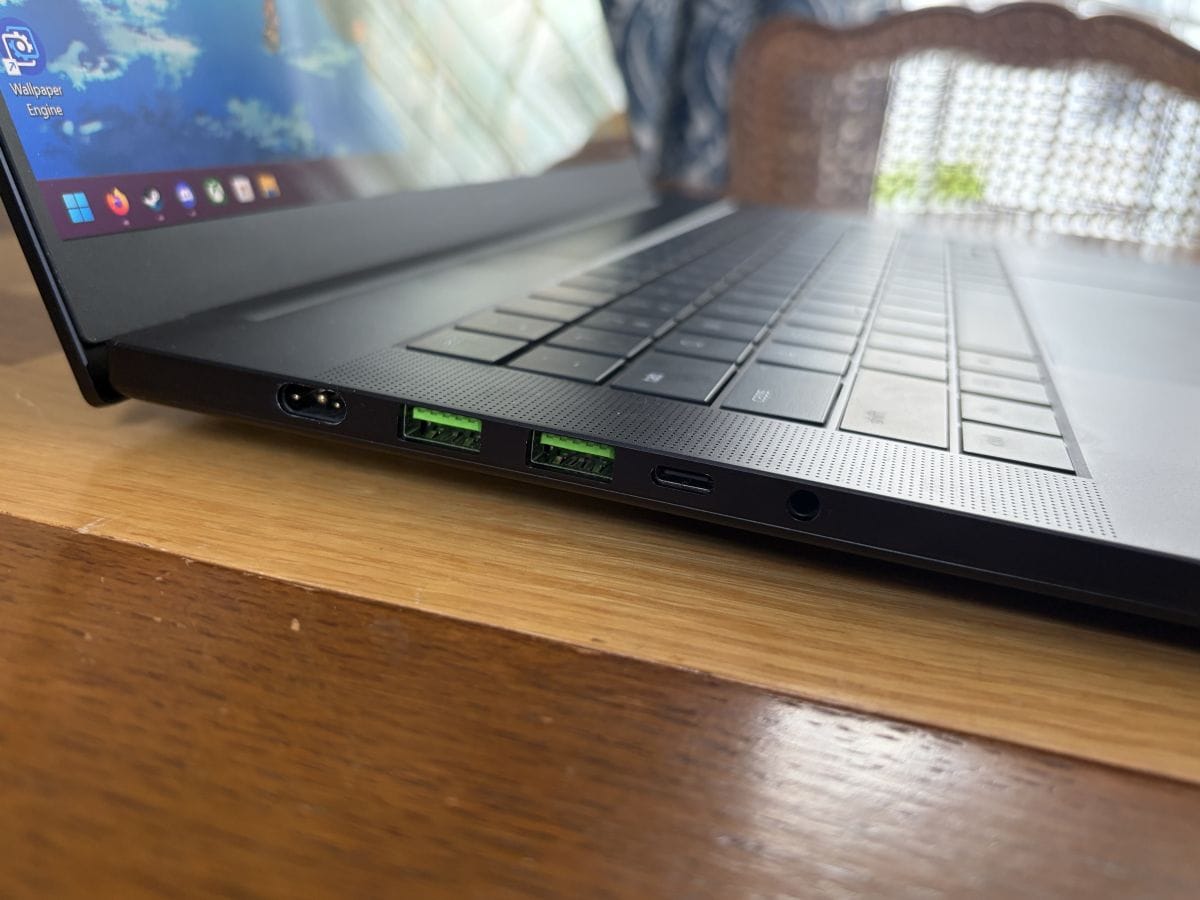
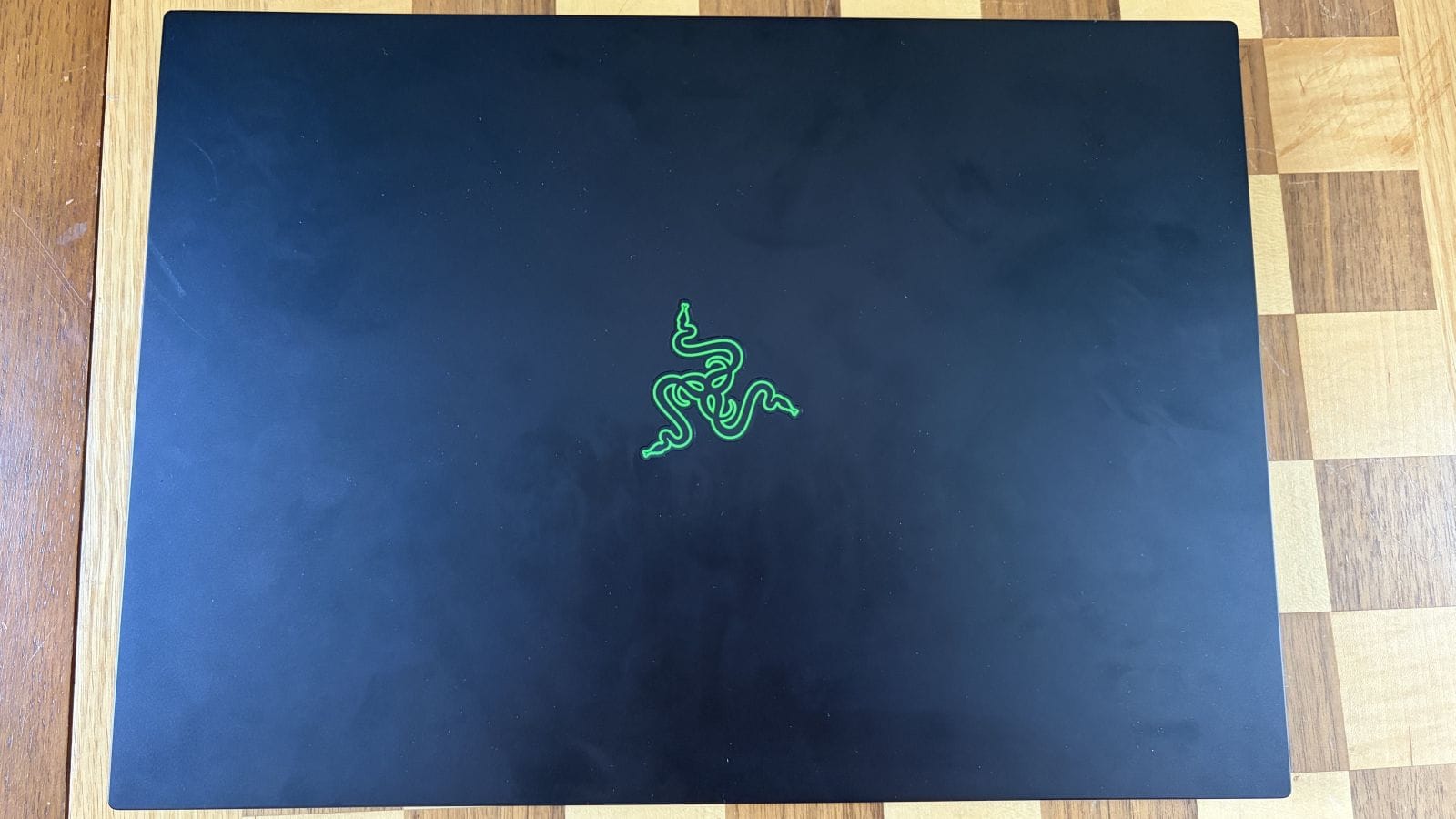
The price does come with that premium feel and performance, however (maybe not $5,000 premium, but I’m cheap). Despite all the power packed in here, this thing is shockingly light at only 4.6 lbs, making it easy to travel with or actually use sitting atop your lap. Opening up the clamshell, you’ll see the keyboard and mousepad. I certainly prefer a full sized keyboard including a number bad, but this keyboard doesn’t feel cramped at all. The chicklet keys also have a small but satisfying travel distance, making it pleasant to type on. You’ve also got several macro keys on the side, the function keys having the requisite volume, brightness, and media control buttons,alongside a few extra functions. Holding down a modifier key (like Shift or Function) will change what symbols are lit up on the keyboard. For example, holding Shift will cause the % symbol to light up instead of 5, and holding FN will light up the media controls and a few other shortcut keys, which allow you to toggle between 60hz and the screen’s full 240 refresh rate. It’s a really neat feature.
Unfortunately, you’ve also got a Windows Copilot button in place of the actually useful Menu key, because every company is still trying to shove that down your throat. Thankfully, you can rebind it, either through the Razer Synapse software or in Windows itself, and I’ve made it a convenient HDR toggle. That brings us to maybe the best thing about this computer: the screen. The Blade 16 has a gorgeous 16:10 OLED panel that can reach up to 240 frames per second. Like I said earlier, you can toggle between 60 and 240 to save battery, though to use the full refresh rate just on your desktop you’ll need to dig a bit into Windows’s settings. It’s very much worth it, as it makes everything super smooth.


Before moving on to performance and benchmarks, I want to mention the trackpad. On its own it’s fine enough, but it’s so big that, when typing, you’re basically guaranteed to move the mouse or click with how your hands naturally rest on the home row. In fact, typing that sentence just now, it happened again, causing me to suddenly start entering text into the middle of a word in the previous sentence. It is incredibly annoying and happens constantly, which makes the Blade 16 frustrating to use for everyday computing tasks.
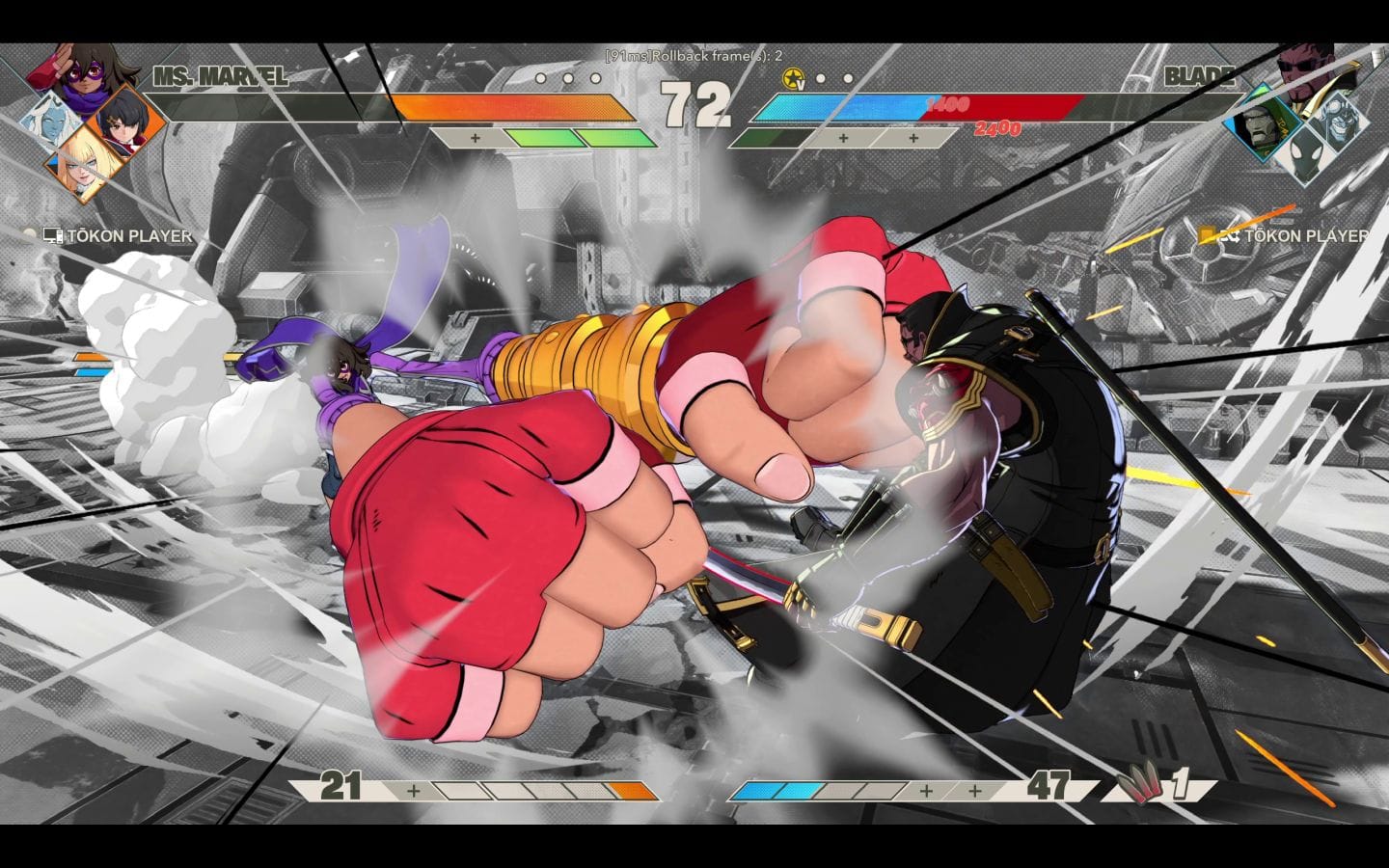
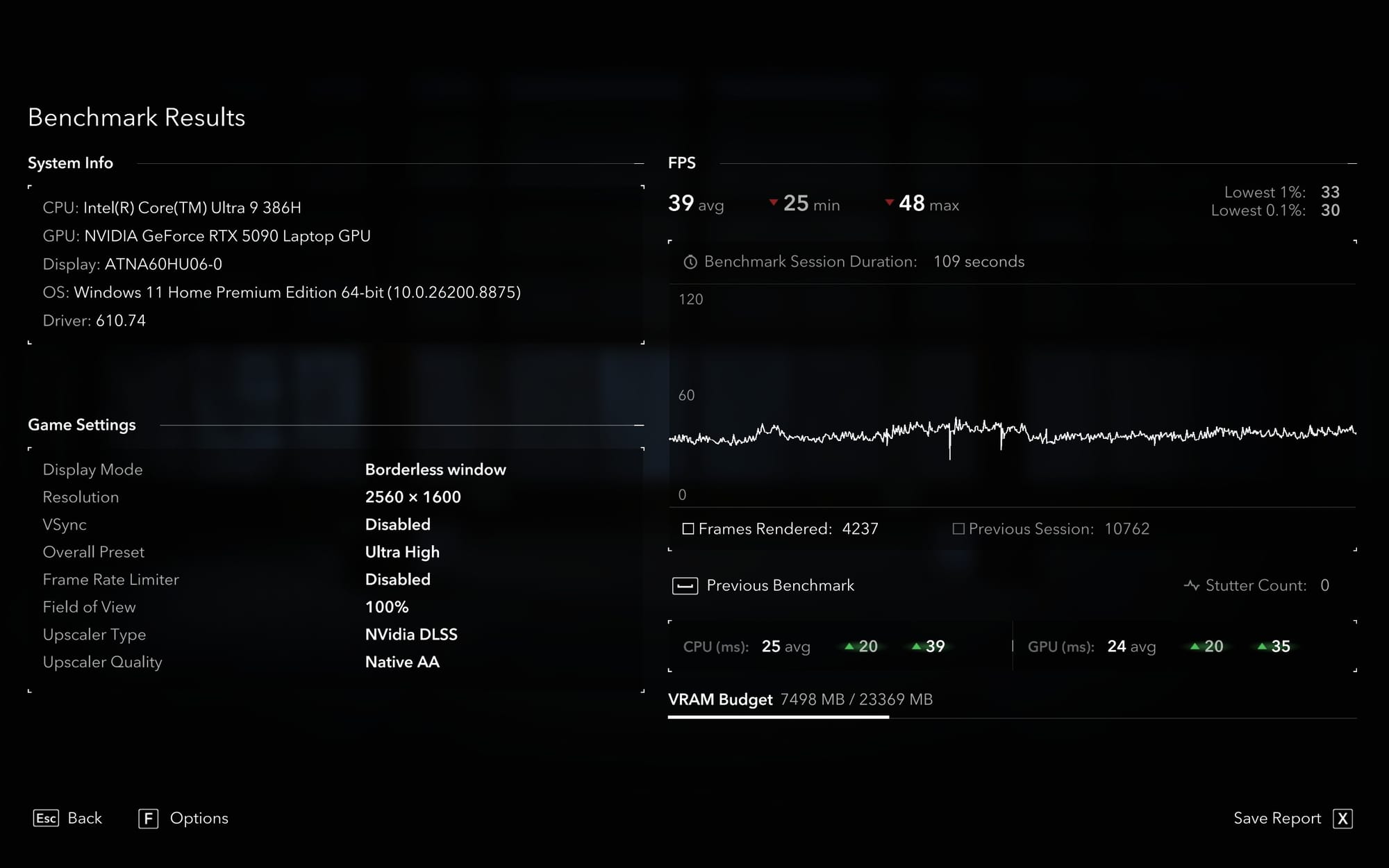
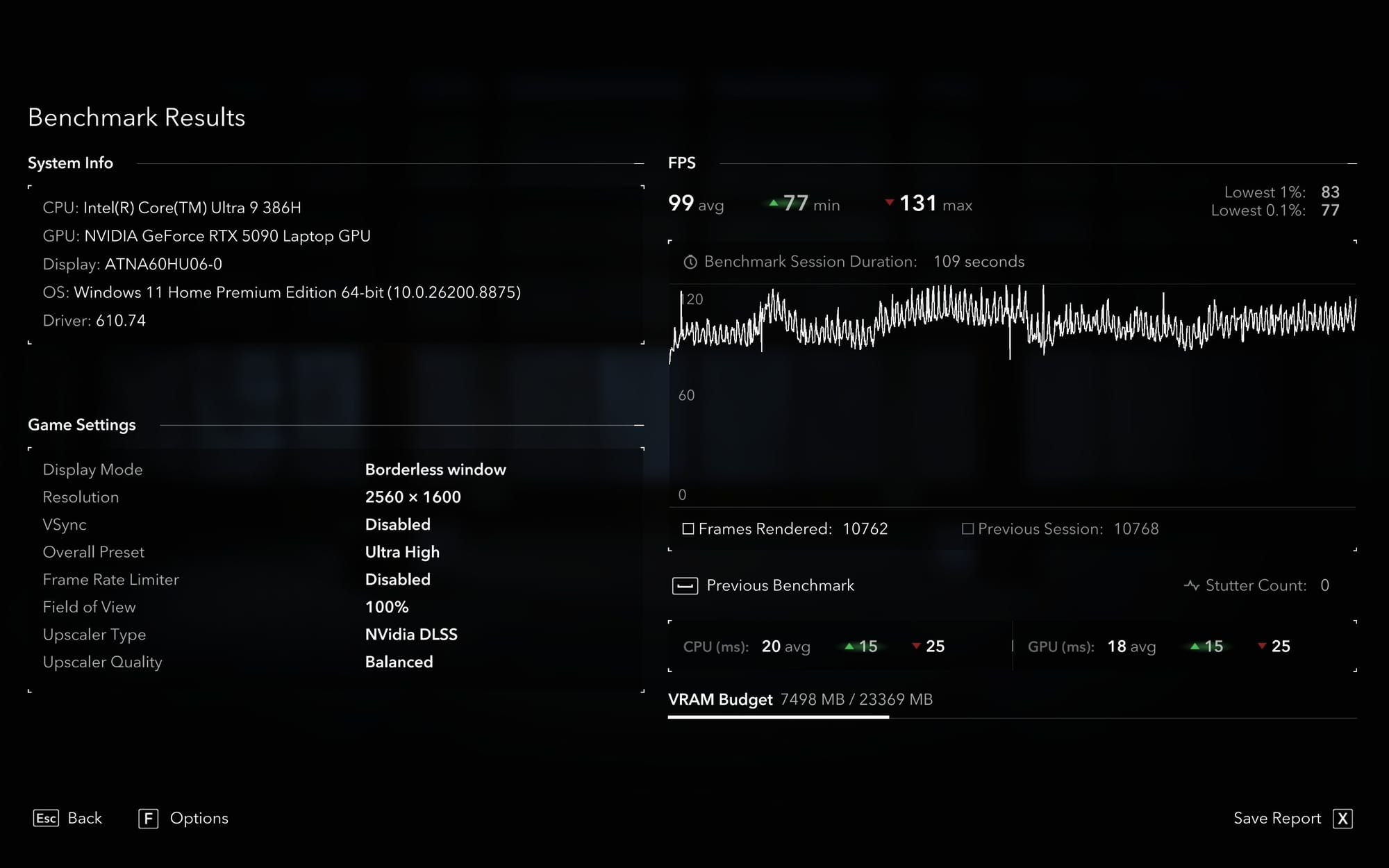
So! How does this thing run video games? Pretty dang well, as it turns out. Assassin’s Creed Shadows’ benchmark hit an average of 99 frames per second with all settings maxed out and a fullscreen resolution of 2560x1600, the low being 77 and the high being 131. That’s with DLSS on Balanced, and with upscaling and frame generation turned off it reached an average of 39 frames, the low at 25 and the high at 48. Still decently playable, but also a little concerning that modern games rely so heavily on DLSS to run well even on bleeding edge hardware, so let’s run the clock back a little.
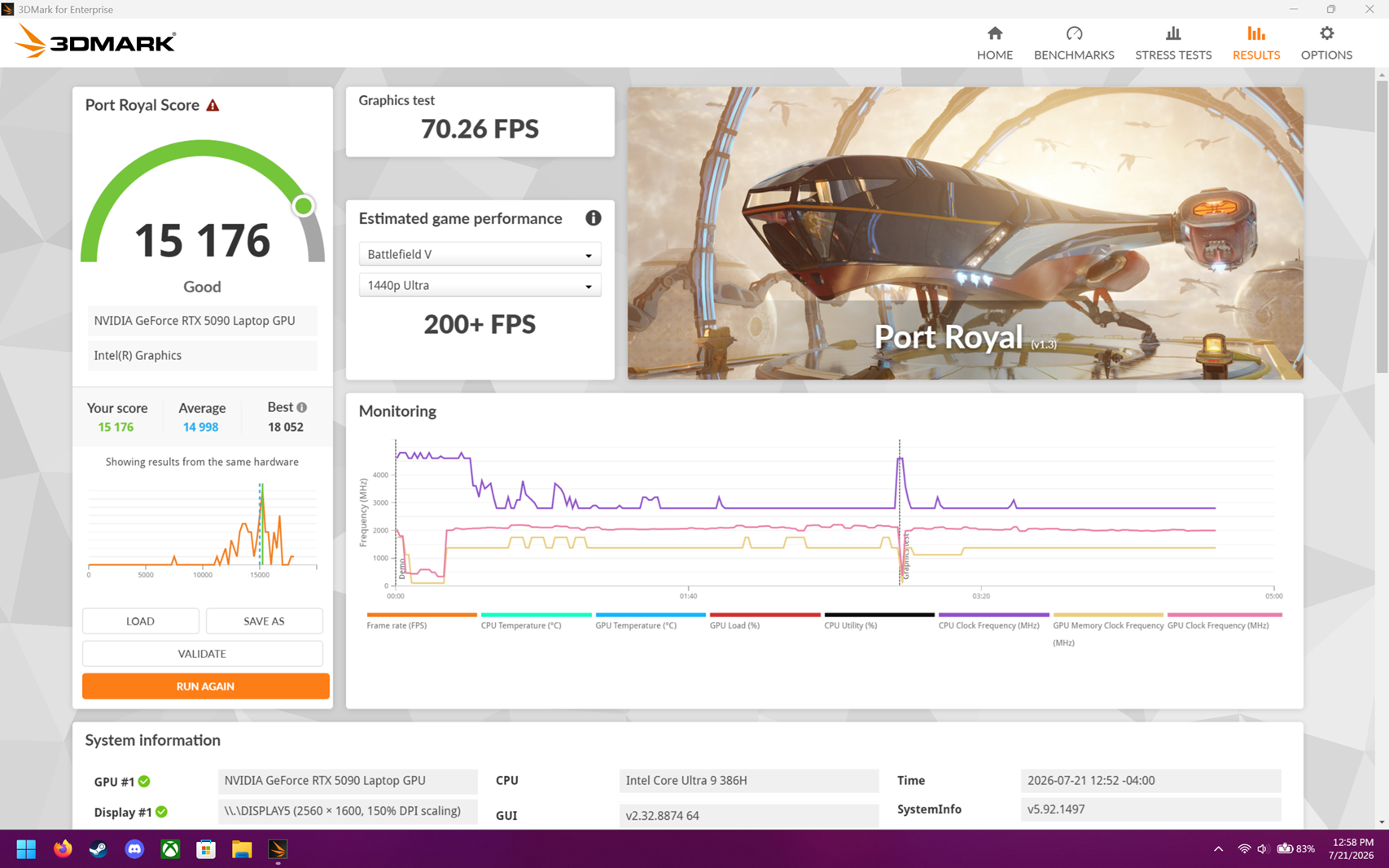
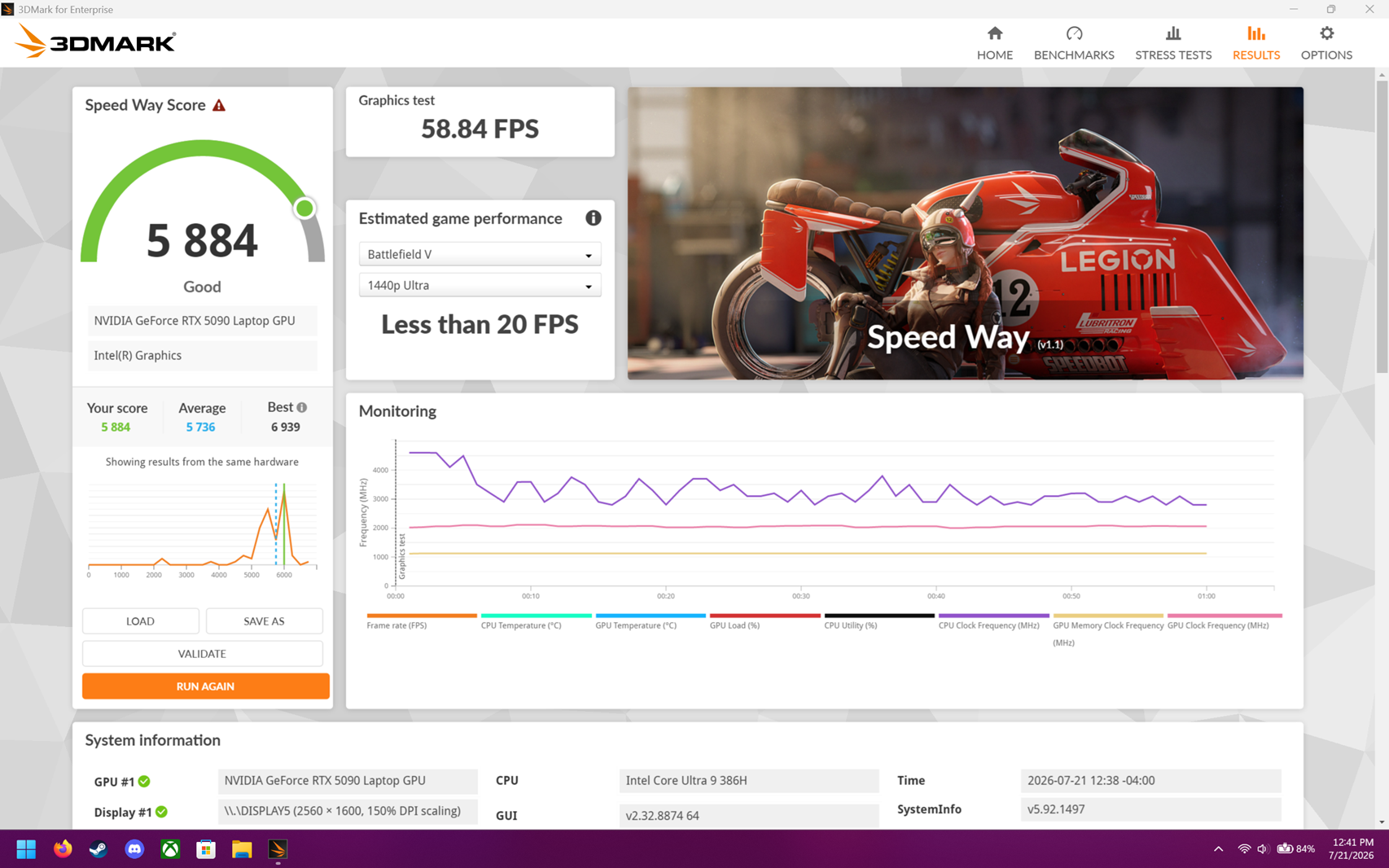
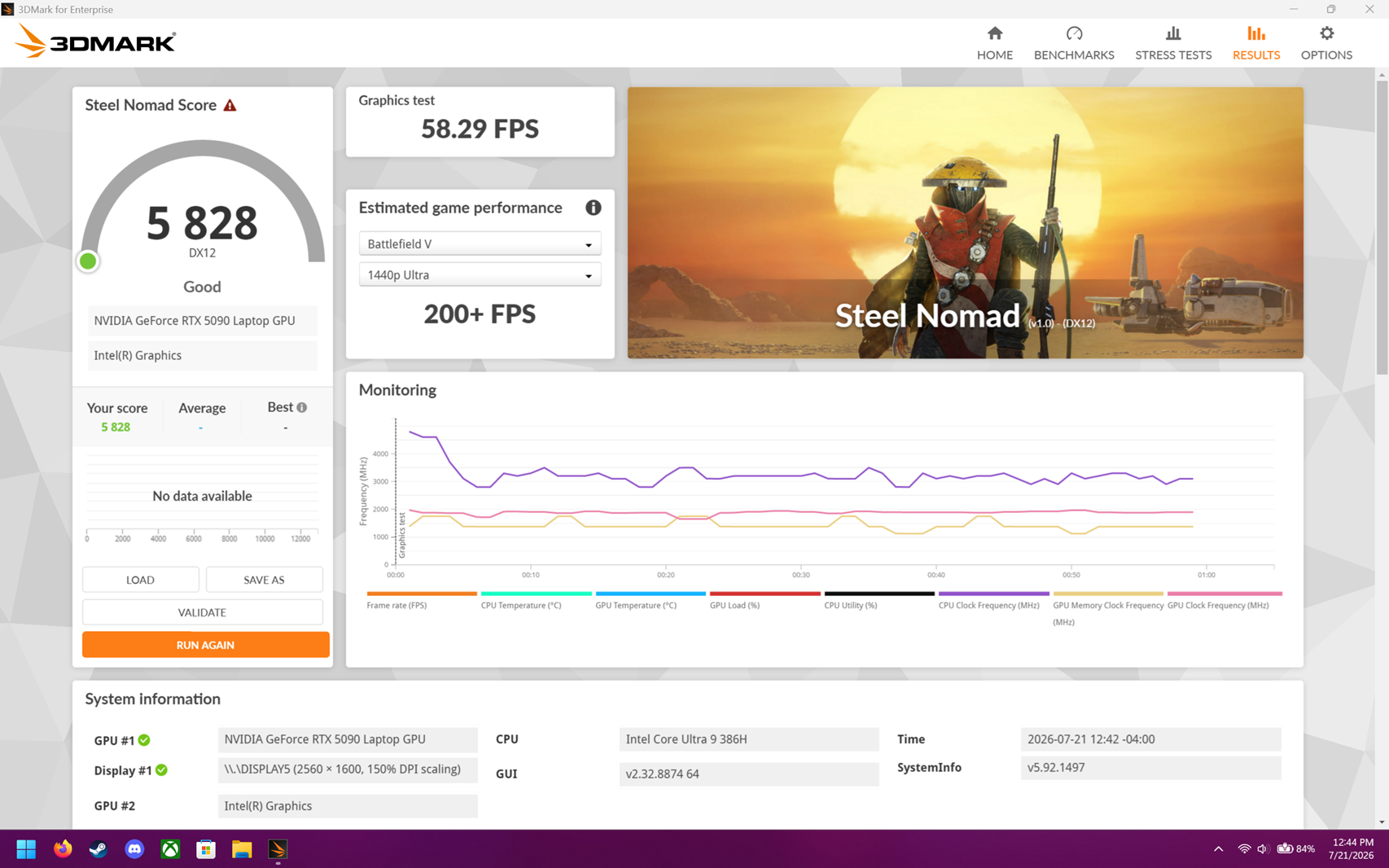
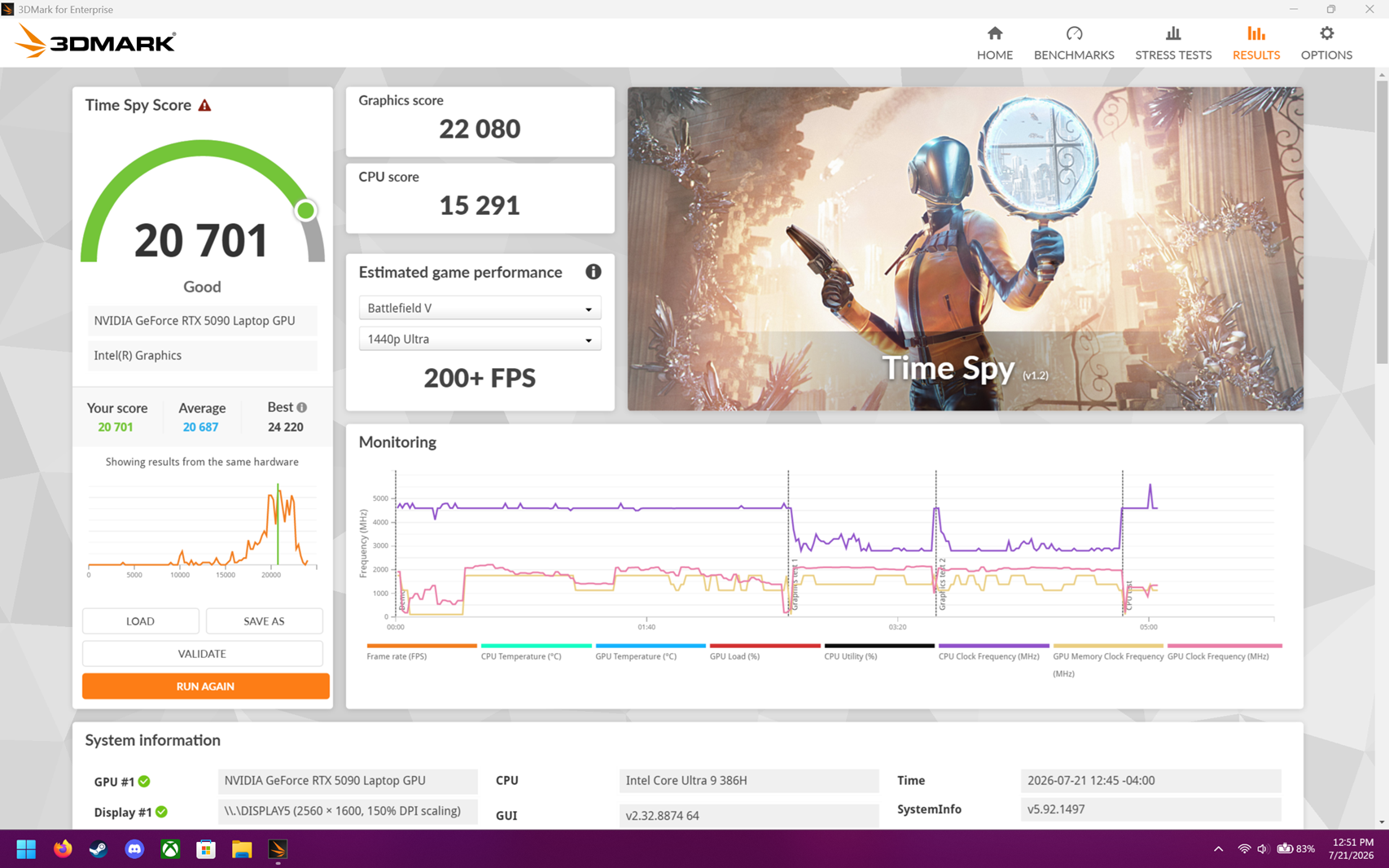
Kingdom Hearts 1 (using the latest public Alpha of the Re: Fined mod to hit 16:10 and unlock the framerate in cutscenes) achieved an easy 240 fps, though I did notice it’s using the integrated Intel GPU rather than the dedicated 5090. It’s only using about 50% of the Intel’s resources, which is perfectly fine and keeps temperature and power consumption down, but forcing the NVidia… is slightly worse? It hits 232 to 239 during the Dive to the Heart opening section, with my performance monitor showing that both the integrated and dedicated GPUs are in use for some reason. It’s exceptionally weird, so it’s probably best to just let the computer decide which GPU is best unless there’s an issue.
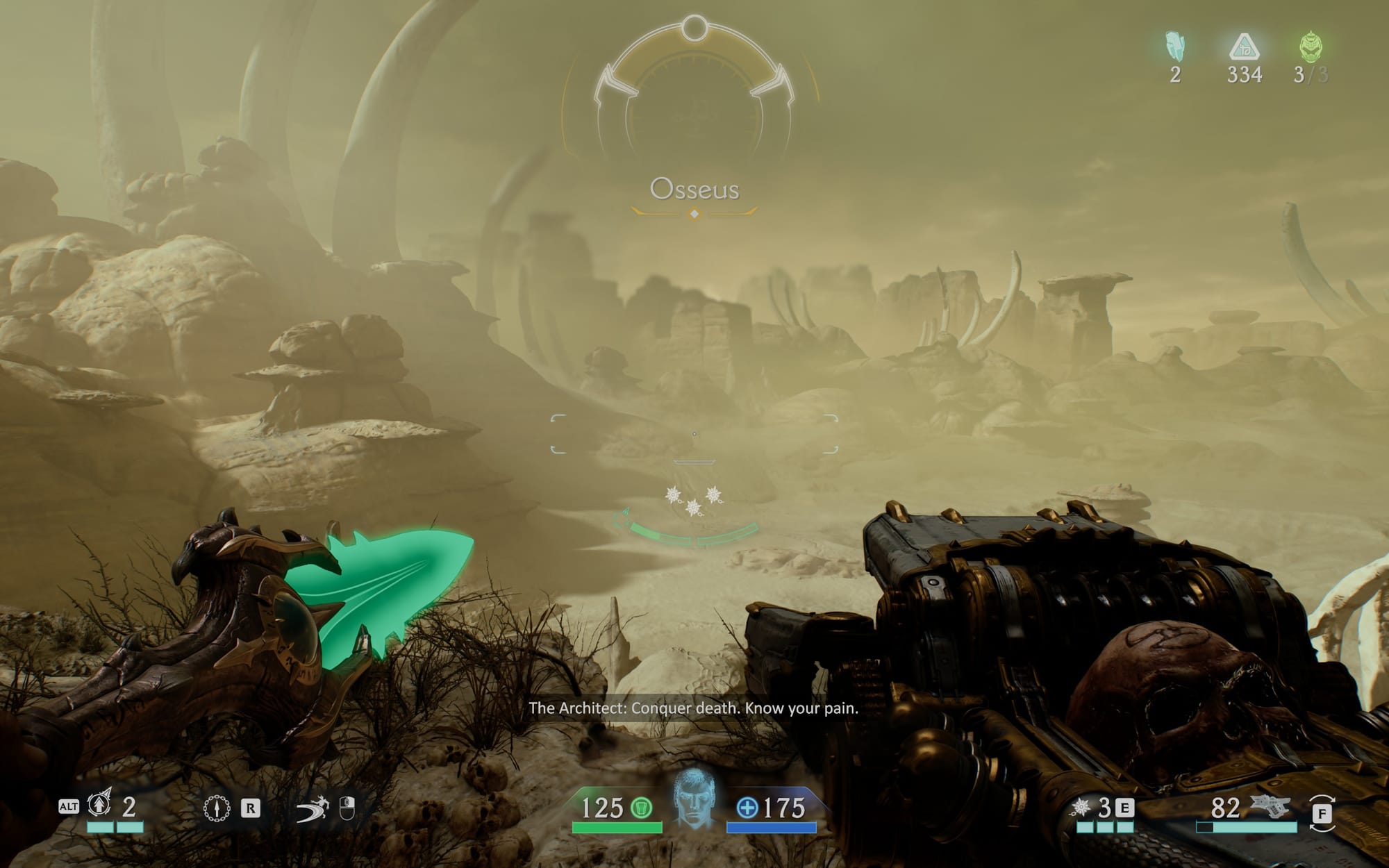
Moving back to more modern titles, DOOM: The Dark Ages | Revelations is also a little weird. The NVidia monitoring tool tells me I’m getting only 13 fps on Ultra Nightmare settings, with Path Tracing on, but my eyeballs and Steam tell me it’s hitting closer to 180. I had assumed this was DLSS and Frame Gen at work, but turning both off still hits 40 fps with NVidia telling me it’s still 10. It’s very strange, and this is why you verify with more than one tool. With DLSS on, DOOM is super playable, though you’re going to want a controller or external keyboard and mouse, because the device will get uncomfortably hot running the game.
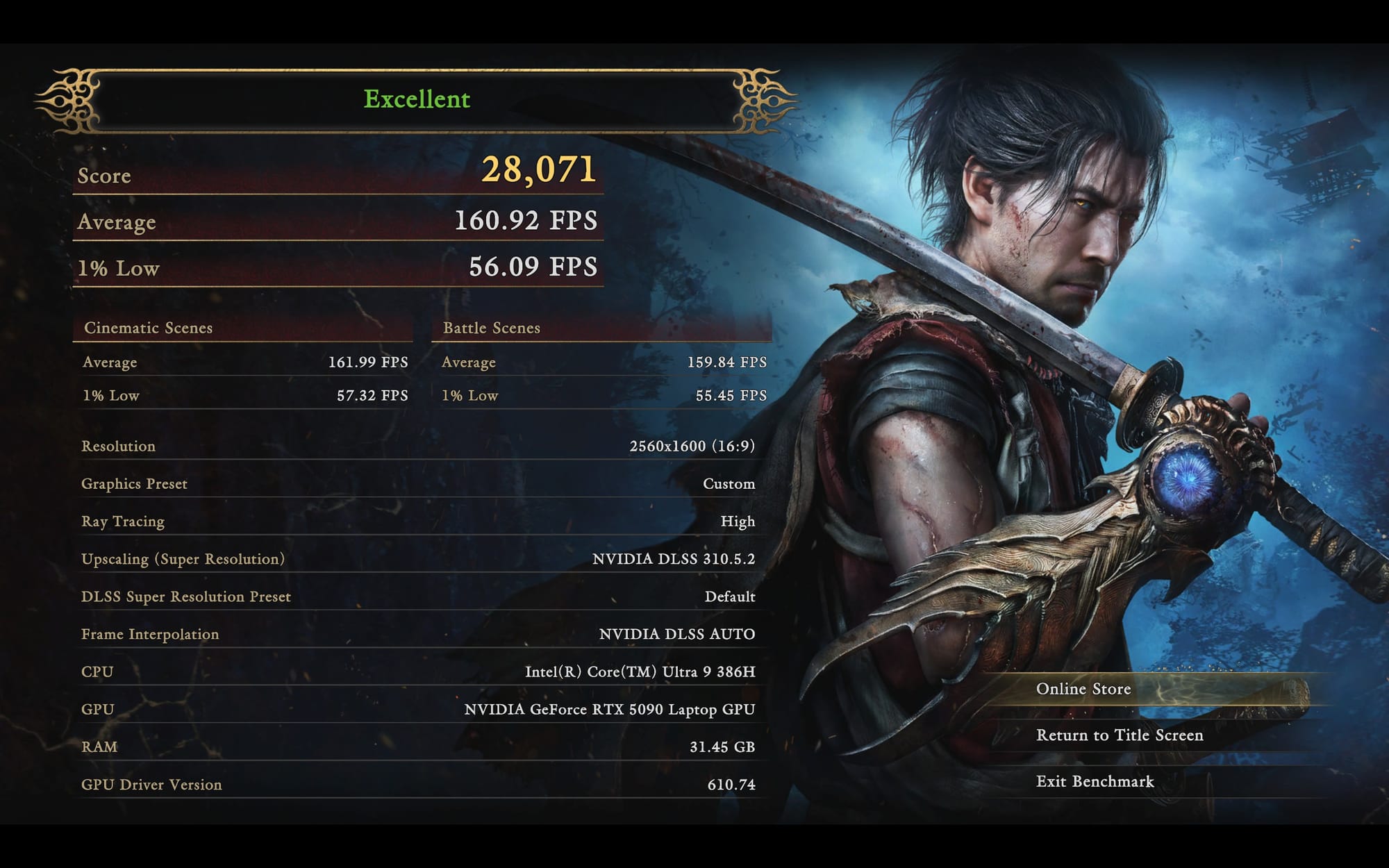

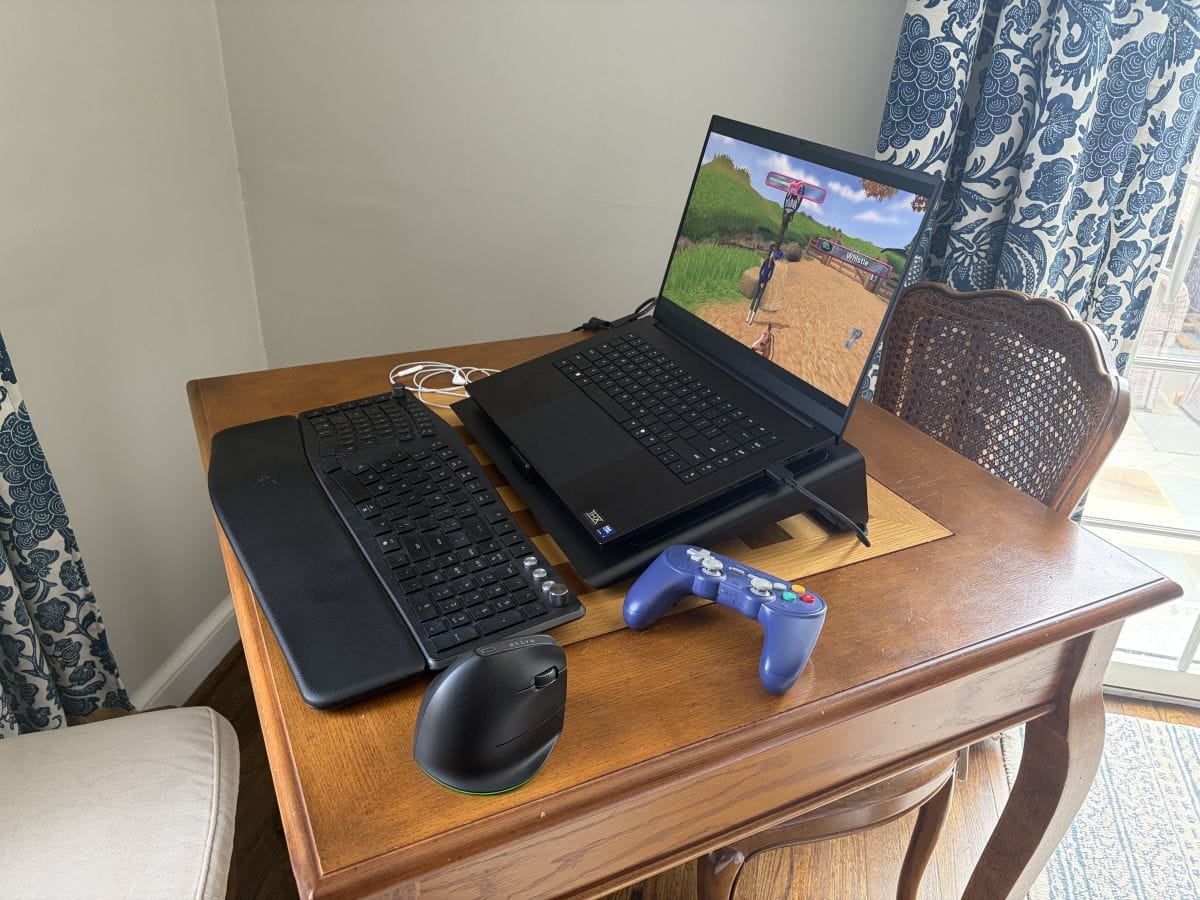
This brings us to an elephant in the room: temperature. Immediately after closing DOOM, the GPU is still running at about 76 degrees celcius. You can definitely use the laptop on your lap while playing a game, even when not plugged in and still get some decent battery life out of it, but you’ll still be feeling the heat on your legs for a while after putting it away. The aluminum shell helps a lot with distributing heat though, so it feels cooler than other gaming laptops I’ve used. The heat can also occasionally cause some performance throttling, especially if you keep the device’s fan speed on the Quiet profile to reduce noise. For that reason, I was also sent Razer’s Laptop Cooling Pad, which does keep the Blade 16 nice and cool but the raised angle for the fan and air blowing through the keyboard heavily encourages using an external mouse and keyboard. Still, it makes for a nice pseudo desktop setup.
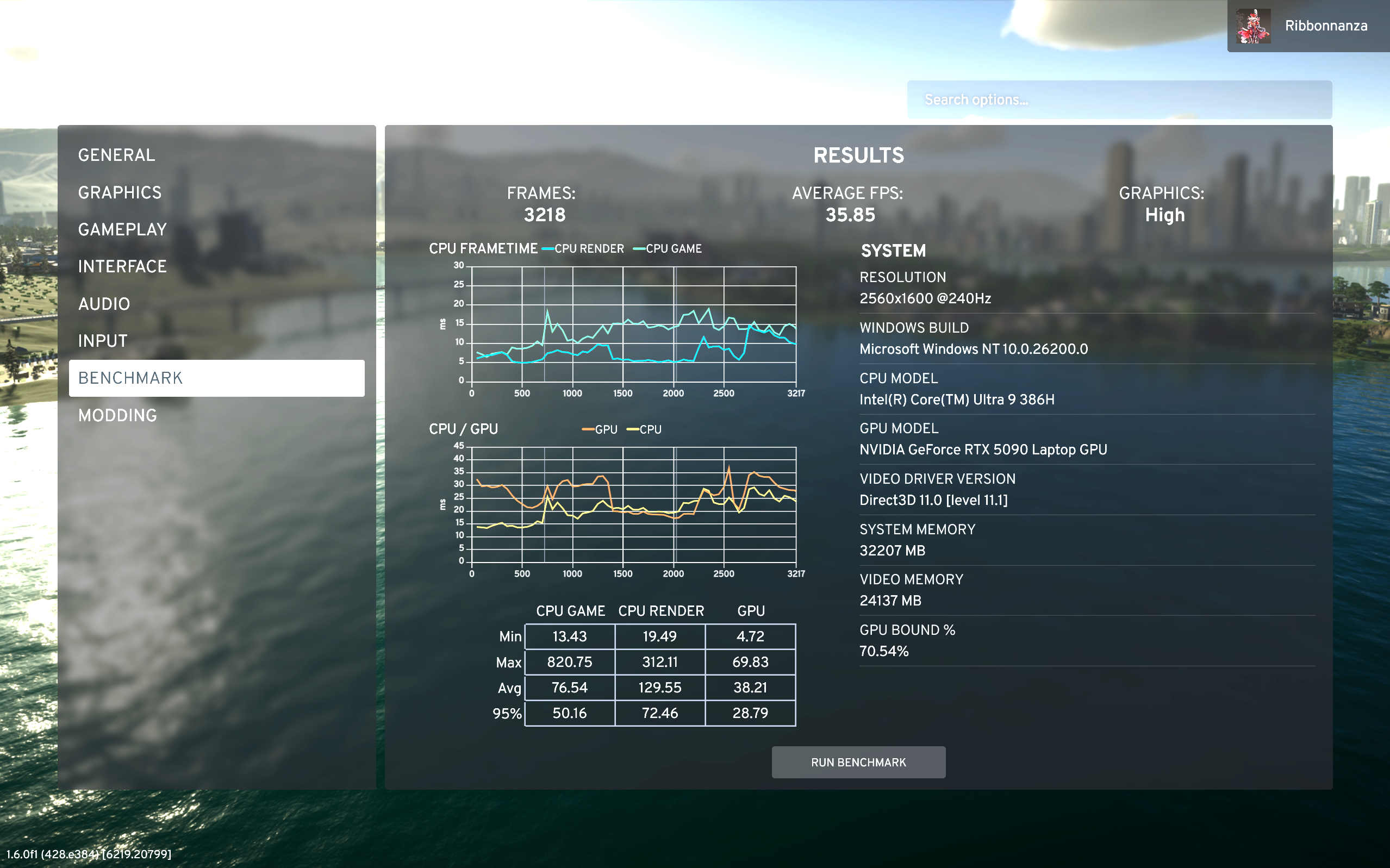
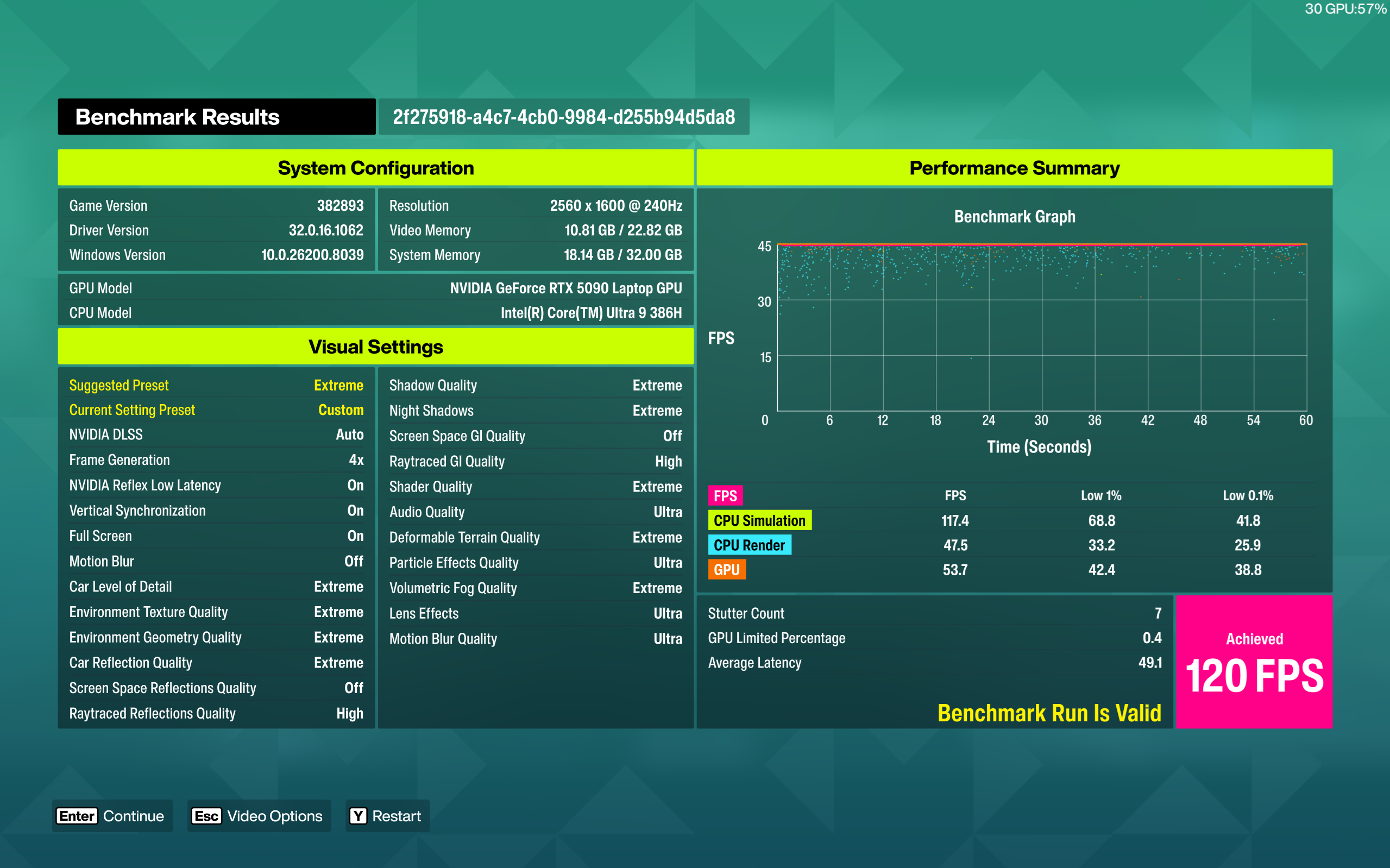
Ratchet & Clank: Rift Apart also hits about 180 with everything maxed out including ray tracing, while Final Fantasy XIV delivers 120 to also 180 depending on where you are and what you’re doing. The Outer Worlds 2 puts out mid to high 80s, and while Forza Horizon 6 refuses to launch anymore because the Xbox app is awful it did get an average of 120 fps in the benchmark. I was also able to test the battery with this one, and the time from 100% to 10 playing this game just on battery was about an hour and change. That’s pretty dang great for maxed out settings, and I imagine you could go a lot further by reducing the visual quality or capping the framerate. From 100% to 10% just sitting on the desktop at max brightness took about 12 and a half hours, and charging back up to 99% (it doesn’t want to go higher while in use) only took 1 and a half hours. Just using the laptop normally you can expect somewhere between those two extremes of 1 to 12 hours of use, which is pretty good by my estimations.
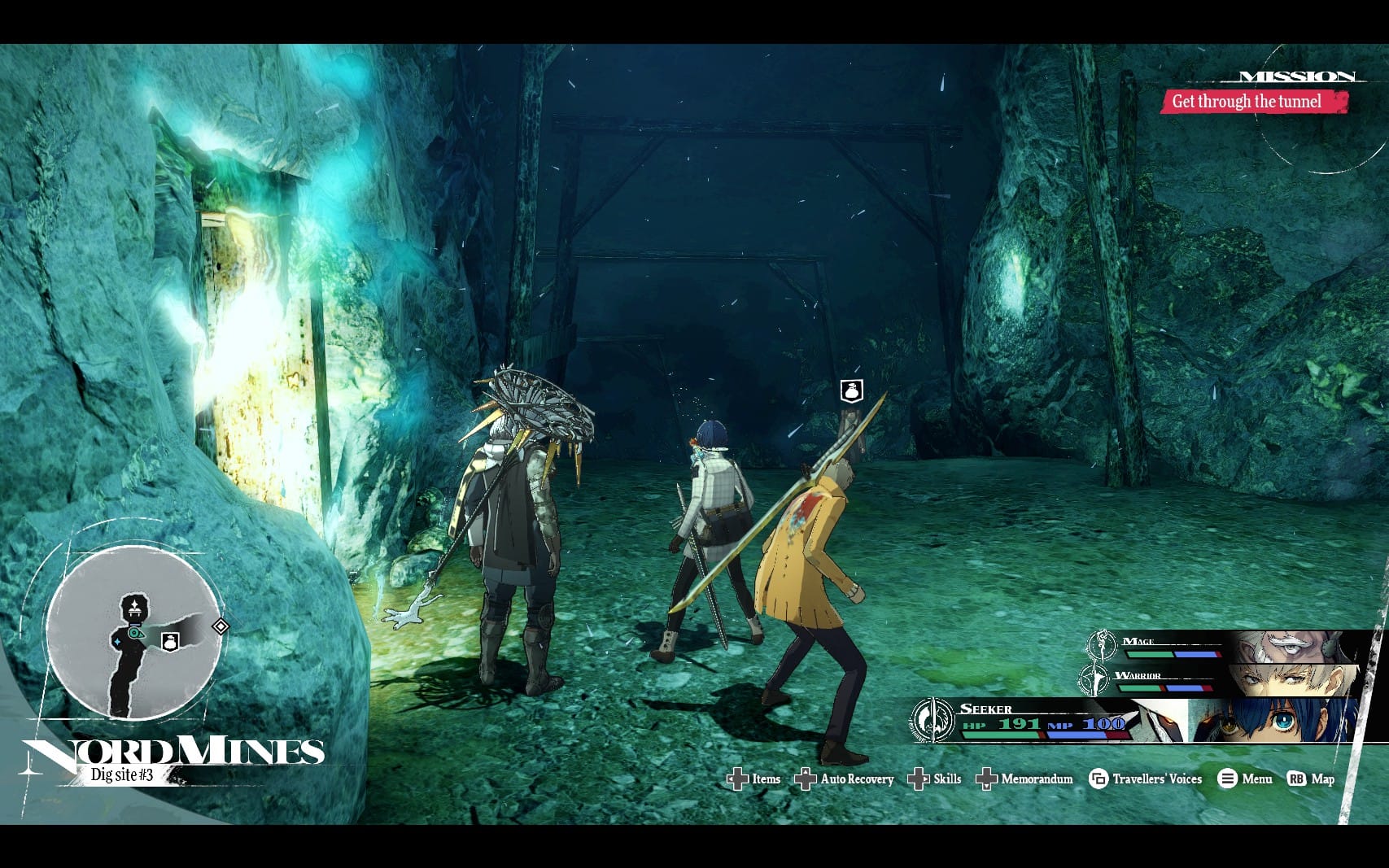
The Blade 16 is also pretty fantastic for retro games. The taller aspect ratio gives you a nice view of 4:3 titles, while the OLED display makes the empty black space a lot less distracting. After connecting a USB CD drive and burning some discs, I’ve been enjoying Ape Escape, Parasite Eve, Xenogears, and Steambot Chronicles on this device. And I know everyone has been wondering with baited breath how Barbie Horse Adventure - Wild Horse Rescue runs on this through PCSX2. All of them look fantastic, whether you’re rendering at the original resolution or upping it to 4k and using widescreen patches. Pretty much anything that goes heavy on the color black will look fantastic on this display, such as Signalis or Control. Be aware that some titles like Metaphor: ReFantazio or Skyrim Special Edition will be affected by your Windows zoom level when attempting to render at the laptop’s resolution of 2560x1600… for some reason. They’ll just zoom in on the top left corner of the screen. I prefer the 150% zoom, which makes games like this basically unplayable, forcing me to go into Windows settings and swap it back to 100%.
Most gaming or anything else on PC is all digital, and thankfully the Blade 16 has a great Wi-Fi adapter on board. It’s able to take advantage of Wi-Fi 6, and as someone with internet that usually maxes out at about 5MBps, seeing it reach up to 1GBps is incredibly satisfying. You can download big games in just a few minutes.
Let’s circle back to the Xbox app being awful though, as it brings us to a larger point and what’s possibly the worst part of this laptop: Windows. What once was a respectable operating system that left you alone is now essentially malware that barely functions and can/will damage your hardware if given the chance. See, as I was testing the laptop, I was encountering a lot of issues like constant stuttering, or the audio from the speakers being muffled for a bit every few minutes. Razer even sent me a new unit as we had assumed the one I got initially was defective. The issues persisted, however, and I was out of ideas to figure out what was wrong, so I assumed Razer had just made a bad product. When I was working in Blender though, I noticed I had forgotten to plug the laptop in. Immediately after connecting power, the device began to stutter when presented with intense tasks, like gaming or modeling or even just watching YouTube.
The reason the stuttering occurs when plugging into or off of power is a little complicated, but let’s just leave it at Windows not handling the state changes very well. Thankfully Linux is pretty dang easy to use nowadays, though unfortunately still not the most compatible out there. You also won’t be able to use Razer’s Synapse and Chroma software to customize the device to your liking anymore, so there’s not really a good solution here (other than Microsoft getting their act together). You can swap out sleep for hibernate (or force sleep back to the superior S3 mode using the terminal), but that still won’t solve the stuttering or audio issues. Someday companies will realize the value of native linux support and I can switch to Steam OS and never look back.
This is similar to an issue I’ve encountered with Windows on other devices, particularly with sleep mode. Windows 11 made the jump to something called S0 Sleep mode, which means that putting your device in sleep mode will turn off everything except the CPU. This gives you incredibly fast wake up times, but is absolutely not worth it because of the constant power drain and, on laptops, will essentially cause your device to cook itself to death if placed in a backpack. Because the CPU is still going, the fans will turn on to cool it, using more power and if that hot air has nowhere to go it’s all futile. Sometimes, on both my desktop and this laptop, Windows will just wake the computer up anyway, causing apps like Discord to continue to receive messages and use even more power.
Right to repair is pretty important to me, as I like to make the devices I own last as long as possible. The Blade 16 has some positives and negatives in that regard. While I can’t open the laptop up myself to check (as I have to send these things back intact after coverage), I have been told by Razer representatives that: “The Blade 16 is built for easy owner access to its most-serviced parts - the bottom panel comes off with a standard T5 Torx driver, and we publish step-by-step guides for storage upgrades. Deeper repairs like the display or battery are best handled through Razer's authorized service. ” So you are able to fix (or upgrade with more M.2 slots) a few things on your own or at a local repair shop, but bigger issues will require you to send the device to Razer themselves. Given every company’s track record in overpricing simple repairs, that’s a pretty big con to me, as I’d rather be able to purchase the broken part and replace it myself rather than paying exorbitant fees. A company like Framework is able to keep the thin, powerful form factor while being more consumer friendly, so why not Razer?

Overall, whether the Blade 16 2026 is for you really comes down to if you can put up with its frustrations to reap its amazing benefits. A question I struggle with even as I write this, because there are so many frustrating parts of this device that constantly get on my nerves, but there are also parts that make it a genuinely fantastic computing experience. I love having something powerful and small enough to take anywhere that also doesn’t run out of battery instantly when doing anything intensive. I’ve been building a small game prototype to learn Godot exclusively using this computer, and it’s been a genuinely fantastic experience. Of course, none of that factors into the price, and I’ve only had a month to put this thing through its paces. Who knows if it’ll break down a few years or even months down the road? I unfortunately can't test, for example, how long term heat exposure would affect the battery, how repairable the laptop is if it does break in some way, or if this thing will be left behind in future Synapse updates. It certainly feels sturdy, but I’ve had seemingly well built tech randomly fail on me more times than it should have.
Razer Blade 16 2026
Great
The Razer Blade 16 2026 is a fantastic laptop both for gaming and productivity. It's not quite perfect at either, however, with some consistent issues like stuttering or muffled audio. With a gorgeous display and a 5090 inside, you can play games for a surprisingly long time, but if anything goes wrong hardware wise you'll have to rely on Razer support.
Pros
- Exceptionally powerful
- Gorgeous display
- Great battery life
- Very compact
- Somewhat self-repairable
Cons
- Trackpad is oversized and gets in the way
- Almost requires a cooling pad
- Can have stuttering or audio issues
- Relies heavily on Razer for hardware and software support
This review is based on a retail copy provided by the publisher.