If you’ve tried to do anything intensive on a laptop, you’ll know that they can get pretty dang hot, uncomfortably so. Even the keyboard can become hot enough that it’s difficult to use. Liquid cooling is still pretty niche in laptops too, so the fans will be running hard and loud. If you don't mind adding more noise to the cacophony, there are options for getting your device cooler while in use. One of these is Razer’s simply named Laptop Cooling Pad. This is essentially a big ‘ol fan built into a laptop stand.
Just throwing more power at the heat problem isn’t the most elegant or efficient solution, but it does work pretty well. I’ve been putting the new Blade 16 2026 through its paces, and it can get pretty hot, especially during a heatwave, so Razer sent me this Laptop Cooling Pad to combat the weather. The Pad will work with any laptop, though, not just Razer products, though you will need their Synapse software to make full use of it. I’m not a big fan of Synapse personally, so this is a bit annoying. The Pad does have controls on the side in the form of three buttons. By default, these buttons turn the fan on, toggle between speed profiles, and toggle the RGB. I also don’t like RGB, so thankfully you can turn that off.
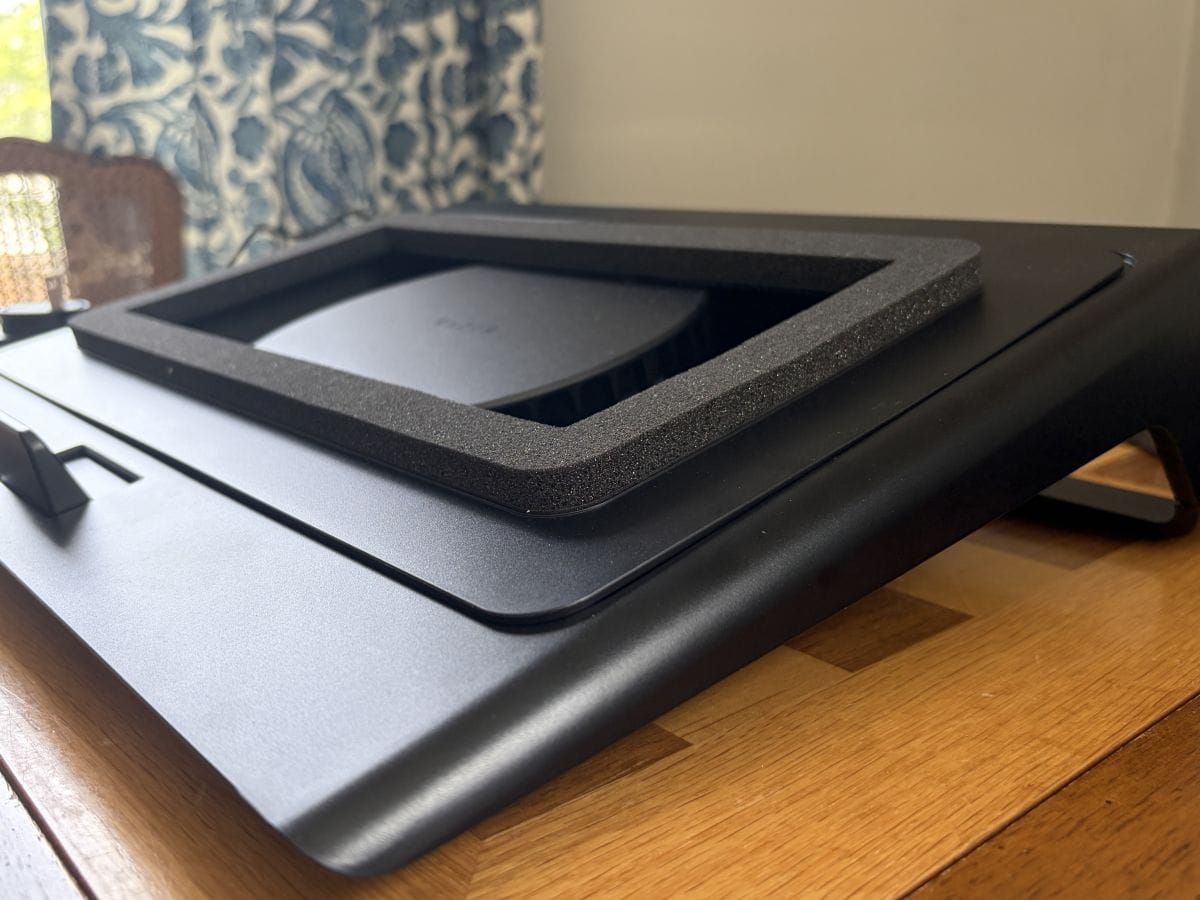
The Pad comes with three top panels you can swap out depending on your laptop’s size and shape. A manual is included to give you a general idea of what size panel you should be using for your computer, but as a general rule, you want to form a bit of a seal between the center of your laptop and the fan. Go a little smaller than you’d think at first glance so you can get the air funneled directly into the intake.
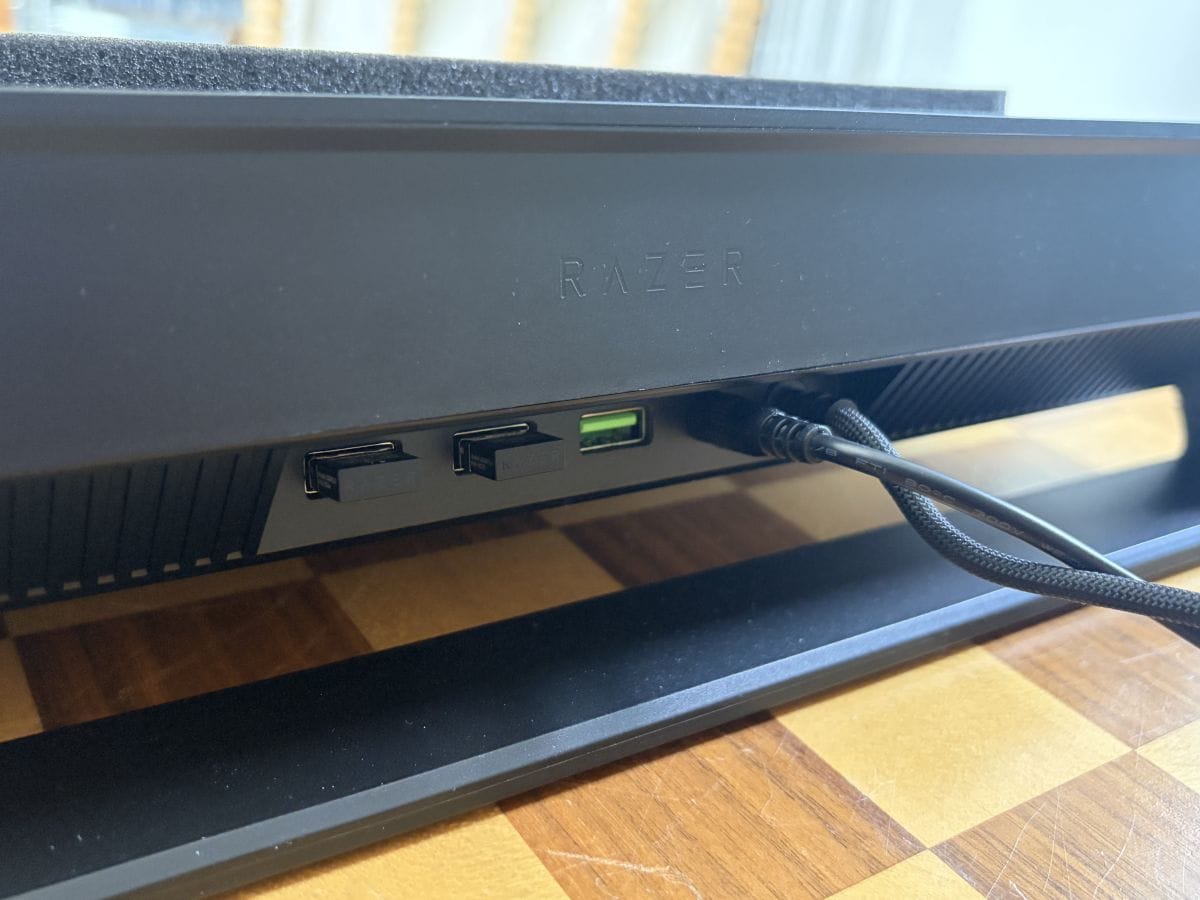
For the fan to work properly, it needs to be plugged into your laptop via USB and plugged into an outlet. The former so it can sense your device’s temperature and adjust the fan speed accordingly, and the latter to actually power the fan. While you do lose one USB port, you do gain three more as the Pad has some USB-A ports on the back. I’ve used these to plug in a keyboard and mouse to make a pseudo desktop setup, as I find the Pad puts laptops at too steep an angle to be comfortable to type with. It’s just one big plastic shell with no way to adjust the angle, which feels a bit cheap when this thing costs $170.
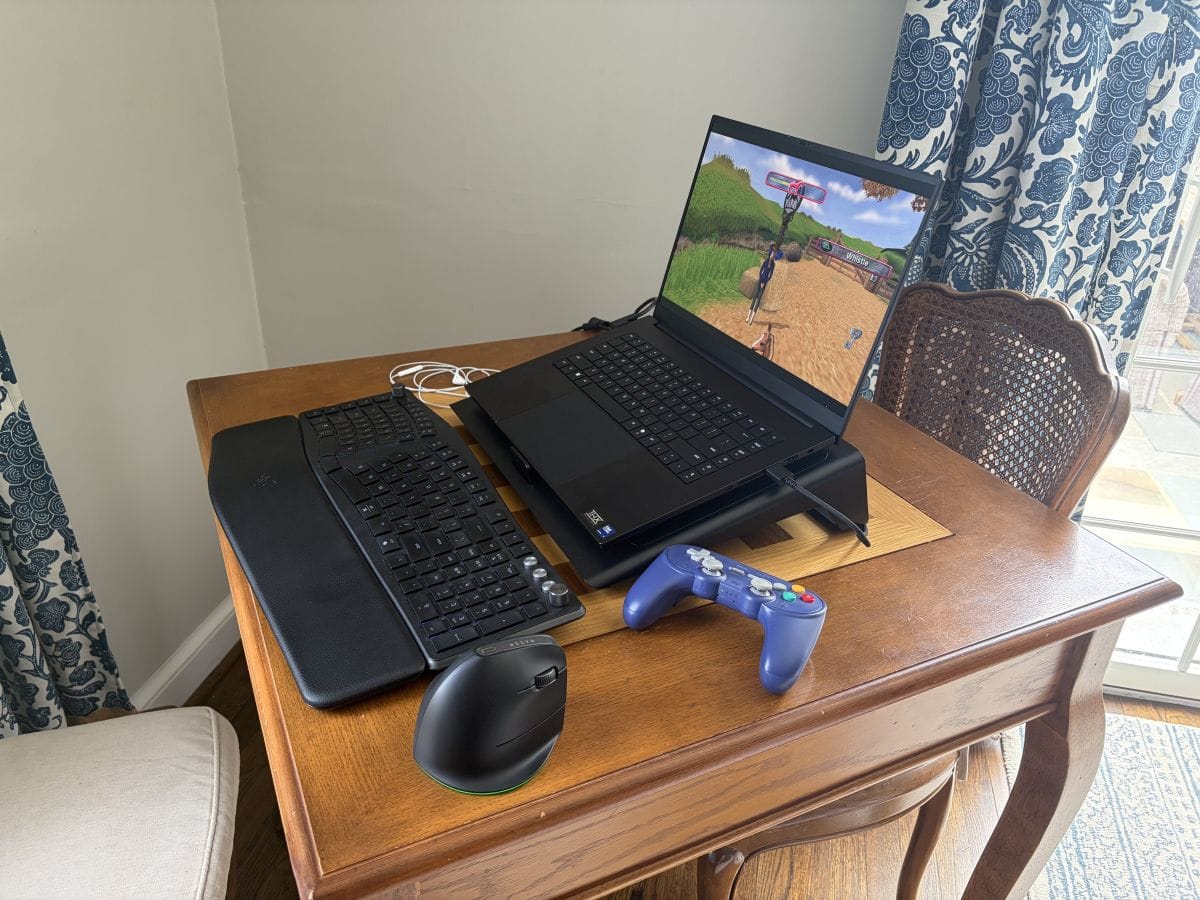
With all that said, this thing does the job pretty well, even if it can sound like a jet engine. No matter what I was doing, from browsing to gaming, the Pad kept my laptop cool at all times. The Blade 16 2026 tends to get hot from the center out, with the unibody shell distributing heat from there, and with the Cooling Pad, it was almost cold to the touch sometimes, with air even coming out of the keyboard itself. I don’t exactly have a ton of (working) laptops lying around to test, so even if I imagine the Pad will work similarly on most devices, do take this with a grain of salt.
Making full use of the Pad will require you to deal with a lot of noise, and I do mean a lot. When the fan is running at any decent speed, you’ll be able to hear it from several rooms away. There is a Quiet profile, but that is also far less effective at cooling, making the point of the accessory a bit moot. I think this is best used as something of a laptop dock, a way to keep your device cool while it’s outputting to an external display; like if you wanted to use your laptop as a living room PC, for example, as long as you can deal with the noise.
Razer Laptop Cooling Pad
Good
The Razer Laptop Cooling Pad is a simple but effective cooling solution, able to keep even powerful laptops cool under heavy load. The Pad itself is a bit cumbersome, though, with no way to adjust the angle and requiring an outlet nearby to even use. It’s also incredibly loud, but it certainly will get the job done.
Pros
- Keeps your laptop cool
- Additional USB ports
- Easy to access controls on the side
Cons
- Very, very loud
- Requires an outlet to use
- No angle adjustment
This review is based on a retail copy provided by the publisher.