For the last couple of years, if you wanted a 27-inch monitor that could push 4K at 240 Hz, there was really only one answer: OLED. And don't get me wrong, OLED is gorgeous. Perfect blacks, ridiculous speed, and colors that leap off the screen. But OLED comes with baggage. There's burn-in anxiety, a high price, pixel refresh cycles, and full-screen brightness that struggles the moment the sun hits your desk. If you use your monitor for work as much as play, as I do, you end up babying a very expensive panel.
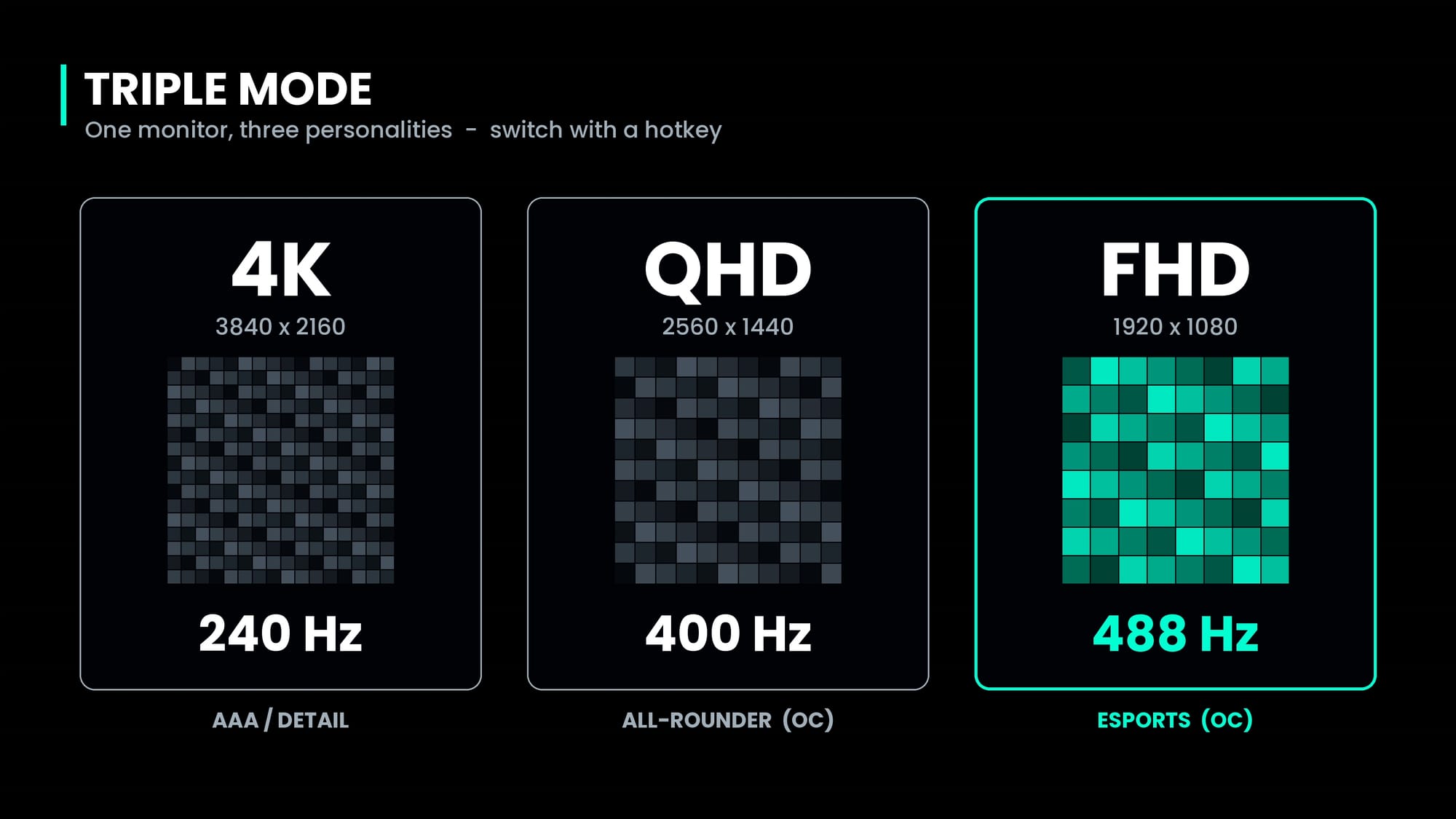
ASUS thinks there's another way to get there. The ROG Strix XG27UCMG is a 27-inch, 4K, 240 Hz Fast IPS gaming monitor, and it has a trick up its sleeve that no OLED in its class can match. With one press of a hotkey, it becomes a 1440p panel running at 400 Hz. Press it again, and it's a 1080p esports screen at 488 Hz. That's three monitors in one chassis, and after a couple of weeks of living with it, I'm convinced this is the smartest gaming monitor ASUS has put on my desk, but can this Fast IPS deliver that same gorgeous OLED clarity? Time to find out.
The numbers on the side of the box make some pretty lofty promises. At 27 inches and 3840x2160, you're looking at 163 pixels per inch, promising razor-sharp text clarity. If you spend half your day in spreadsheets and the other half in games, that density matters more than any spec sheet can convey.
At 240 Hz, the screen draws a new frame about every 4.2 milliseconds. Pair that with a GPU that can keep up and motion gets smooth in a way you'll have to see to believe. Frankly, you’ll probably feel in your mouse hand before you consciously see it. That speed comes courtesy of Fast IPS. IPS is the technology best known for accurate color and wide viewing angles, and the "fast" part is a liquid crystal formulation that switches quickly enough to keep up with high refresh rates. ASUS quotes 0.3 ms as a best-case figure, with a more typical 1 ms gray-to-gray on the spec sheet, which is incredibly quick for this panel type. In reality, it’s a clean refresh that never looks like you have a streak or blur at any speed.
The headliner for this monitor is what ASUS calls “triple mode” (the box calls it Frame Rate Boost). Out of the box, you get 4K at 240 Hz, and if you never touch it again, that's fine - this monitor is a gorgeous device at that rate and resolution. Hit the hotkey, and it drops to 1440p at 400 Hz, then 1080p at 488 Hz, with both of those being overclocked modes. Why would you want that? Because every game wants something different. Cyberpunk and Alan Wake want every pixel you can throw at them, while Counter-Strike and Valorant want every frame. Normally you'd buy one monitor for one job. This one does both – or technically all three. Let’s get a little deeper in the weeds.
This monitor has something called ELMB Sync, or Extreme Low Motion Blur. It’s part of what is making this LCD deliver performance on par with OLED in many ways. It does so by strobing the backlight to cut down on smearing in fast motion, and unlike most strobing modes, it works alongside variable refresh rate, so you get the clarity without the tearing. Variable Overdrive 2.0 rounds things out, adjusting pixel overdrive on the fly as your frame rate moves around to reduce ghosting and overshoot when frame rates dip. Frankly, these are technologies you’d normally have to rely on the card manufacturers to deliver, but ASUS has taken it upon themselves to give it to you for free.
There is fine print. The panel carries VESA DisplayHDR 400, the entry-level of HDR certification. It's rated for 400 nits with a 1300:1 contrast ratio and no local dimming. HDR content looks brighter and more colorful than SDR, but don't expect OLED-level highlights against inky blacks. That's the trade you make with IPS, but I can’t say it’s as noticeable as I would have imagined. There hasn’t been a big standout moment where I feel a “fade to grey’ instead of fade to black due to the monitor being IPS.
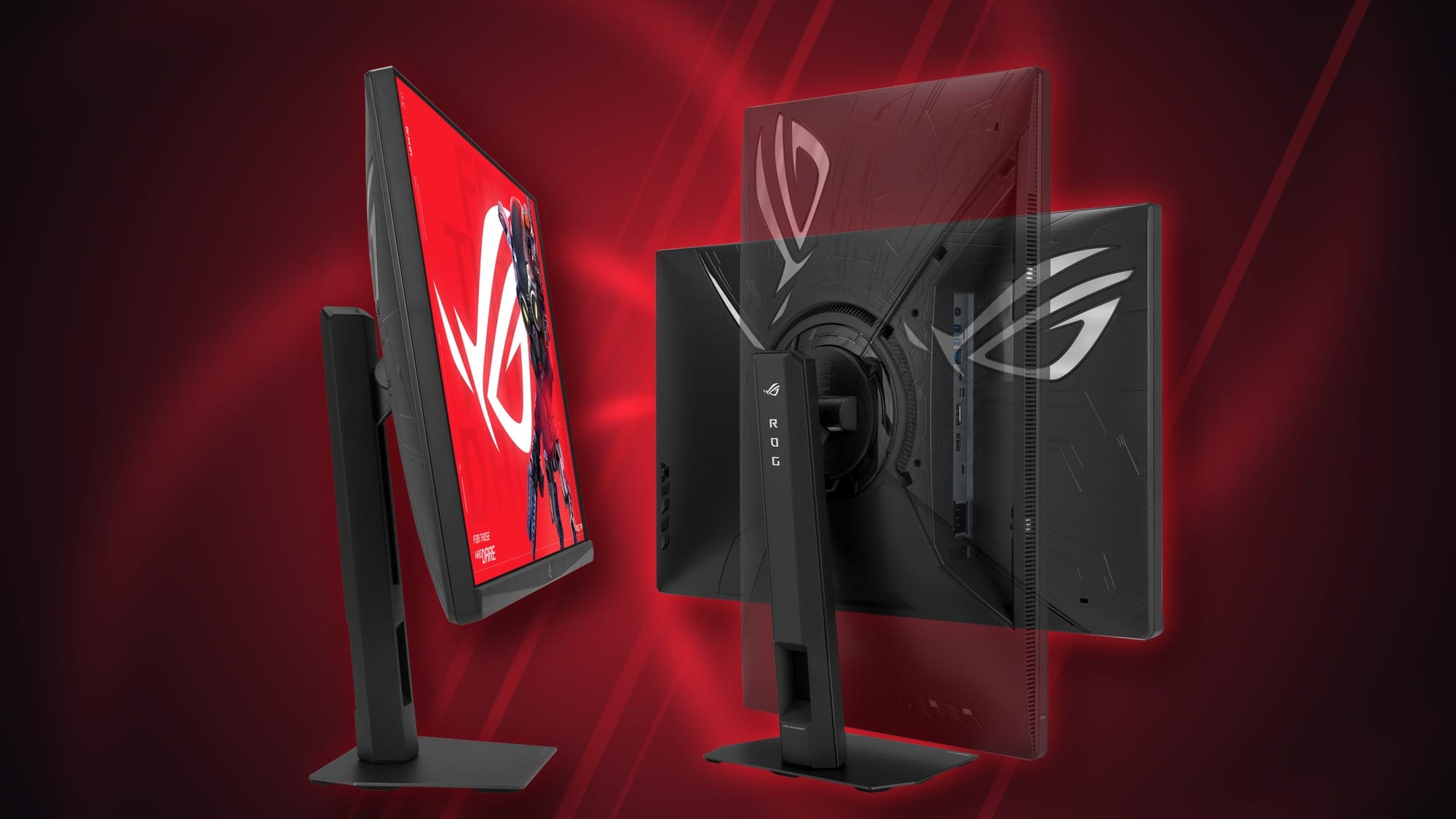
The ROG line is consistently top tier in the market, and the XG27UCMG doesn't break that streak. The panel feels sturdy in the hands, with none of the creak of cheap plastic. Accessories come in their own bag rather than being tossed loose in the box, and you get DisplayPort, USB, and power cables, plus the obligatory ROG stickers. The power cable is a standard IEC cord, so you can swap in one that's the right length for your desk. You won’t feel any sort of flex as you pick this thing up – it’s sturdy.
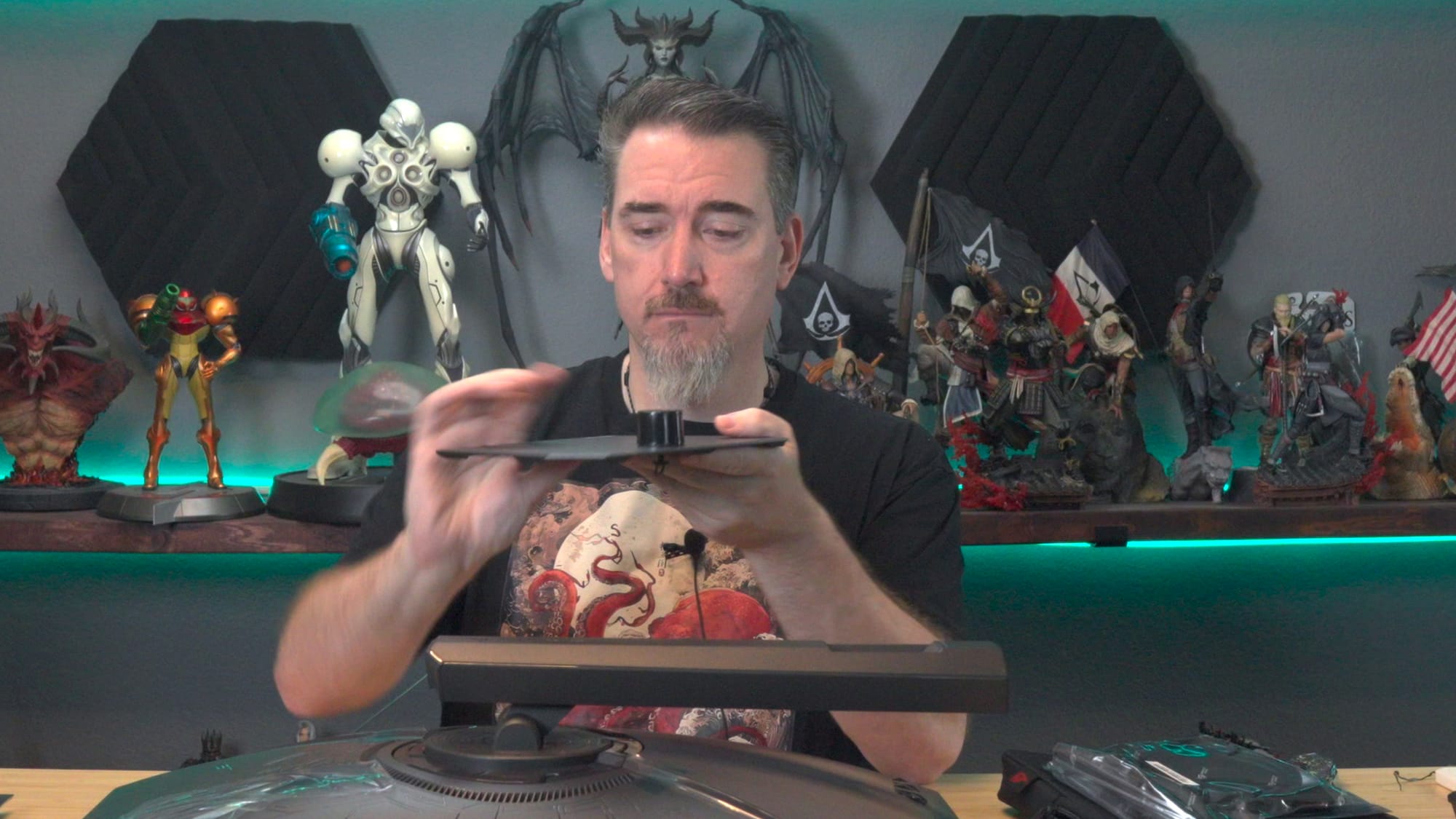
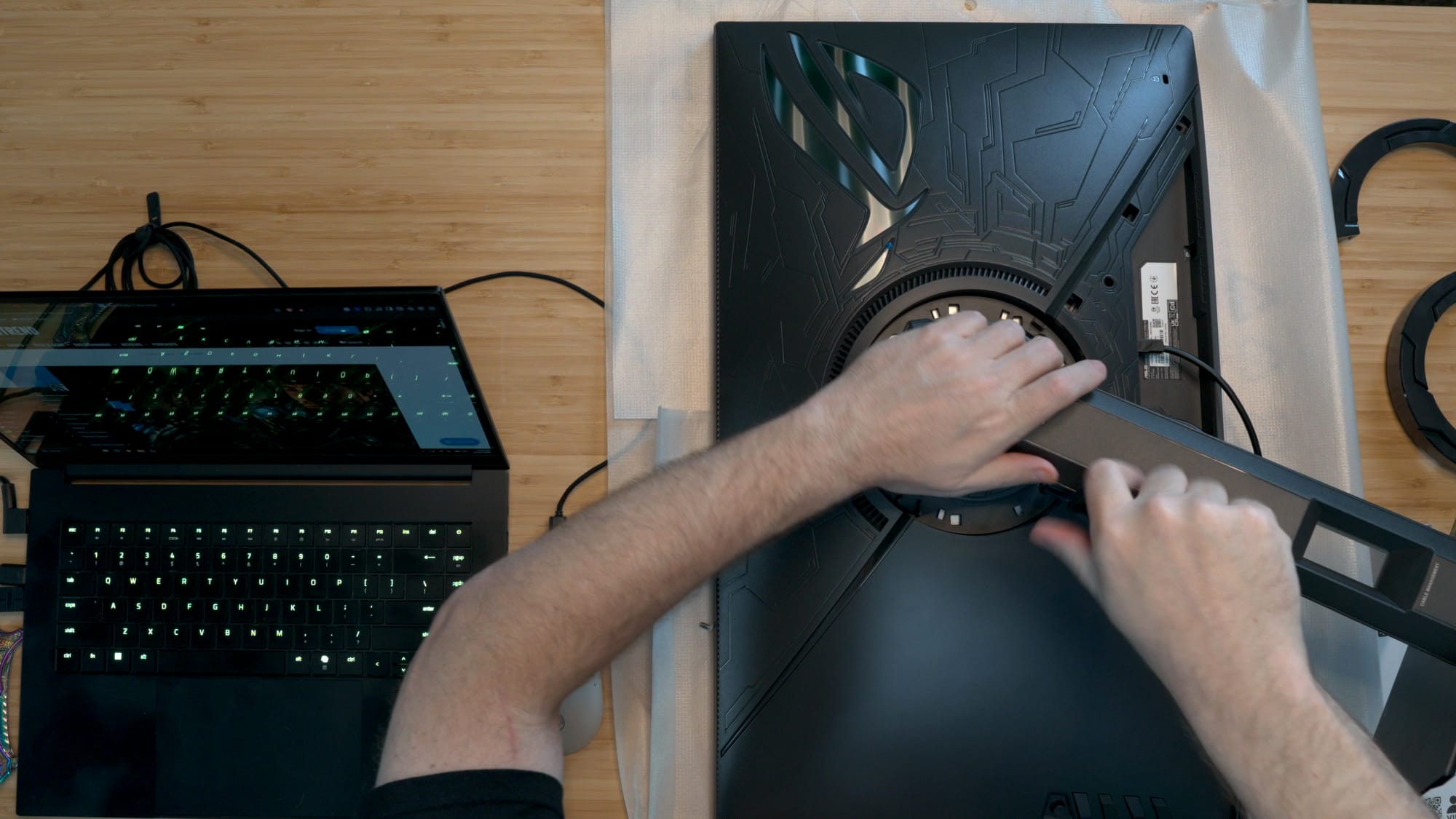
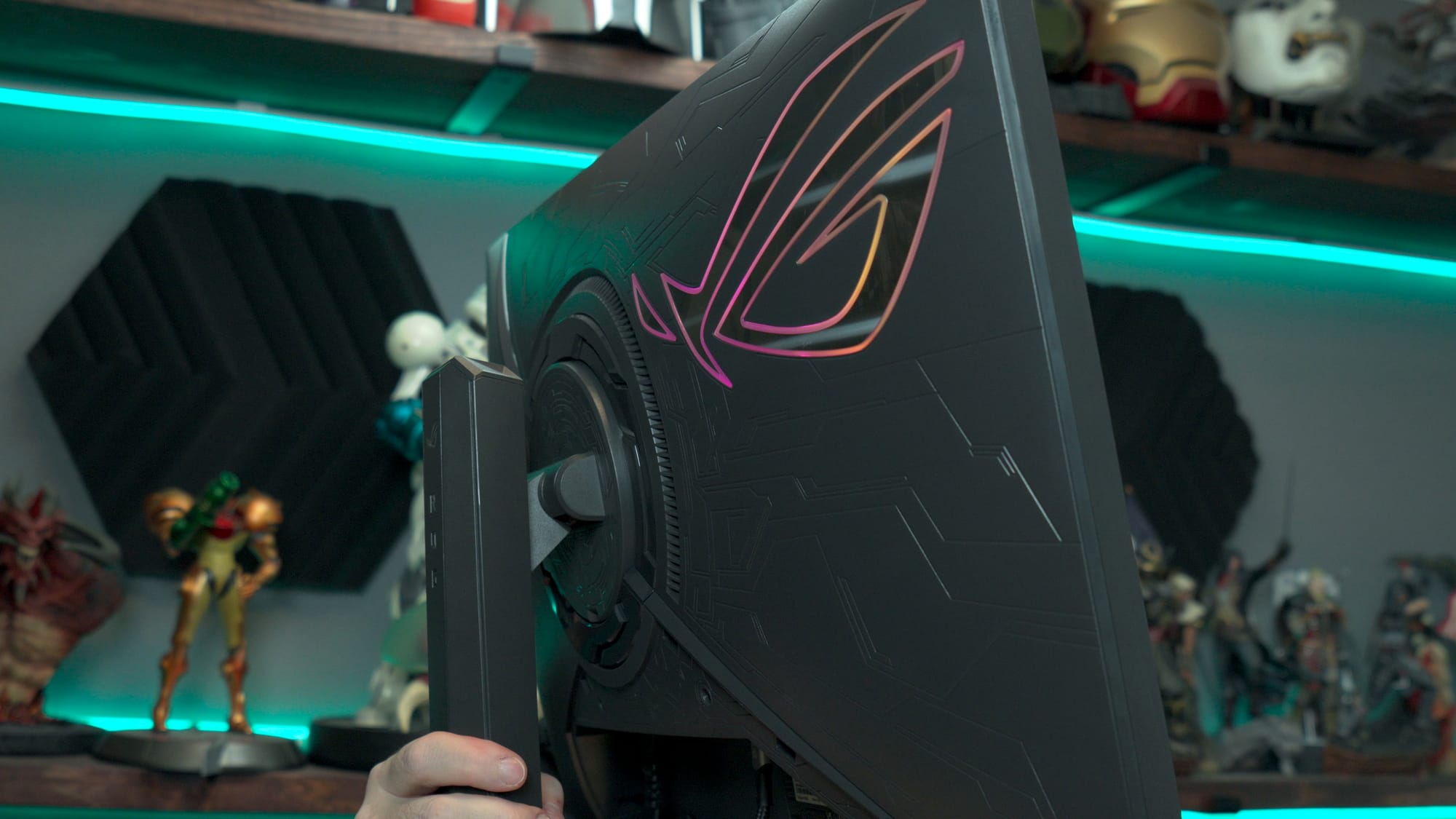
Assembly takes about a minute. The stand's neck is keyed with a square on one side and a rounded side on the other, so you can't really get it wrong. A small latch spins to screw in the base – no tools needed. The base has a small footprint that I appreciated on a crowded desk, and it doubles as a handy phone shelf. Up top there's a quarter-inch tripod socket, so a webcam, key light, or small camera arm can mount directly to the monitor instead of yet another clamp on your desk. The panel itself weighs about 9.5 pounds (14.3 with the stand), which makes it easy to handle. Mounting it up to my VESA mount was a one-handed affair – no teamwork required.
The front of the panel is a matte anti-glare finish. You trade a little of the punch of a glossy screen for far less reflection, and in my studio, which has an extraordinarily bright light aimed right at the desk, I couldn't find a reflection anywhere on the screen. The bezels are nearly nonexistent on three sides, around a millimeter, so two of these side by side would be as close to seamless as you can possibly get.
Connectivity lives on the bottom edge: one DisplayPort 1.4 with DSC, one HDMI 2.1, and one USB-C with DisplayPort Alt Mode. That's three video inputs, plus two USB 3.2 Type-A ports, a USB-B upstream port, and a 3.5 mm headphone jack. DisplayPort is the one you want for 4K at 240 Hz from a PC, since it uses Display Stream Compression to hit the full refresh rate. HDMI 2.1 handles a PlayStation 5 or Xbox Series X at 4K 120 Hz with variable refresh. My only wish on these is that I want them a little closer to the back edge – a straight cable barely fits in the space, making it feel like it could use a few millimeters of clearance. It’s a minor nitpick in the grand scheme of things.
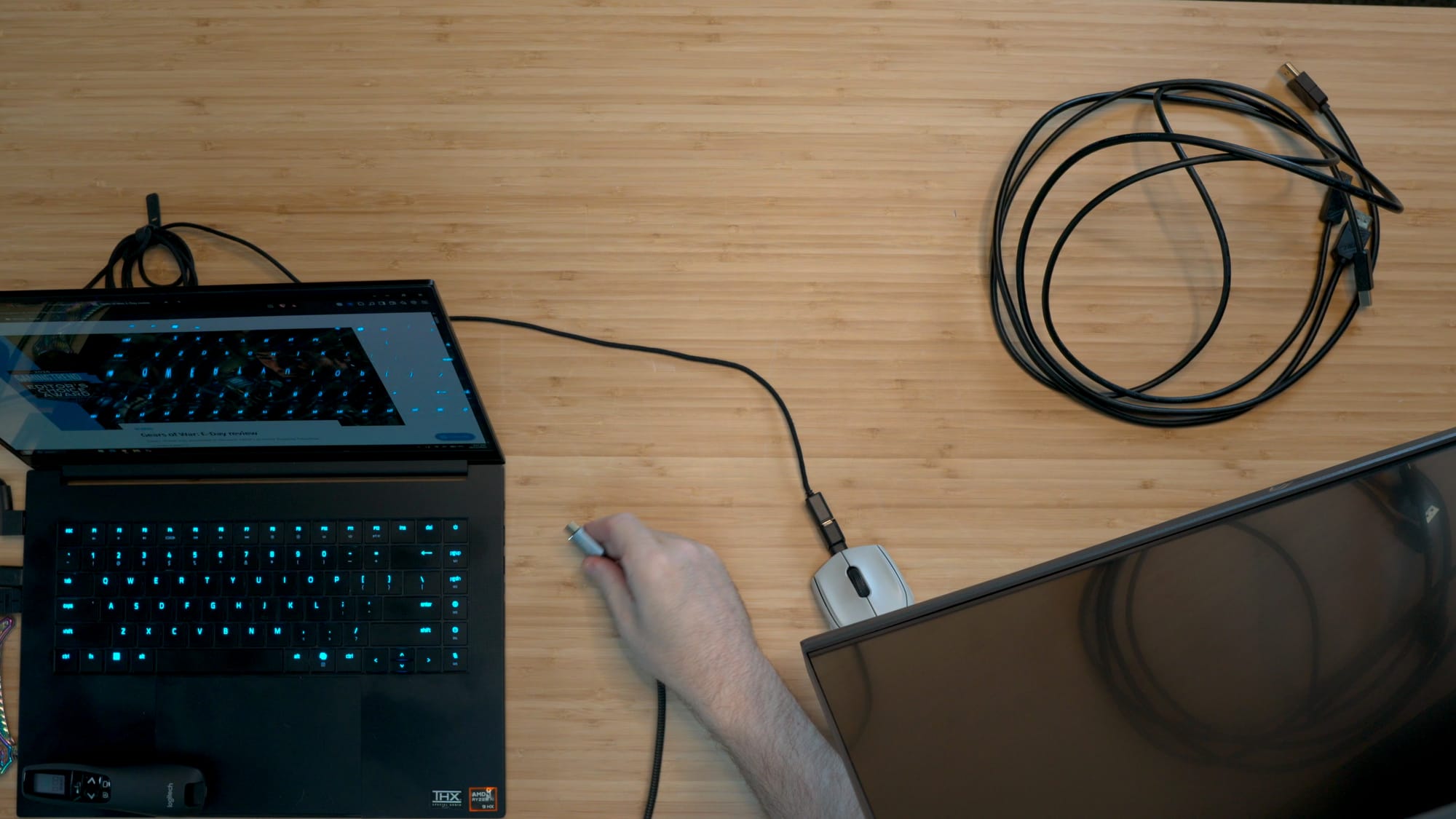
Those ports in the back feed a built-in KVM. Plug your keyboard and mouse into the monitor, run a gaming PC on DisplayPort and a work laptop on USB-C, and when you switch inputs, your keyboard and mouse follow. One desk, two machines, no cable swapping. My own test was the best case: I unplugged everything, ran a single Thunderbolt cable from my laptop, and the screen came to life in seconds. My laptop's HDMI port tops out at 4K 144 Hz, so that one cable was the better option, and one less adapter to carry in my bag.
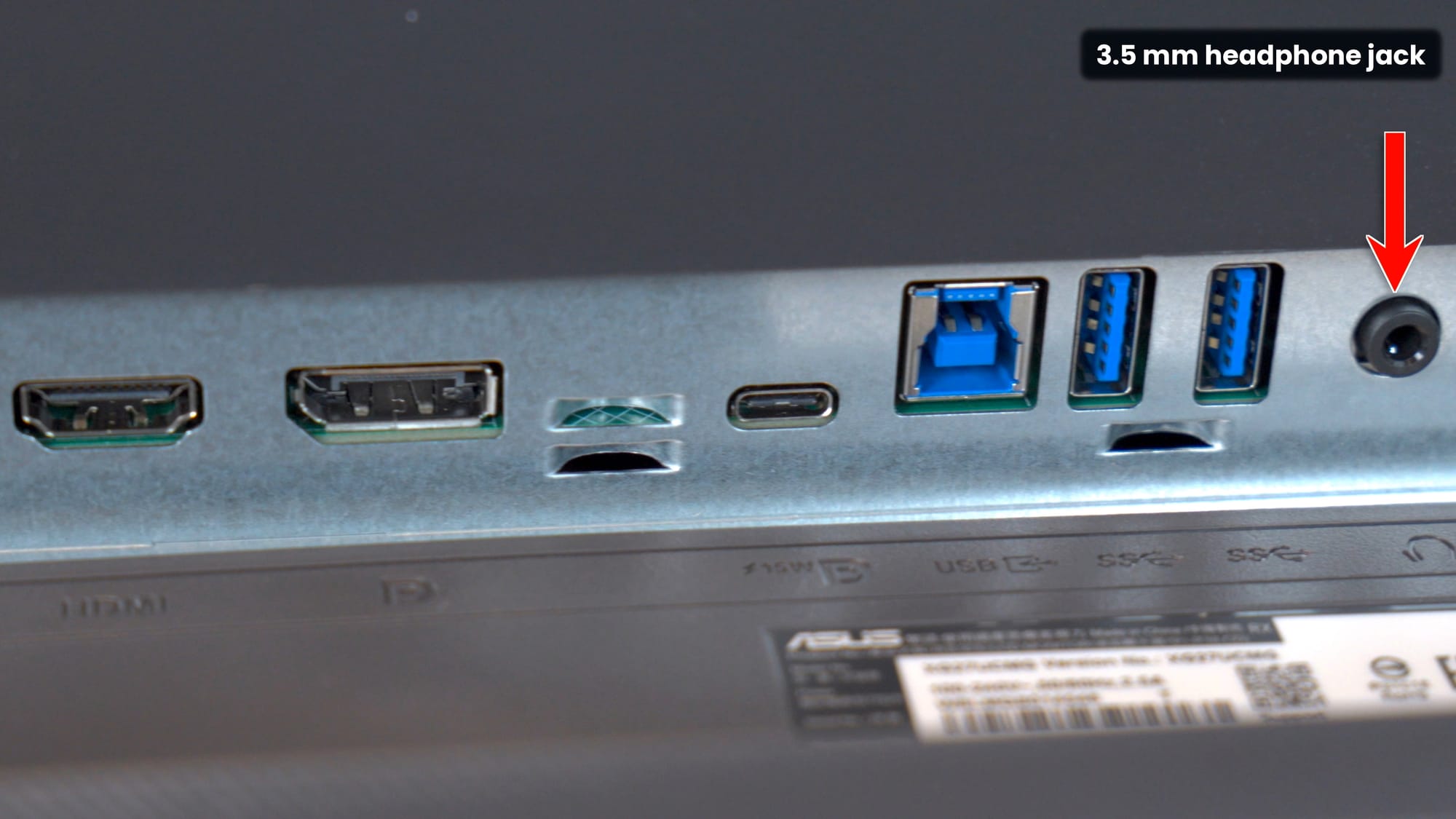
There are two honest caveats. The USB-C port delivers only 15 watts, enough to top off a phone but not to charge a laptop or run the monitor without it, so keep the brick handy for your computing device, and the power cord nearby for the monitor. Again, the most minor of nitpicks – more of a note. There's also only one HDMI 2.1 port. If you own both a PS5 and an Xbox, you'll be swapping cables or adding a switchbox, though a decent HDMI switch runs about $25, so I'd call it a minor issue.
Ergonomically, the stand offers 110 mm of height adjustment, 20 degrees of tilt back and 5 forward, and a full 90-degree pivot in either direction. A portrait 27-inch 4K panel is fantastic for coding or an endless web scroll - I’m using it right now to write this document! If you'd rather mount it, the 100x100 mm VESA plate hides behind two pry-off rings and four standard screws. ASUS does seem to delight in making that harder to find than it needs to be, but there's a metal reinforcement plate behind it, so it isn't just hanging on plastic.
My least favorite part of any monitor review is going through all of the settings and testing them. It means repeatedly poking at a tiny joystick nub on the back, clickity-click through an on-screen menu, and then trying to film the display before the menu goes away. Thankfully, ASUS has made that unnecessary. DisplayWidget Center lets you change brightness, contrast, color, and every other setting from your desktop with a mouse. It also handles firmware updates and per-game profiles, and that alone makes living with this monitor easier, but also more useful – let me explain.
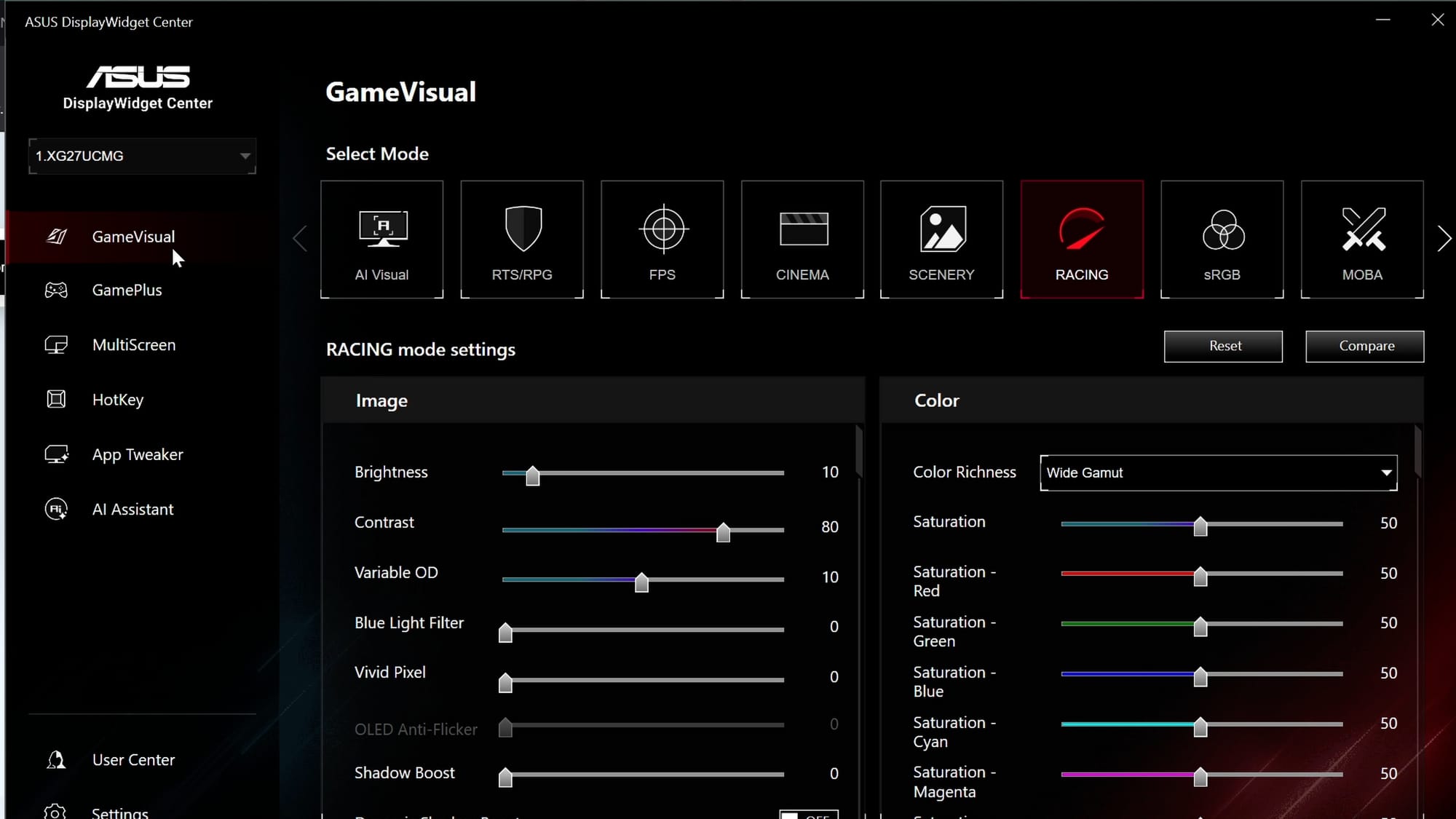
Many monitors have presets for different modes you could use with various types of games. How many times do you imagine yourself poking at this nub to get to those settings? In pretty short order, the next time is the last time. With DisplayWidget, I can fire that up and, with a mouse click, switch presets to play RTS, RPG, FPS, Cinema, Scenery, Racing, sRGB, MOBA, and even a User mode I define. RTS and RPG push brightness and contrast up so tiny units stand out against a sea of similar colors. FPS pushes brightness to the top and pulls contrast down slightly. Variable Overdrive and the triple mode switch live here too, along with GamePlus crosshairs, an on-screen timer ("I'm only playing for 30 minutes, then it's back to work"), an FPS counter, and hotkeys that let you punch up saturation or cut blue light without opening anything at all.
Then there are the AI-assisted features, which some will call “controversial”. Dynamic Shadow Boost brightens dark corners so enemies can't hide in the shadows. We can have a whole conversation about whether that's cheating, and I'll leave that one to the comments. Dynamic Crosshair is a different story. It changes your on-screen crosshair's color on the fly so it always contrasts with what's behind it. In the cacophony of color most shooters throw at you, a crosshair can disappear entirely, and for players with red, green, or blue color blindness, that happens far more often. I'm not going to call that one cheating as it helps a whole class of players who would otherwise struggle, and ASUS deserves real credit for it.
Specs only tell you so much, so I lived with this monitor for a couple of weeks. The first thing I check on any IPS panel is glow and light bleed. I put up a dark, moody game scene that would expose any bleed in the corners, and found none. Color saturation was excellent across the whole screen. I also hit more than a few tests that you can see for yourself in the video above, as talking about them doesn’t really do them justice. Just know that I don’t have a 5-figure camera to capture with, so I’m gonna have to do my best to capture color quality and clarity here, and that’s not easy in the dark with two different monitors at the same time. You’ll have to take it a bit on faith.
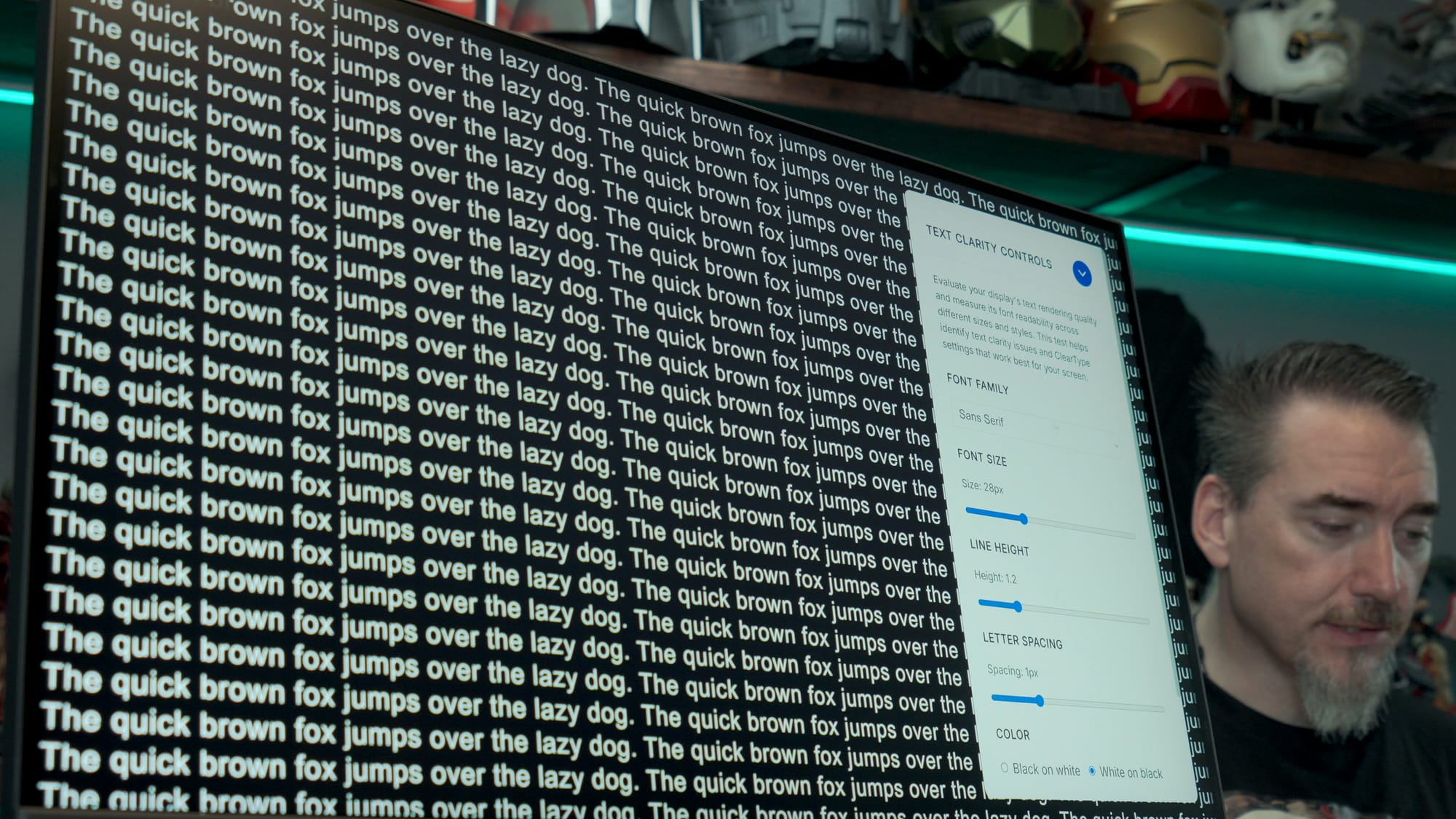
Text clarity is where this panel really shines. At 163 PPI, I ran a font-rendering test that cycles common web typefaces (Trebuchet, Times New Roman, Arial, and more) from enormous to obscenely small, looking for jagged edges on the curves of a P, R, or Q. I didn't find any. This is one of the cleanest displays I've tested in the last five years. I also ran a full ScreenTester.io pass (white, black, every primary and secondary color, and four gray levels) and found no dead or stuck pixels. Run that test on every monitor you buy. Naturally, I’ve also been using it as a daily driver for a bit now, and it has blended into my normal workflow, which speaks volumes.
IPS has a reputation for washing out at an angle, so I turned the monitor until it was more than 90 degrees off-axis from one camera. The image stayed clear and readable, with no color shift worth mentioning. In fact, you can read this thing from just about any angle, and it reads just as clearly as the other OLED monitors I have – an impressive feat given that it’s literally half the price of those devices.
For motion, I ran Blur Busters' TestUFO. Switching triple mode on the fly took a second, and the counter jumped to match the new refresh rate while the animation held its speed. My camera can't fully capture that, and YouTube tops out at 60 fps anyway, so this is another one I tried to show in the video, but you’ll have to trust that it's very, very fast.
Thankfully, it was time for some games. My test PC runs a GeForce RTX 5080. Assassin's Creed Shadows at 4K on Ultra High with DLSS Quality held around 80 fps and showed off incredible detail and color. Doom: The Dark Ages ran close to 145 fps, Star Wars Galactic Racer stayed well above 150 most of the time, and osu! pushed nearly 300. Gears of War: E-Day is the one that really lines up perfectly with the first mode on this panel. Its built-in 4K benchmark averaged around 230 fps, right up against the 240 Hz ceiling, which is exactly where a fast panel earns its keep. G-Sync compatibility kept everything smooth even when frame rates bounced around. Beyond benchmarks, it looks gorgeous in gameplay, which frequently has you above and below ground, showcasing fantastic light and color saturation throughout.
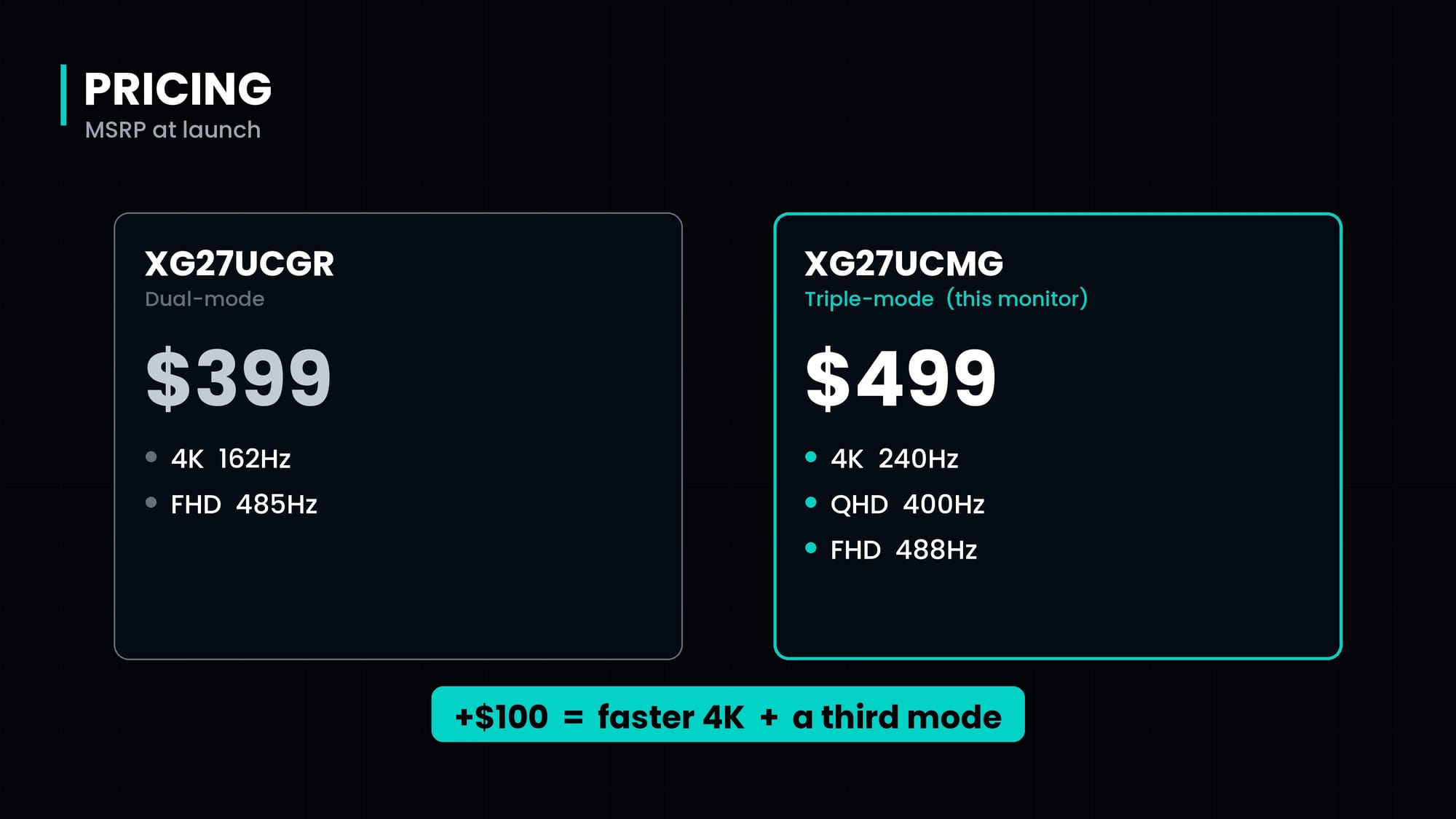
The XG27UCMG lists at $499 before any sales, and with Black Friday and Cyber Monday on the way, that number may well drop. For context, ASUS's own XG27UCGR, a dual-mode monitor that tops out at 4K 162 Hz and 1080p 485 Hz, sits at $399. For an extra $100, you get a much faster 4K mode for everyday use, plus a third mode on top. That's an easy justification for anyone who plays high-refresh games where reaction time is more important than highest resolution.
I’m happy to say that ASUS also backs this monitor with a three-year warranty, which is exactly what I want to see on a monitor at this level. It also comes with ASUS's Adobe Creative Cloud offer: a free month of Creative Cloud Pro, covering Photoshop, Premiere Pro, Lightroom, and the rest of the suite, if you’re an Adobe devotee. That's about a $270 value, and a nice way to try the color-critical side of this panel in a real workflow. You simply register the monitor with ASUS to redeem it.
The last thing worth weighing is size. I'm used to living on a 32-inch screen, and if you mix heavy work with gaming, those extra inches of real estate are genuinely useful. For competitive gaming, though, 27 inches is widely considered the sweet spot, because you aren't scanning your head left and right to take in the action. After a couple of weeks at 27 inches, it didn't feel like a step down, and I found myself gaming on the top monitor instead of the bottom one, and that’s saying something.
For years, if you wanted 4K, 240 Hz, and 27 inches, your only choice was OLED and all the baggage that came with it. The ROG Strix XG27UCMG delivers that speed on Fast IPS, which means no burn-in, no pixel refresh cycles, and no babying. Then it goes a step further. One button turns it into a 400 Hz 1440p monitor, and another pushes it to 488 Hz at 1080p. No OLED in this class can do that, and as far as I can tell, ASUS is the first to pull it off.
It isn't perfect. HDR 400 is entry-level HDR; there's no local dimming, and a 1300:1 contrast ratio means blacks still look like IPS blacks, not OLED blacks. If you mostly watch HDR movies in a dark room, OLED still wins. You also get just one HDMI 2.1 port and a USB-C port that won't charge a laptop, and conversely can’t be powered entirely by a laptop, so you’ll want to keep your power brick and that standard monitor power cable handy.
For most people, though, the gamer who also works on the same screen, this is an exceptionally smart package. You get a built-in KVM, single-cable USB-C, DisplayWidget Center so you never fight the little nub on the back, a genuinely helpful Dynamic Crosshair, and a three-year warranty. Add text clarity that ranks among the best I've tested and color that holds from any angle, and it's beautiful. The XG27UCMG may be a mouthful, but if you want one monitor that can do it all (gorgeous 4K one minute, esports speed the next), it's the one to get.
ASUS ROG Strix XG27UCMG Monitor
Excellent
Delivering blisteringly fast speeds across three modes, this monitor is an excellent entry from ROG that ticks the boxes for workers, gamers, and e-sports enthusiasts all at the same time. The IPS panel delivers OLED-like quality, and at a price that won’t break the bank.
Pros
- Three monitors in one: 4K at 240 Hz, 1440p at 400 Hz, and 1080p at 488 Hz with a single hotkey
- Razor-sharp text at 163 PPI, among the cleanest panels I've tested in years
- Excellent color and saturation, wide viewing angles, excellent anti-glare matte finish
- DisplayWidget Center makes every setting, profile, and firmware update a mouse click away
- ELMB Sync works with variable refresh, and Variable Overdrive 2.0 tunes overdrive on the fly
- Three-year warranty and a free month of Adobe Creative Cloud Pro
Cons
- DisplayHDR 400 with no local dimming; 1300:1 contrast means IPS blacks
- 27 inches may feel tight if you're coming from a 32-inch work screen
This review is based on a retail version provided by the manufacturer.