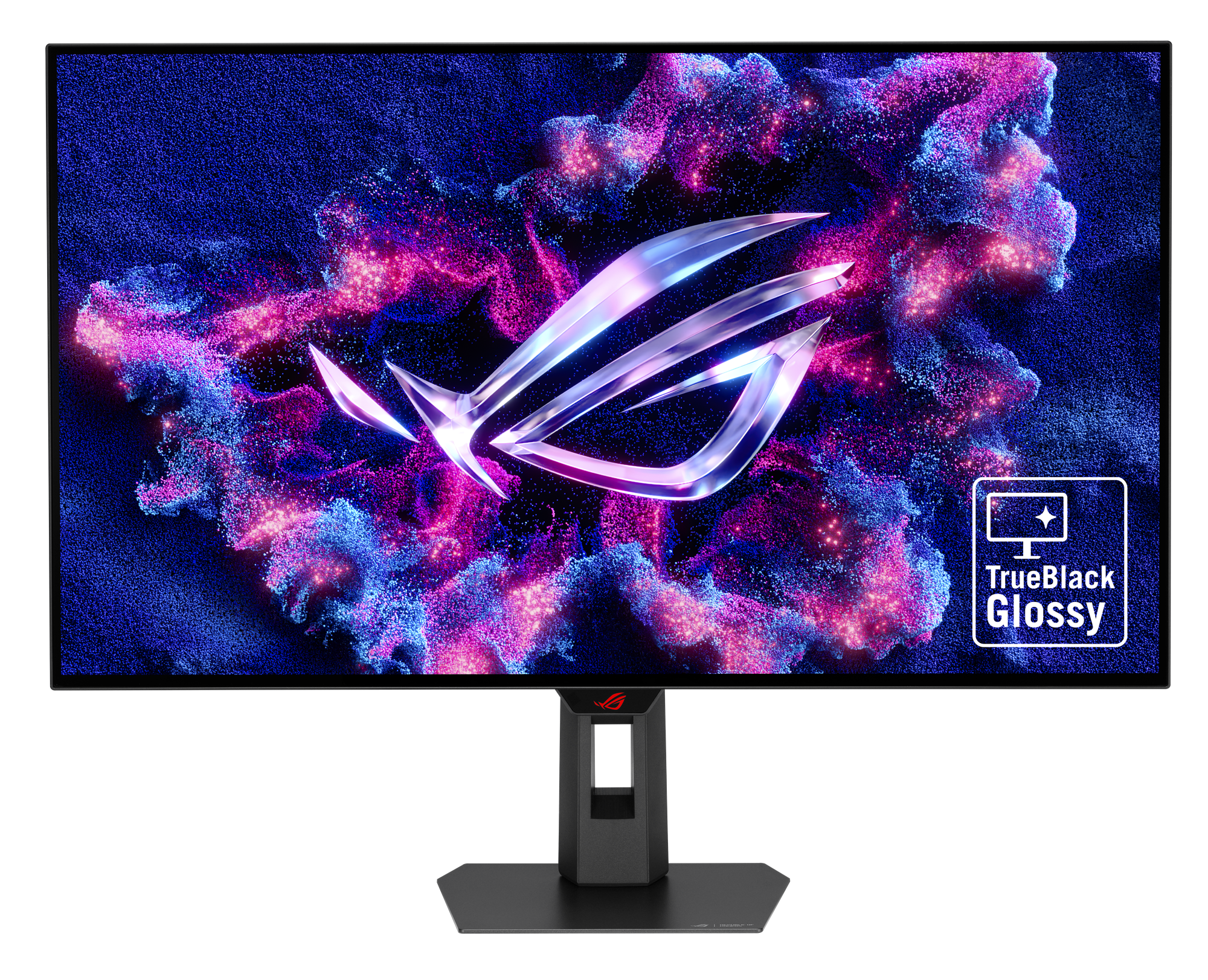
I was in high school when I got glasses for the first time. The math teacher noticed that I was squinting at the board and insisted that I move up to the front of the class and away from my friends. I ended up getting glasses pretty quickly after that, setting up an appointment with the local optometrist. My friend was with me when I put them on for the very first time, asking me something along the lines of “Can you see now?” It took me a fair second to respond, as I was stunlocked by the sheer detail of the world around me. I could see the individual veins on the leaves on the tree overhead, I could see the water drops glisten from fresh rain, I could… see. It took a little adjustment to get used to a life of visibility, but boy, was it worth it. That story was what I was reminded of when I recently went from a 144hz 1080p TN monitor to a 240hz 4K OLED, the Asus ROG Strix OLED XG32UCWMG.
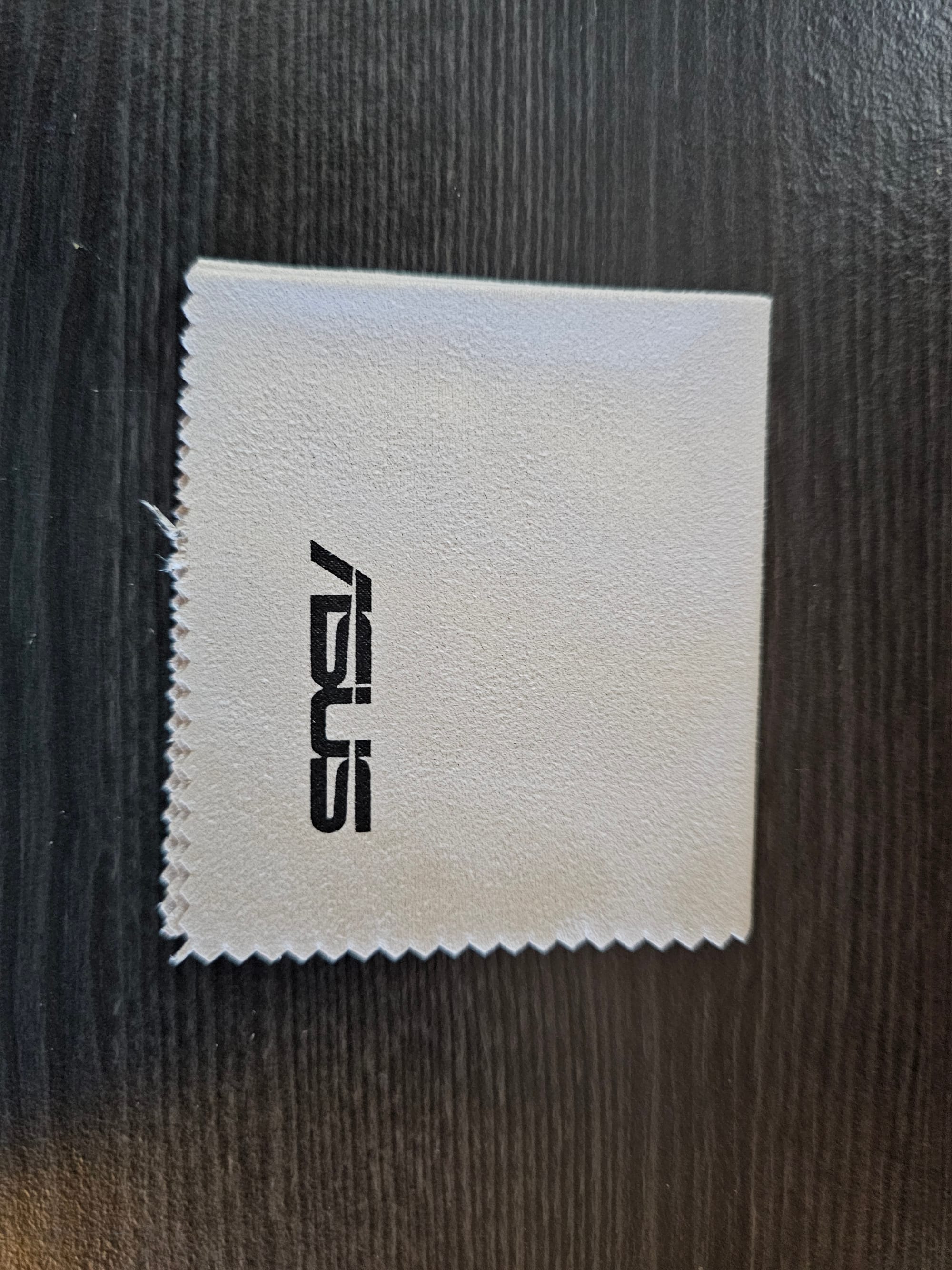
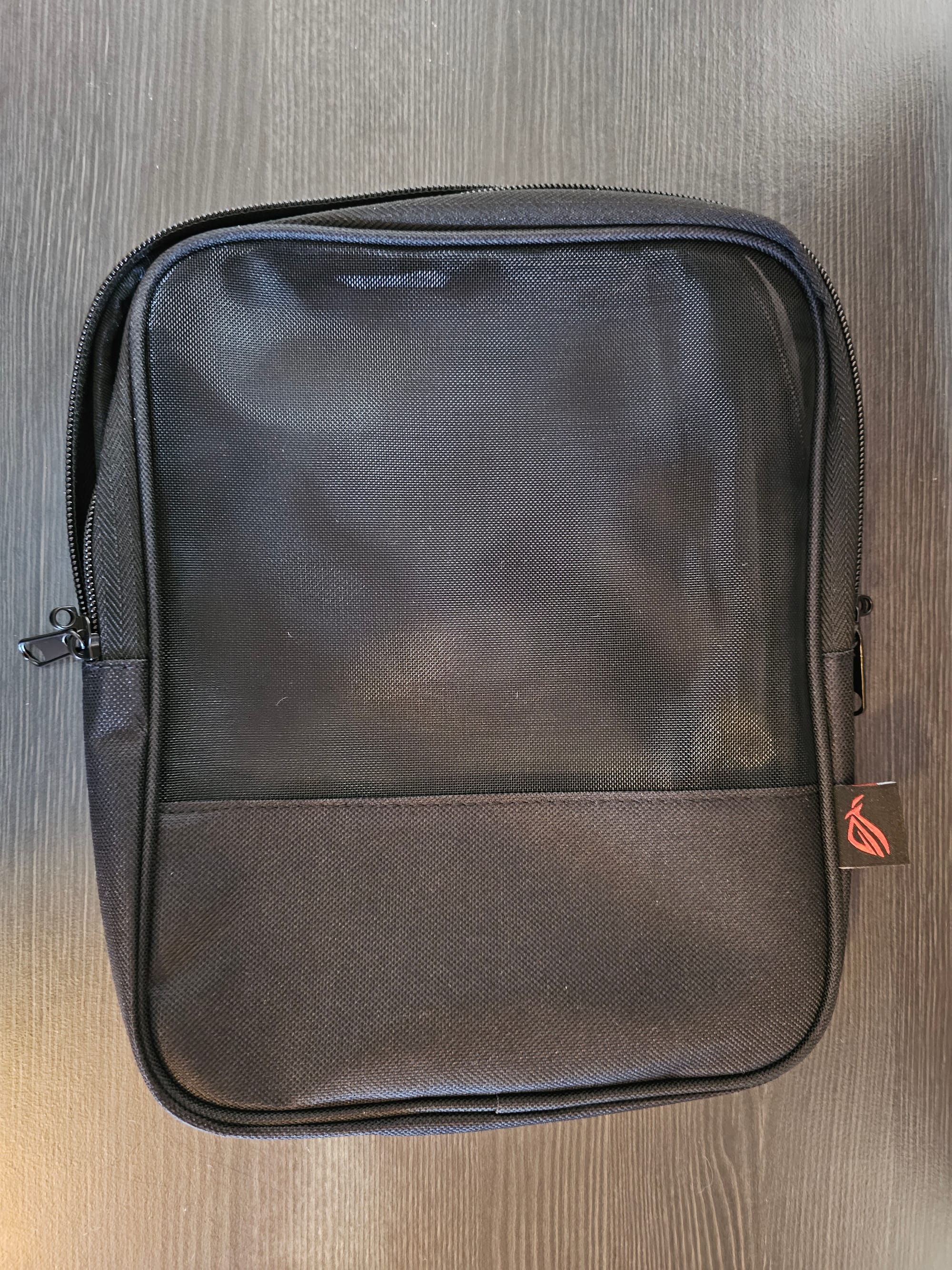
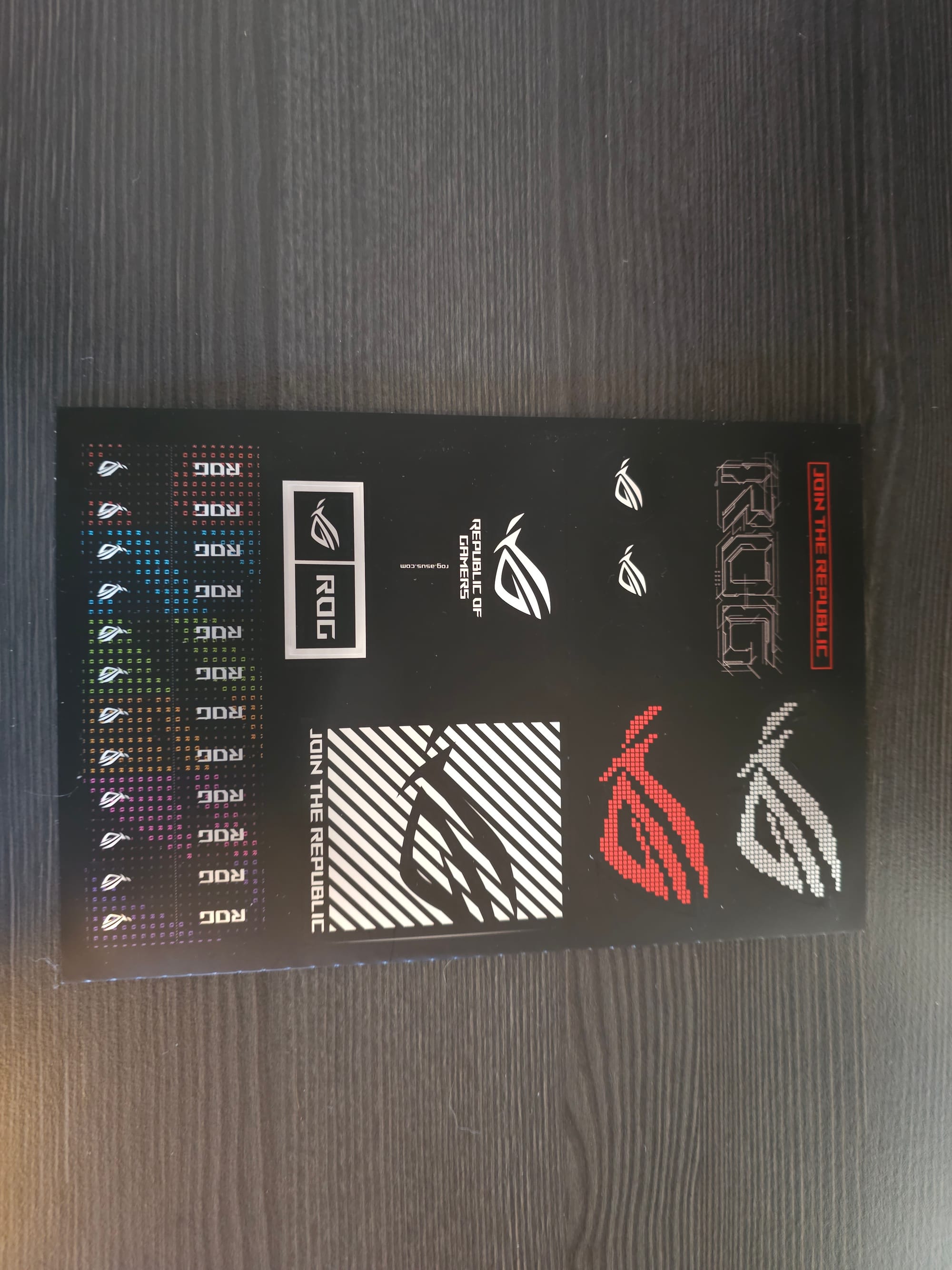
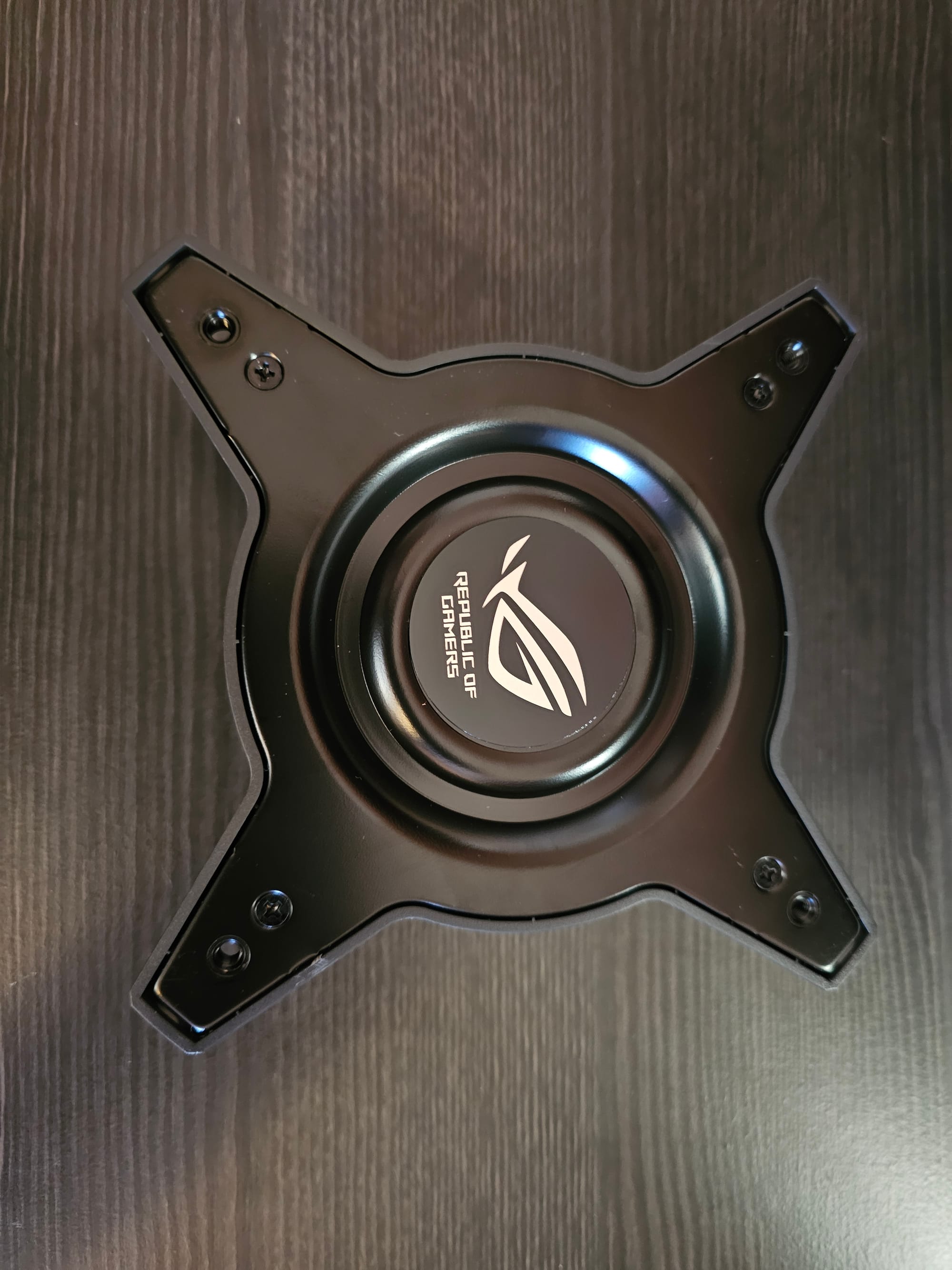
Let's start with the packaging. A premium monitor deserves a premium package, and Asus delivered. Beyond the protective styrofoam encasement, there are a few nice touches. Just about every smooth surface that’s meant to be seen comes with a protective layer to peel off, from the power supply to the VESA mount to the screen, and even the logo on the OSD Menu tab on the bottom of the monitor. Included in the box is a small canvas bag with a metal mesh window to hold all of your cables and the included microfiber cloth. I have to commend ASUS on including the cloth, as well as the sticker requesting that users clean the monitor’s sensor (which we’ll get into in a minute) with it before use. On the note of stickers, a whole two sheets of them come with the monitor. I’m not really a sticker guy, but it’s another nice touch. However, the most important sheet in the box is probably the warranty card for the monitor’s three-year protection plan, which provides dark dot, light dot, and burn-in coverage.

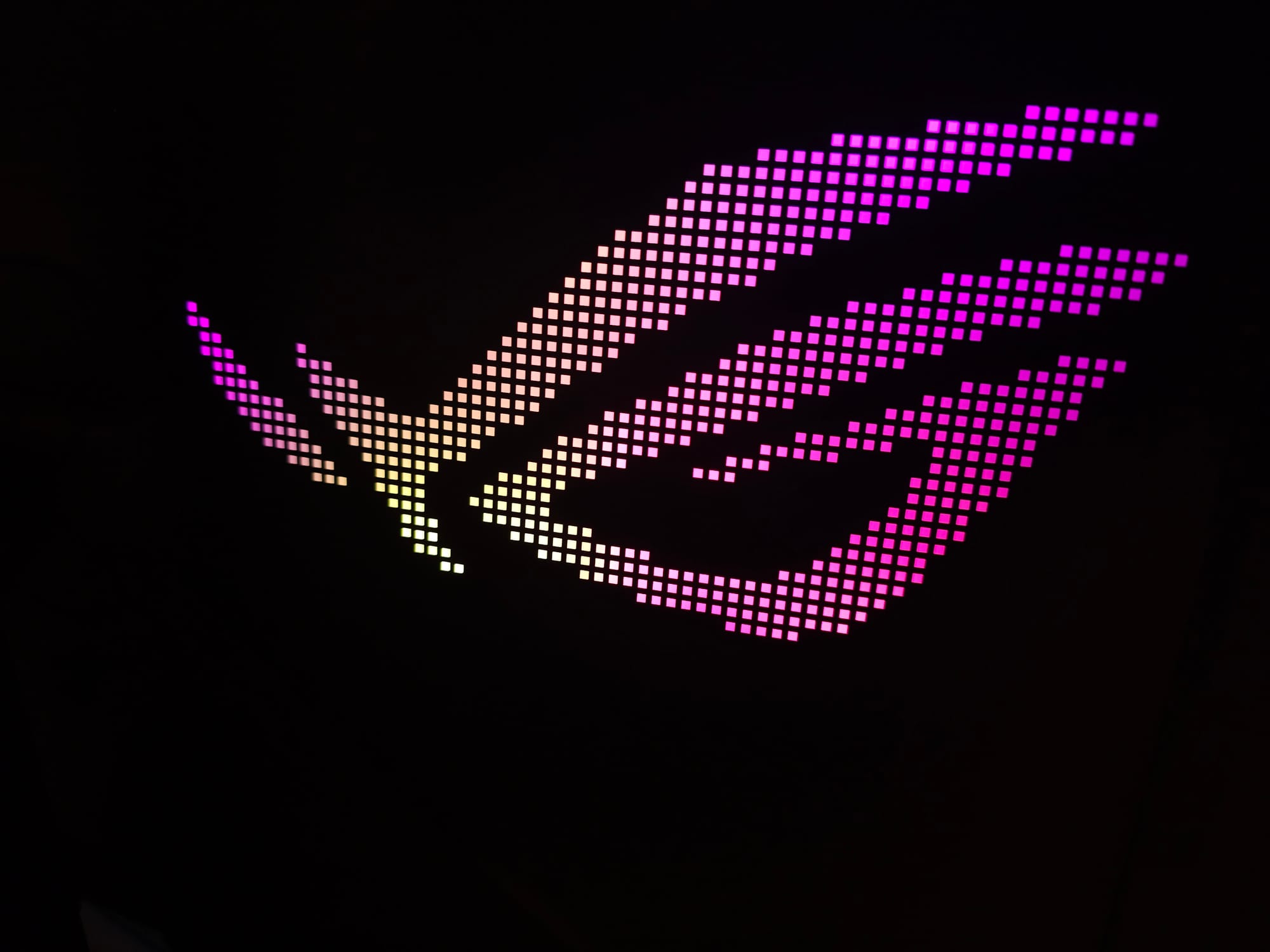
Moving on to the aesthetics and body of the device, this monitor feels premium, featuring a 32-inch screen with a thin-framed build, a customizable RGB Asus logo on the back of the monitor, and a red logo on the OSD menu tab. As someone whose monitor faces away from a window, I can appreciate seeing the RGB logo on the back as I move around my room at night. Slightly beneath that RGB logo lay the ports, including a DisplayPort 1.4 with DSC, two HDMI 2.1 FRL ports, one 15-watt USB-C port (DP Alt Mode), three Gen 1 USB-A 3.2 ports, one USB-B 3.0 port, and a headphone jack.
The screen is supported by a compact metal base that provides incredible stability while returning valuable desk space to the owner. The height of the monitor can be adjusted from 0-88mm, the screen can be swiveled +/- 15 degrees, and it can be tilted +20 degrees to -5 degrees. Given the TrueBlack Glossy WOLED panel, this monitor will look stunning regardless of viewing angle, even in a well-lit room—and that’s coming from someone in a room with 4 windows and a skylight. As for the lamps in my room, they definitely reflect off the monitor, but their reflections are contained, mirror-like, and don’t have massive coronas or flares. Being W-OLED, the screen is also devoid of the purple-ish reflection that a QD-OLED would display when exposed to light. While it ultimately still looks best in the dark, this monitor tanks ambient light like a champ. Zooming out to the bezels, they’re not super thin, but I found that to be convenient for adjusting the height, tilt, and swivel of the monitor while keeping my fingers from getting too close to the display.
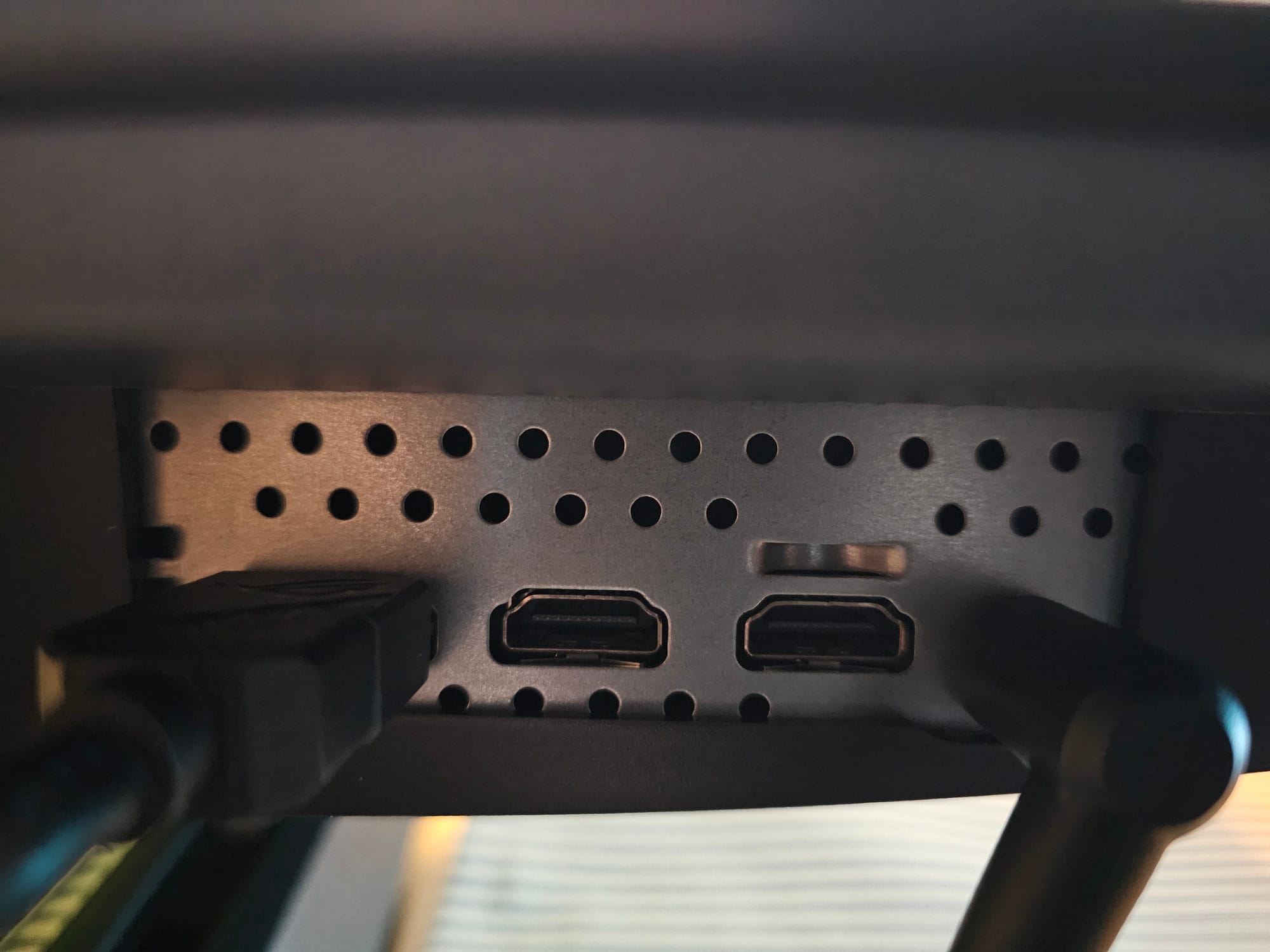
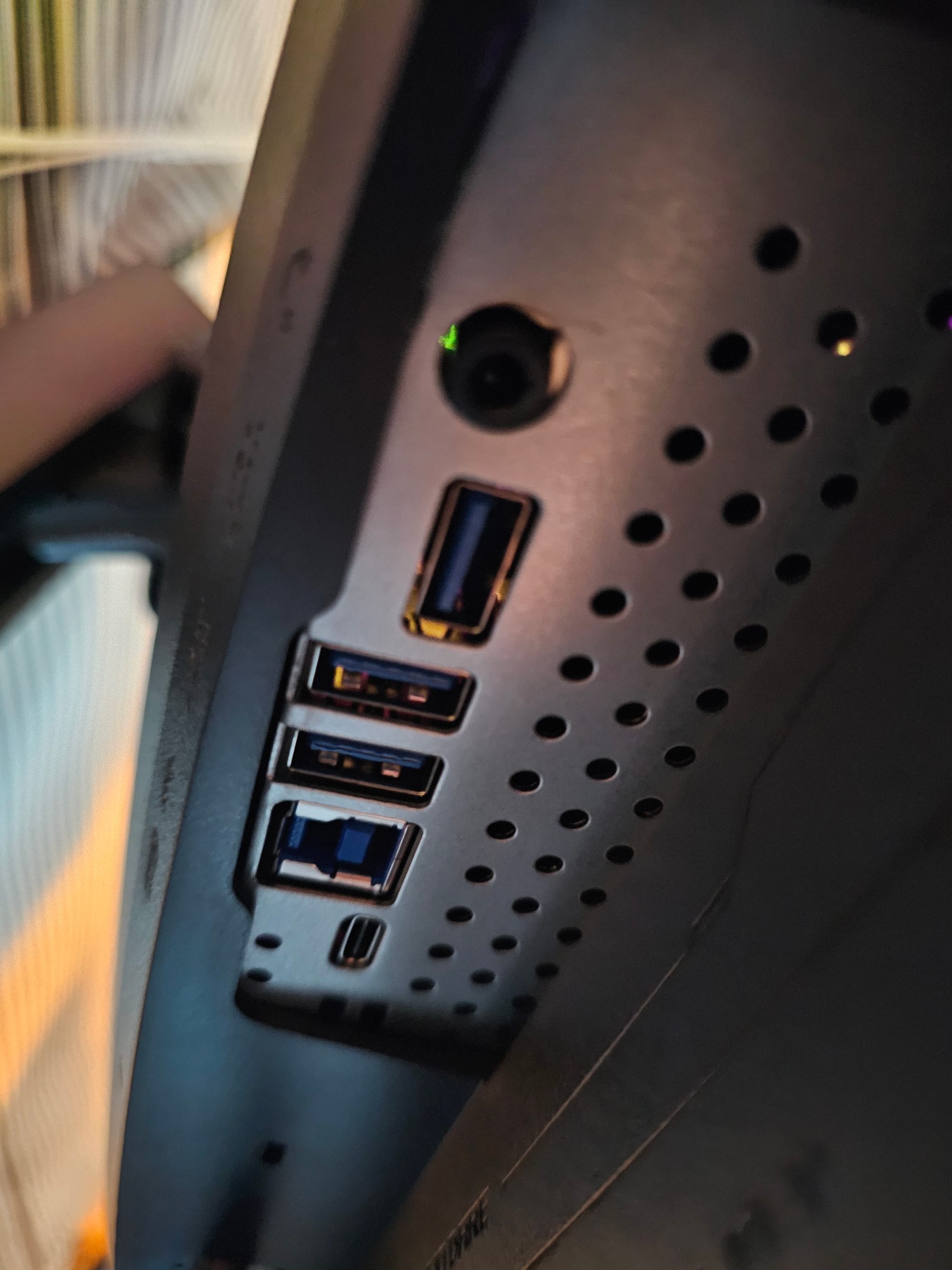
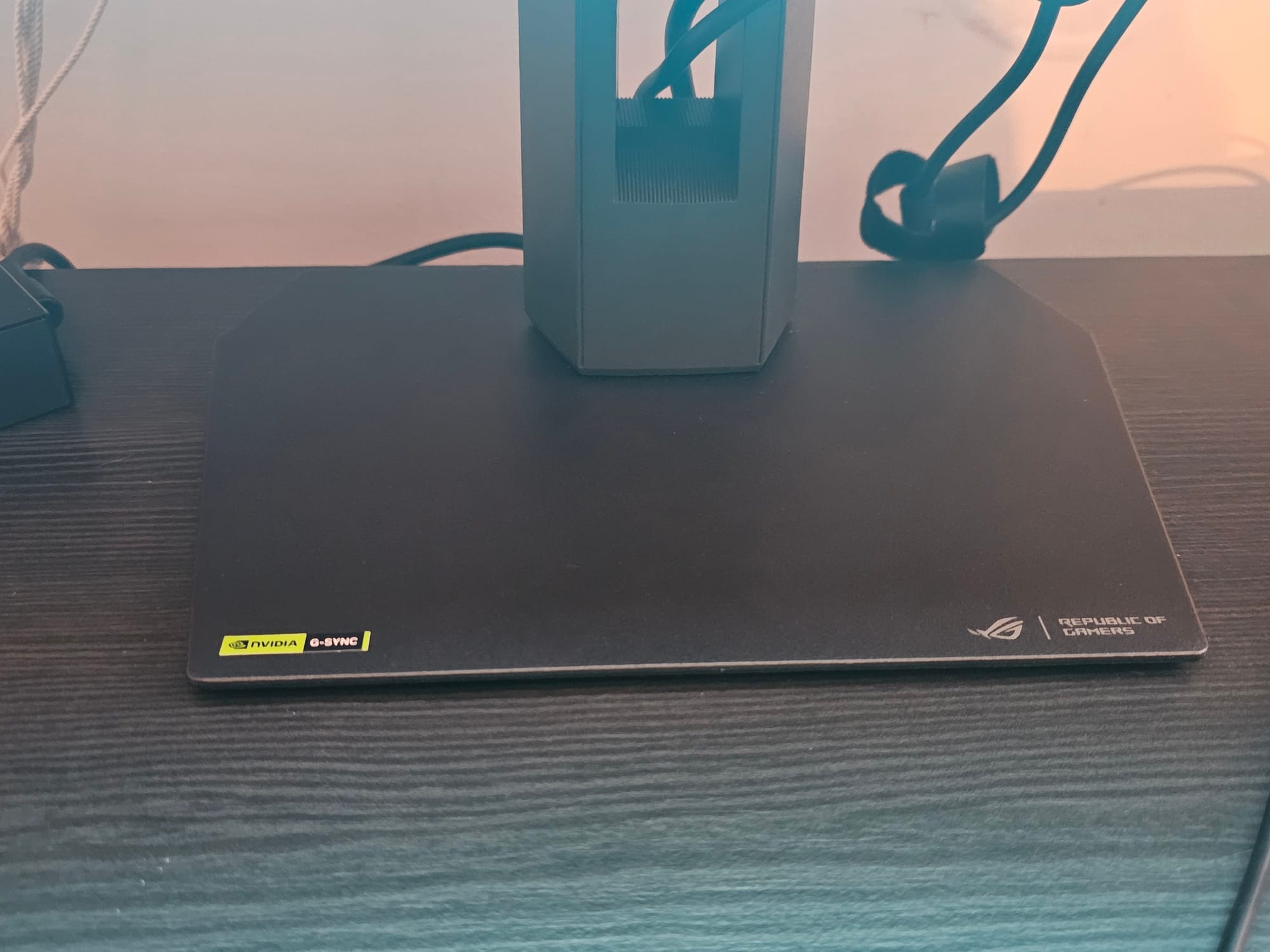
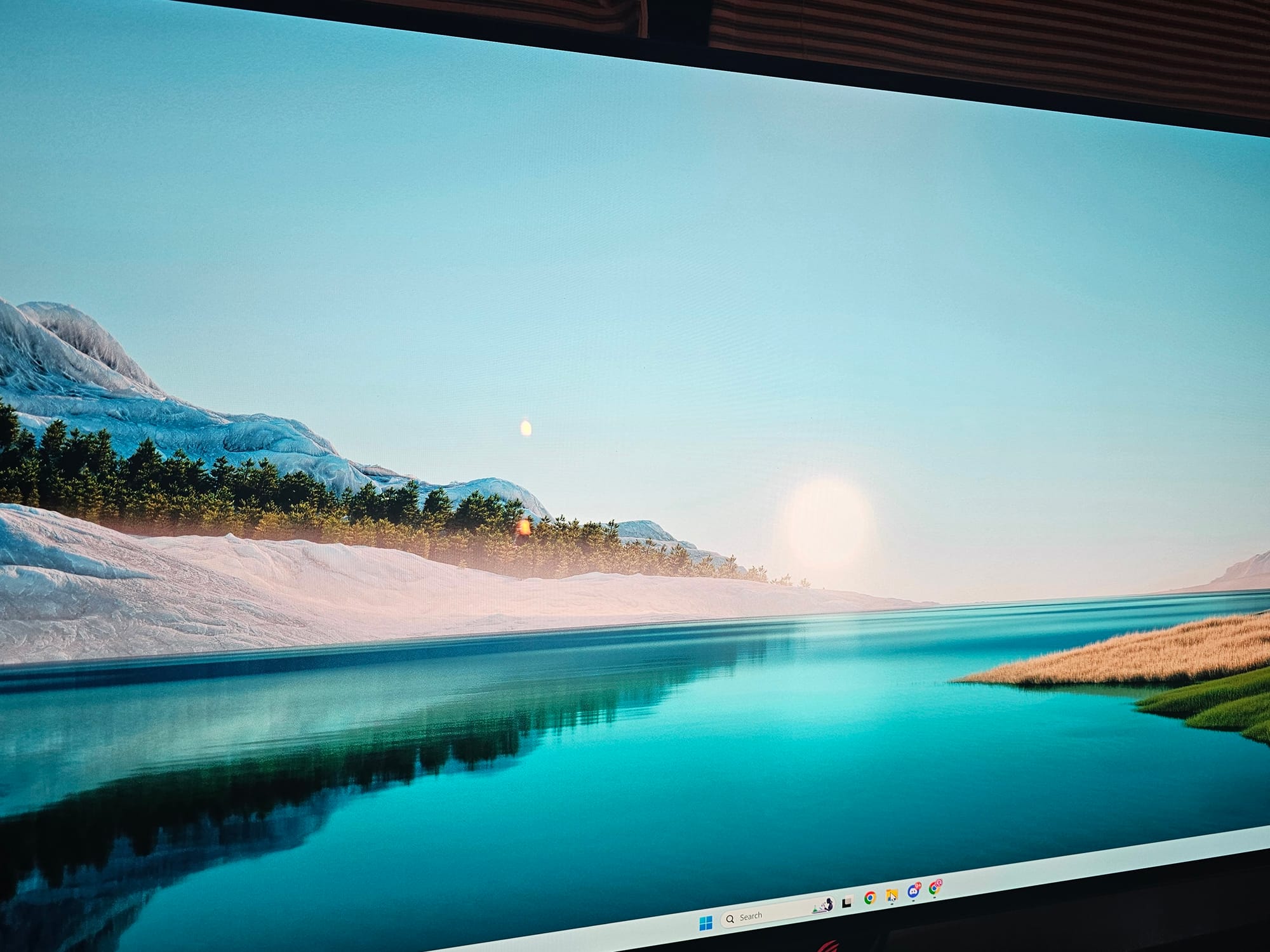
The ports, the base, and the reflection of my lamp in the TrueBlack Glossy OLED display.
I know in the opening I said that this monitor offers 4K at 240hz, but that’s a bit of a lie. You see, this is a dual-mode monitor, meaning for those of you who are willing to sacrifice your 4K for 1080p, you can achieve 480hz with a simple toggle in the OSD menu. Though, you may need to mess with some settings in Windows after toggling it on. Initially, there were some odd behaviors while switching from 4K to 480hz, like my audio output being changed from my headphones to the monitor, though these didn’t persist. While switching from 4K to 1080P is very much the visual equivalent of brushing your teeth then drinking orange juice, the decrease in visual fidelity stings a lot less when it’s doubling the already very high refresh rate. This monitor also supports various aspect ratios, with 27 inch and 24.5 inch simulations available, giving that 1080P 480hz mode a better home. These features lend to the monitor's versatility, adapting between competitive gaming, single player experiences, and media consumption. The XG32UCWMG also supports HDR, making cinematic moments in shows and video games all the more breathtaking.
On the note of the OSD Menu, there are tons of settings to tweak and play with, allowing the user to get this monitor’s many features calibrated to their liking. The OSD Menu tab that protrudes from the bottom of the screen has two large buttons on the back, one on the left and one on the right. The left button allows users to quickly toggle the dual mode on and off, while the right button turns the monitor on and off. Between the two buttons and towards the top of the menu tab is a third button for OSD navigation that can be pressed to open the menu and clicked up, down, left, and right to navigate. The menus are: Gaming, Image, Color, OLED Care, Input Select, Pip/PBP, Lighting Effects, MyFavorite, and System Setup.
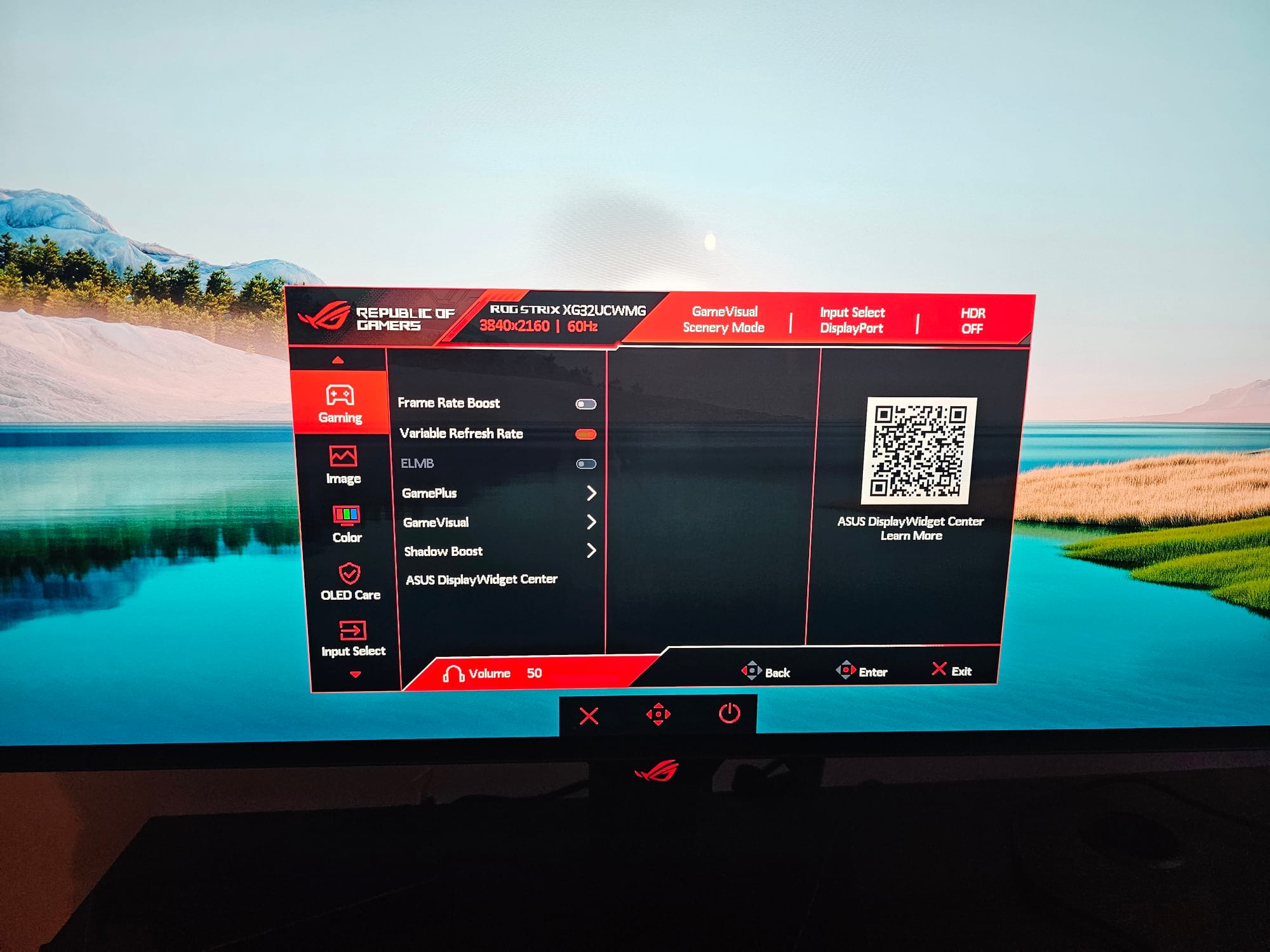
The gaming menu allows access to frame rate boost, variable refresh rate, and ELMB, as well as submenus like GamePlus, which offers built-in crosshairs, a sniper mode with various zooms, an FPS counter, and more. The GameVisual submenu allows you to select the visual mode suited for your favorite game genre or media experience, whether that be MOBAs, FPS, Cinema, RPG, and more. Then there’s the Shadow Boost options, which enhance visibility in shadows, making it easier to spot hidden enemies—FPS players rejoice, we have rat hunting tech!
Then there are the Image and Color menus, which offer adjustments for brightness, contrast, saturation, color temp, gamma, OLED Anti-Flicker, HDR, blue light filters, display color space options like sRGB, DCI-P3, and Wide Gamut, and even individual saturation levels for Red, Green, Blue, Cyan, Magenta, and Yellow. If you’re not happy with how things look right out of the box, then tweak away!
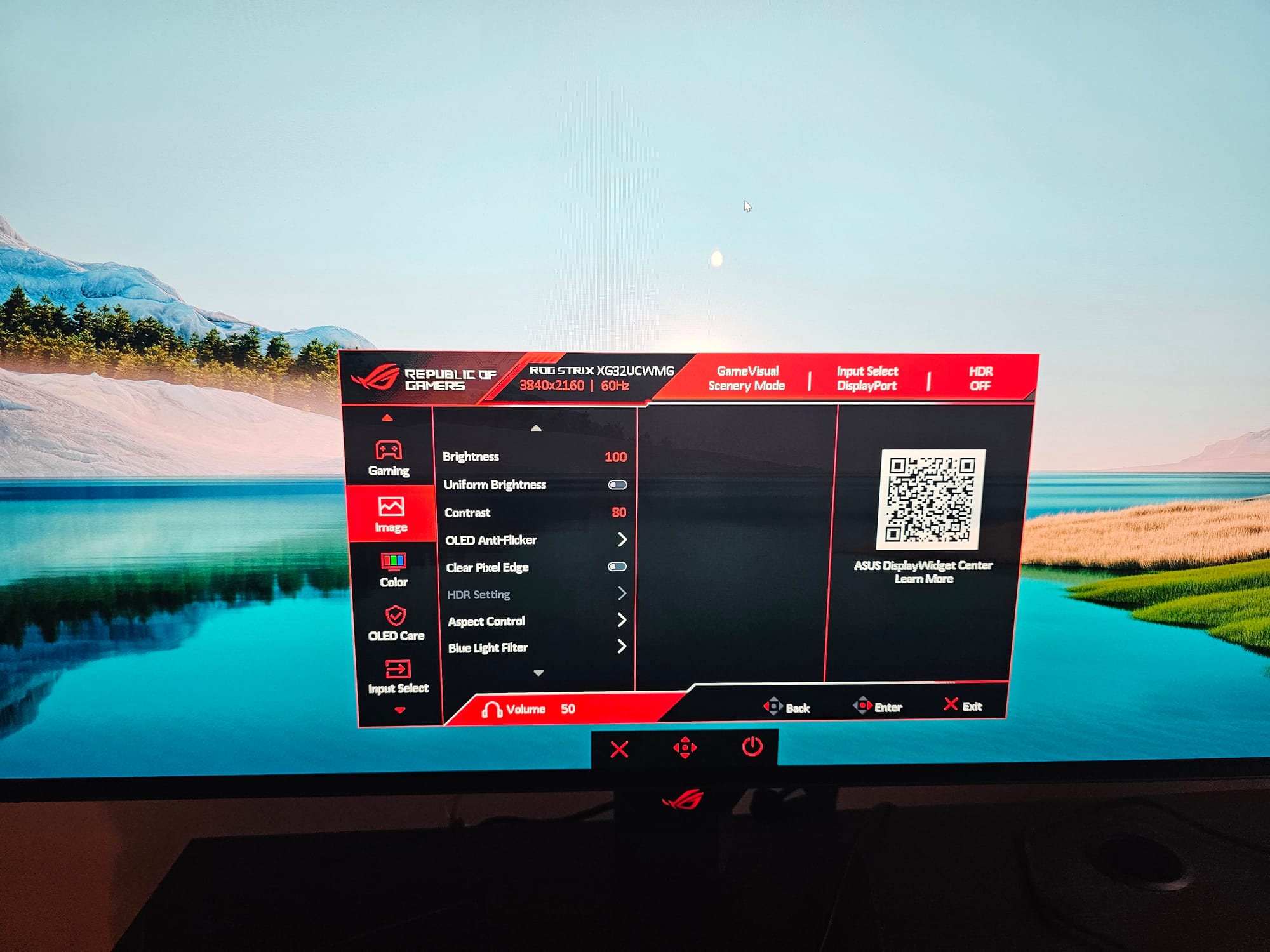
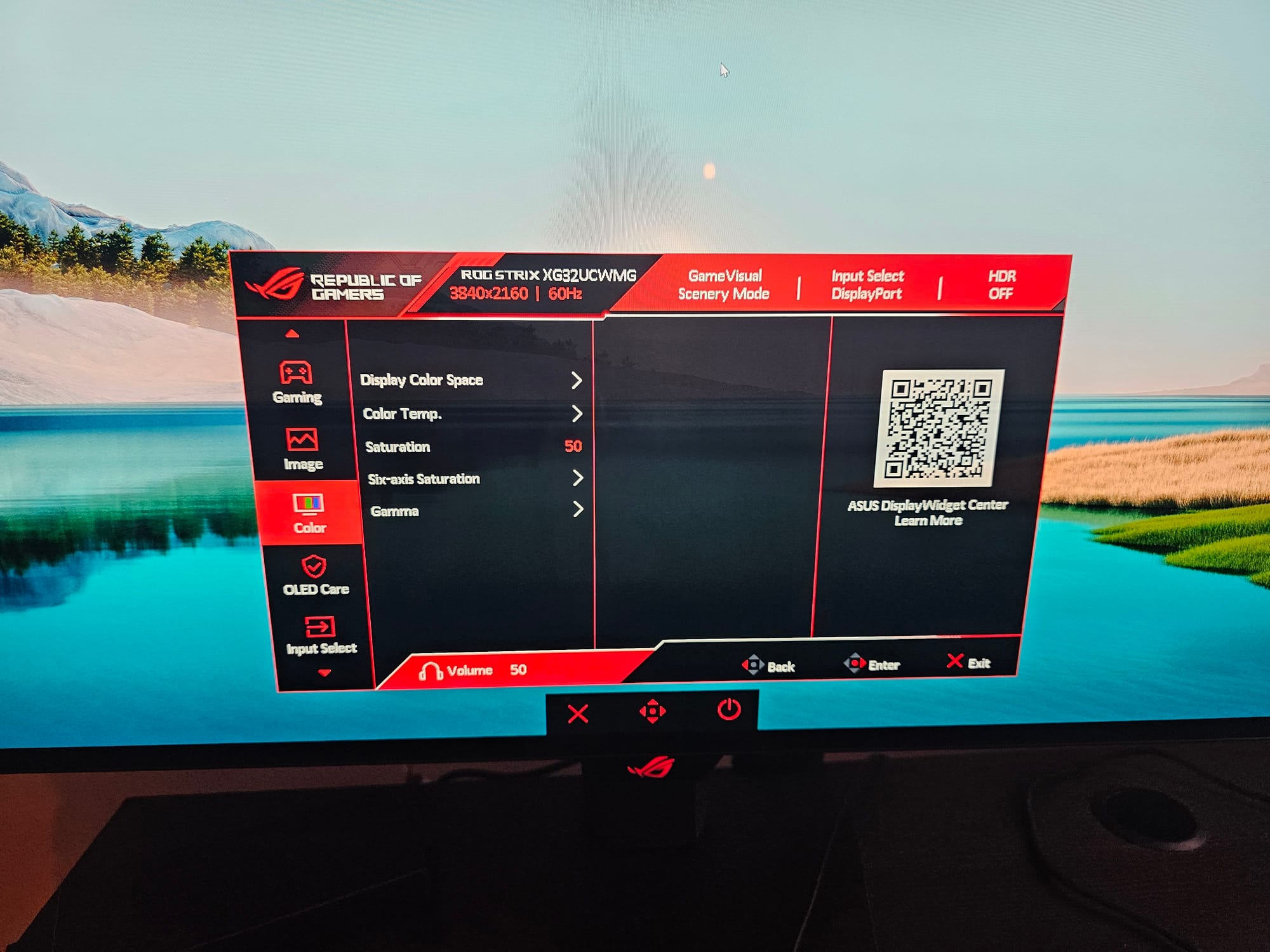
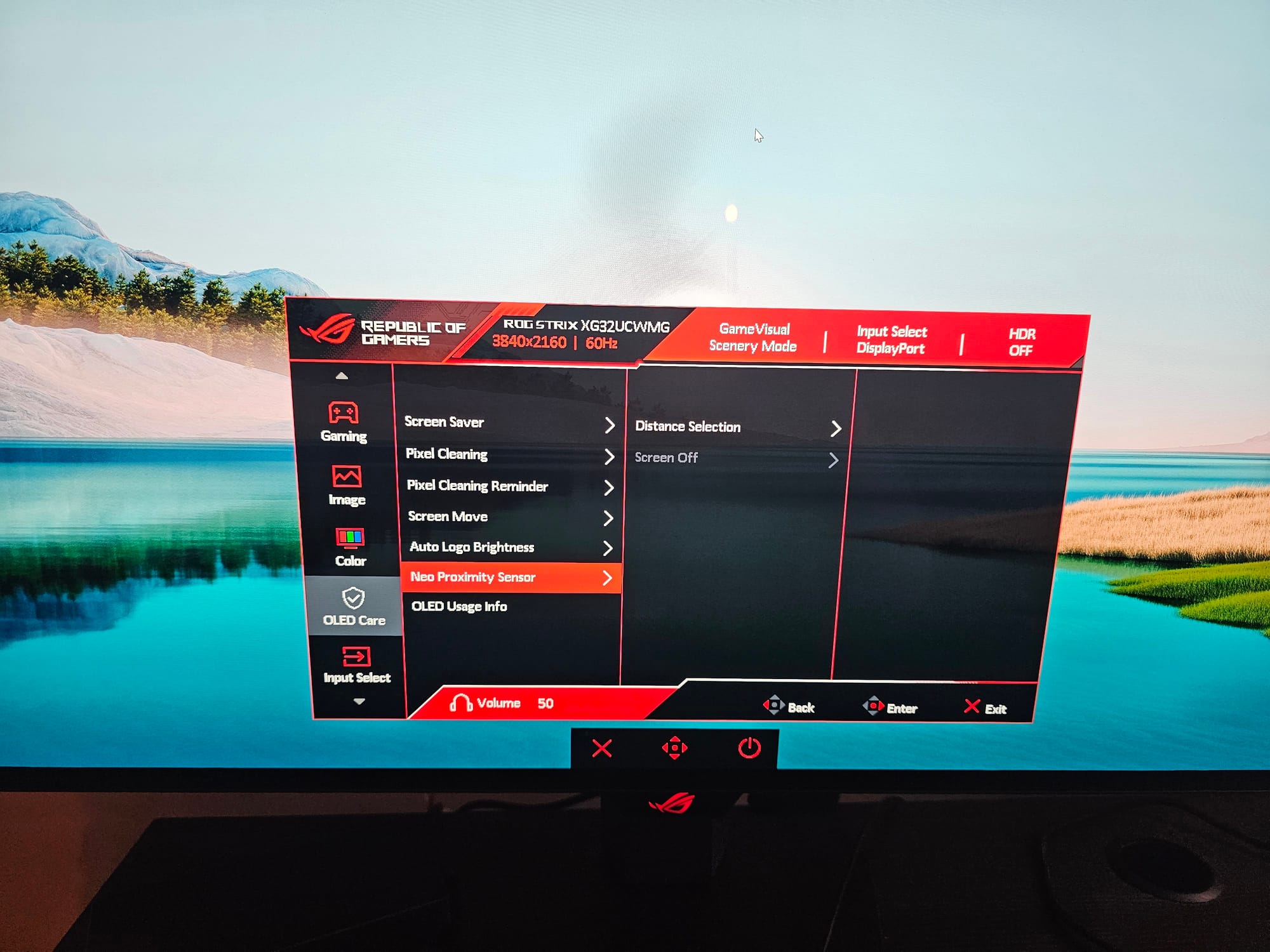
Given that this is an OLED display, some of you might be worried about burn-in, which is a valid concern for a product that costs over a thousand dollars at the time of this writing. That’s where the monitor's built-in burn-in protections come into play, with a heatsink and airflow architecture designed to boost heat dissipation. Then there's the OLED Care menu, with an arsenal of settings to help fight burn-in. A few of these tools alter the brightness of desktop logos, the taskbar, and the brightest areas on your screen. There’s even a Pixel Move feature that subtly shifts which pixels are in use. Then there’s pixel cleaning, which takes about six minutes to recalibrate your screen and runs automatically when the monitor is off. You can even set pixel cleaning reminders for two, four, and eight hours if you think you’ll forget or just never turn your monitor off.
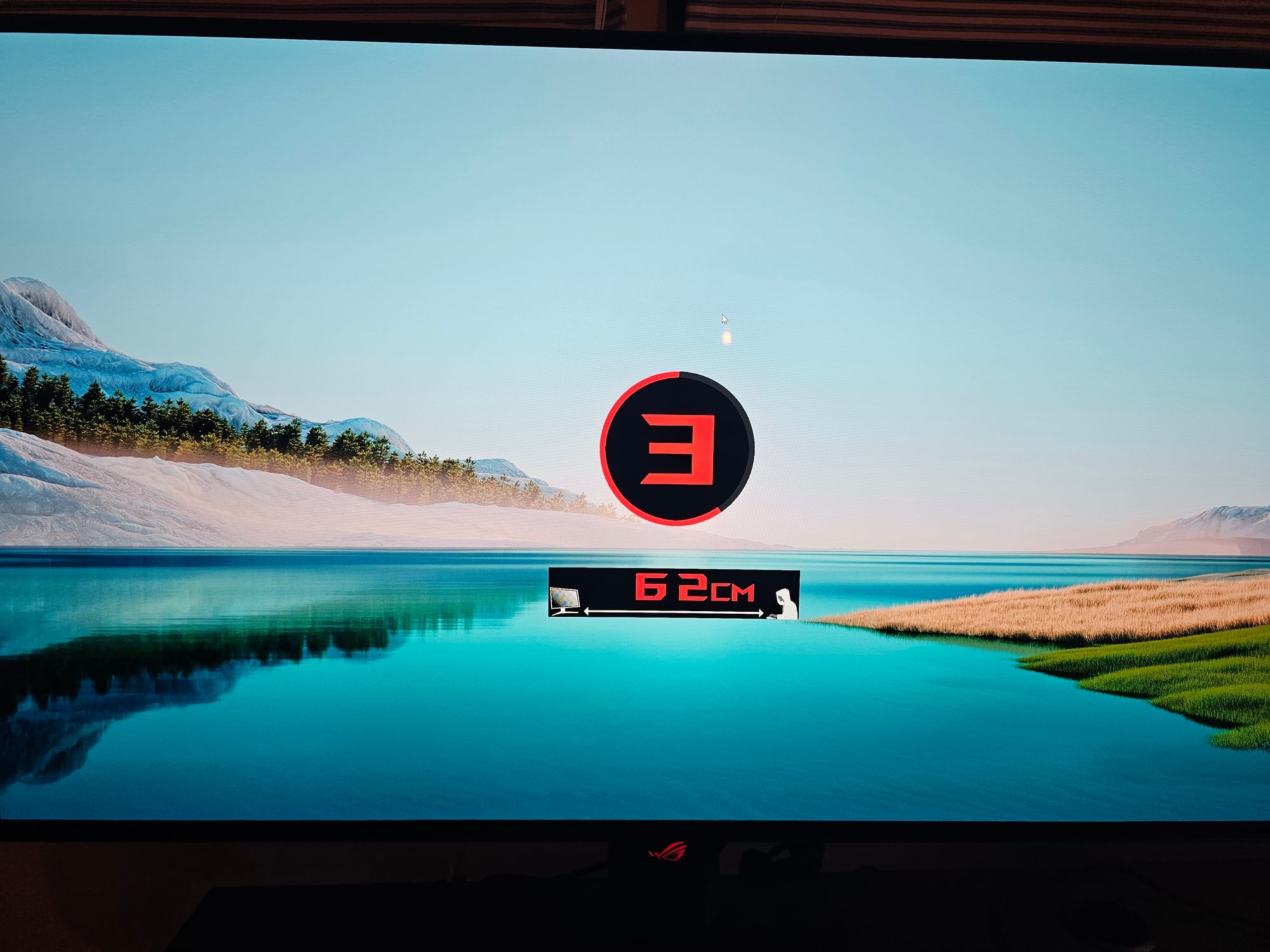
However, the OLED protection setting that most interested me when I first heard about it had to be the Neo Proximity Sensor, which is supposed to detect the user’s presence and turn off when they’ve left the monitor. The sensor settings allow users to customize the distance at which it detects them, as well as how long it takes to turn off. In my experience, the Neo Sensor didn’t really work as intended. I set up the tailored mode so it could analyze my distance from the monitor, set the off time for five minutes away from the screen, then moved far from the sensor and set a timer. After five minutes, the screen failed to turn off. The sensor feature only worked a few times, seemingly randomly, and once while I was at my desk watching anime. This feature could definitely use some work.
The rest of the menu settings do what they say on the can. Input Select is for choosing your input, PIP/PBP is for picture in picture/picture by picture modes for using multiple video sources with your monitor, Lighting Effect is for the RGB logo on the back, MyFavorite allows users to change the functions of the OSD Menu buttons, and System Setup offers various system tweaks, like changing the language, volume of the built-in speakers, toggling the power indicator light on/off, and altering the OSD menu to your liking.
While the OSD menu controls are very convenient compared to other monitor control schemes out there, there is a desktop application called DisplayWidget Center that offers access to all of the same settings—plus a few more—for those who don’t want to fumble around with the buttons. DisplayWidget Center also offers extra customization options, allowing users add key binds for various functions like Shadow Boost, brightness, saturation, and more. Then there's the App Tweaker, where you can match a GameVisual mode to an application or game. For example, you could set Battlefield 4 to open in FPS mode and Assassins Creed Shadows to open in scenery mode, or vice versa, or any mode of your choice. You can even set a mode for your browser. Alternatively, you could set your GameVisual mode to AI Visual, which allows you to check boxes for the modes you want, then the AI adapts to your situation. I tried it out in Assassins Creed Shadows, Overwatch, and Helldivers 2. It worked like a charm in the first two games, appropriately changing the visual mode to fit the game. With Helldivers 2, the AI rapidly changed through various modes, which was distracting. In addition, I opted to get notifications when the AI changed which mode was on, but I stopped getting them. I believe users can get the most bang for their buck here by taking the time to tailor each visual mode to their tastes, both for themselves and so that the AI has more to work with.
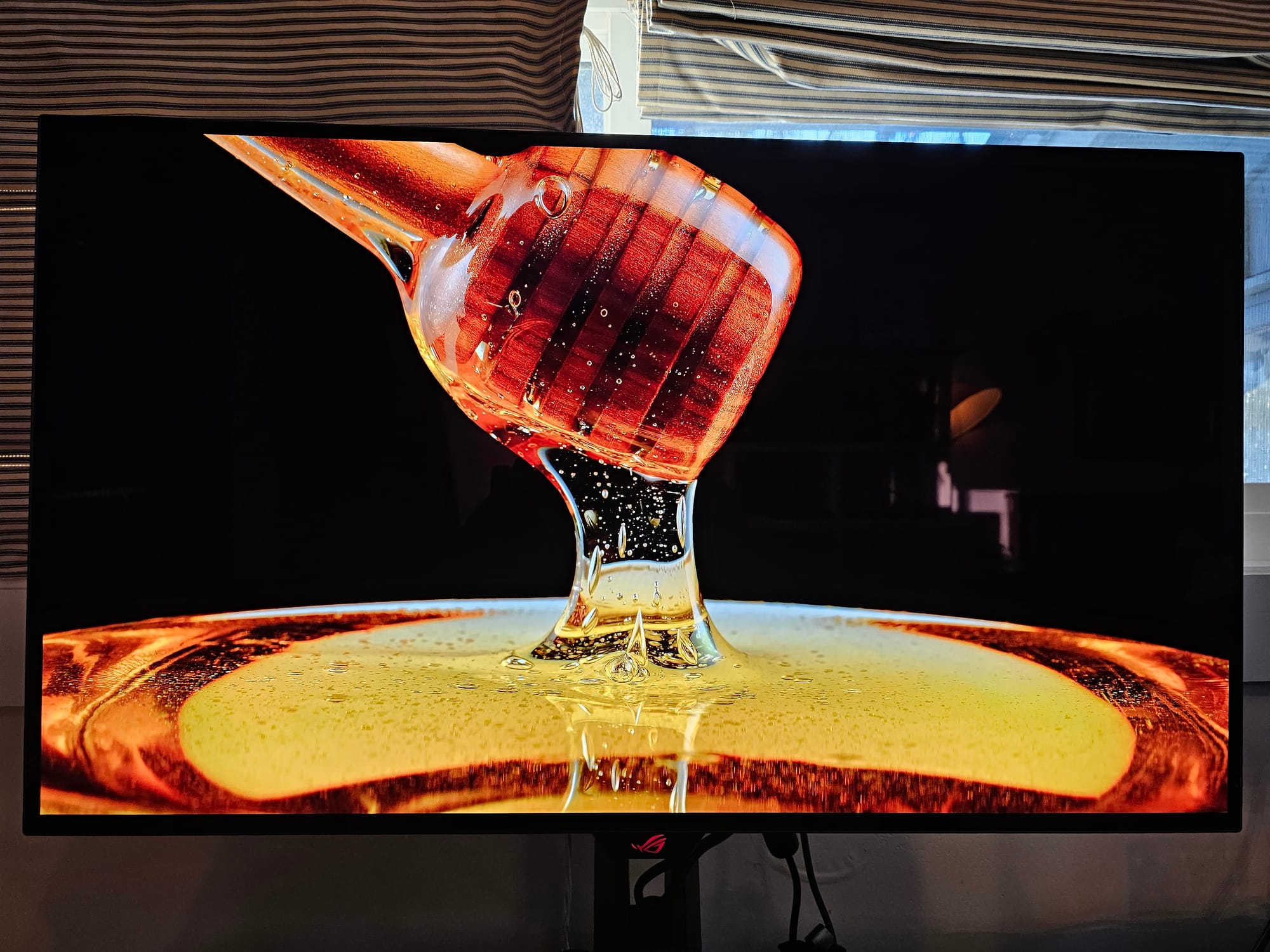


Honey image source, Wine image source, Assassin's Creed Shadows in OLED.
To close out the review, I’d like to touch on the tangible benefits of upgrading from a monitor like the one I had, a 1080p 144hz TN display, to a monitor like the Asus ROG Strix OLED XG32UCWMG. Whether you spend your time playing competitive FPS or chill single-player titles, watching shows, or editing videos, you’ll be blown away by the vivid colors, smooth motion, and true blacks. I really can’t stress those vivid colors enough. The red Asus logo that appears when you power on the monitor looks so good with the glossy panel; it’s borderline wet, like it’s about to bleed out of the screen. Then there’s the performance side. I’ve heard some people say, “Going from 145hz to 240hz is barely noticeable.” But I’d wager many gamers will immediately notice the difference in smoothness if they’re competitive. Then again, that could be down to the 0.03 millisecond grey-to-grey response time annihilating ghosting and motion blur. Regardless, this monitor is a beast in every sense of the word.
Asus ROG Strix OLED XG32UCWMG
Excellent
The Asus ROG STRIX OLED XG32UCWMG is a well-built monitor with a striking display that can tank quite a bit of ambient light. Despite OLED's reputation for burn-in, plenty of adjustable safeguards are now in place to prevent it, on this monitor at least. While the Neo Proximity Sensor is a bit of a question mark, pretty much everything about this monitor gets top marks.
Pros
- Insanely good image quality
- Dual mode offers great versatility
- Arsenal of OLED protection features
Cons
- Minor hiccups setting it up
- Neo Proximity Sensor is finicky
This review is based on a retail copy provided by the publisher.